If you want to create a new vocabulary list, this blog explains the step by step process for you. If you already have a vocabulary list and want to convert it into a presentation slide, you'll find steps for that as well.
.avif)
There’s no shortage of AI tools that can help you generate teaching resources like vocabulary lists. Tools like ChatGPT or Claude are often the first ones that come to mind.
But there’s a practical problem with these AI tools that teachers quickly run into.
Every time you need a new resource, you’re back to square one - re-prompting, reformatting, and reshaping the output so it actually works in a classroom. The tool gives you words, but the teaching work still sits with you.
If you’re using AI to create vocabulary lists, the real value comes when that list doesn’t stay a list. It should become something more, slides for a lesson, a worksheet for practice, or a handout students can revise from. That’s how one piece of effort turns into multiple usable resources over time.
That’s where Monsha AI fits in.
.avif)
With Monsha, you can start by generating a vocabulary list and then seamlessly convert it into PPT slides, worksheets, or other classroom-ready materials, without starting from scratch each time.
In this blog, we’ll walk through how to generate vocabulary lists using AI and turn them into structured presentation slides using Monsha.
Before you convert vocab lists into slides, let’s understand how you can quickly generate one with Monsha.
Generating vocabulary lists with Monsha is super easy. It literally takes 3 minutes:
Head over to Monsha and sign up or log in. It takes just two clicks.
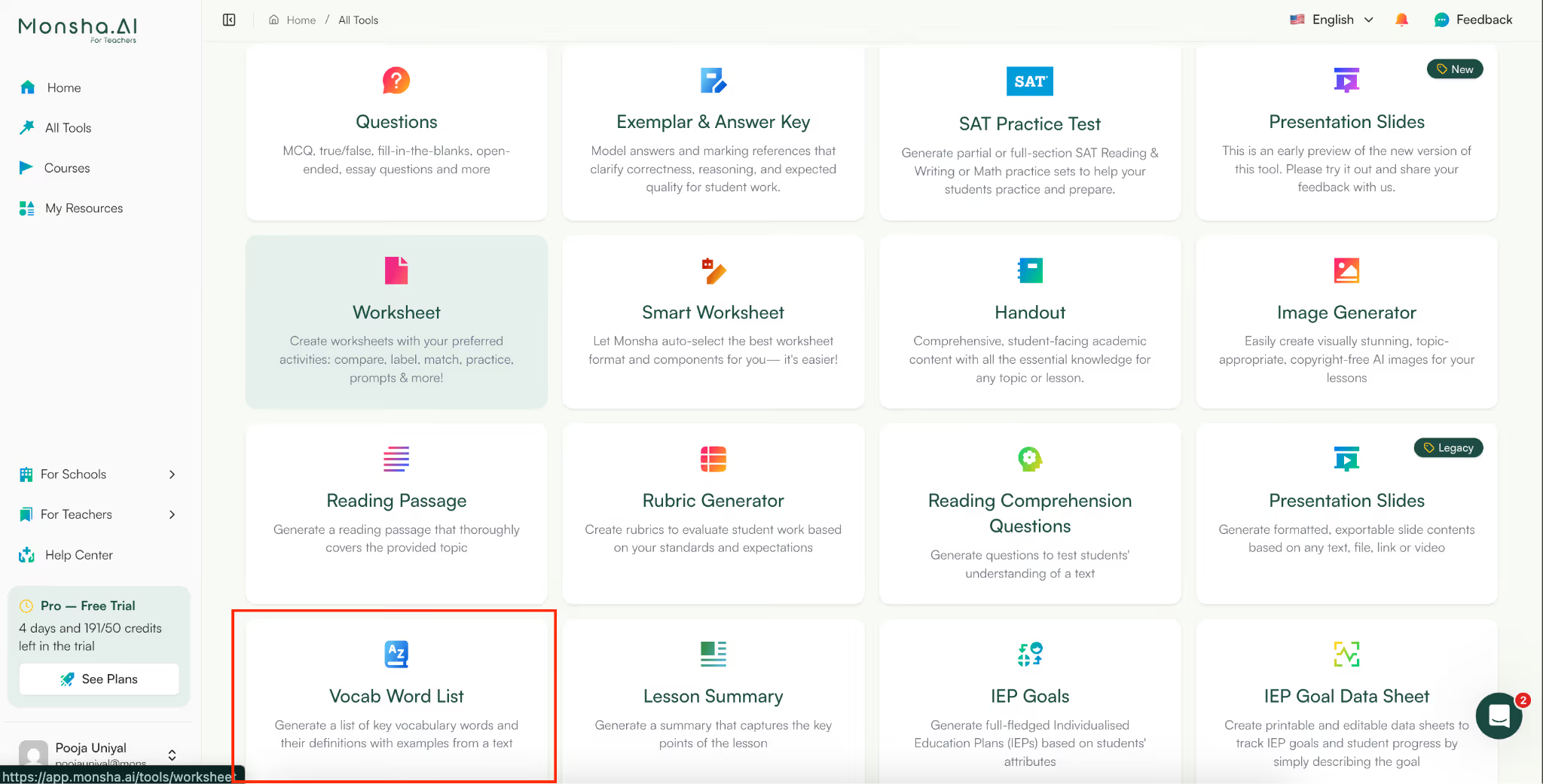
You’ll see all the tools in one place. Select ‘Vocab Word List’ from the menu. It will lead you to the tool.
Now you’re on the vocabulary creation page. If you want, you can attach your vocabulary list to a course, unit, or lesson.
This step is optional, but it helps if you want your slides to:
If you’re just exploring, you can skip this and move on.
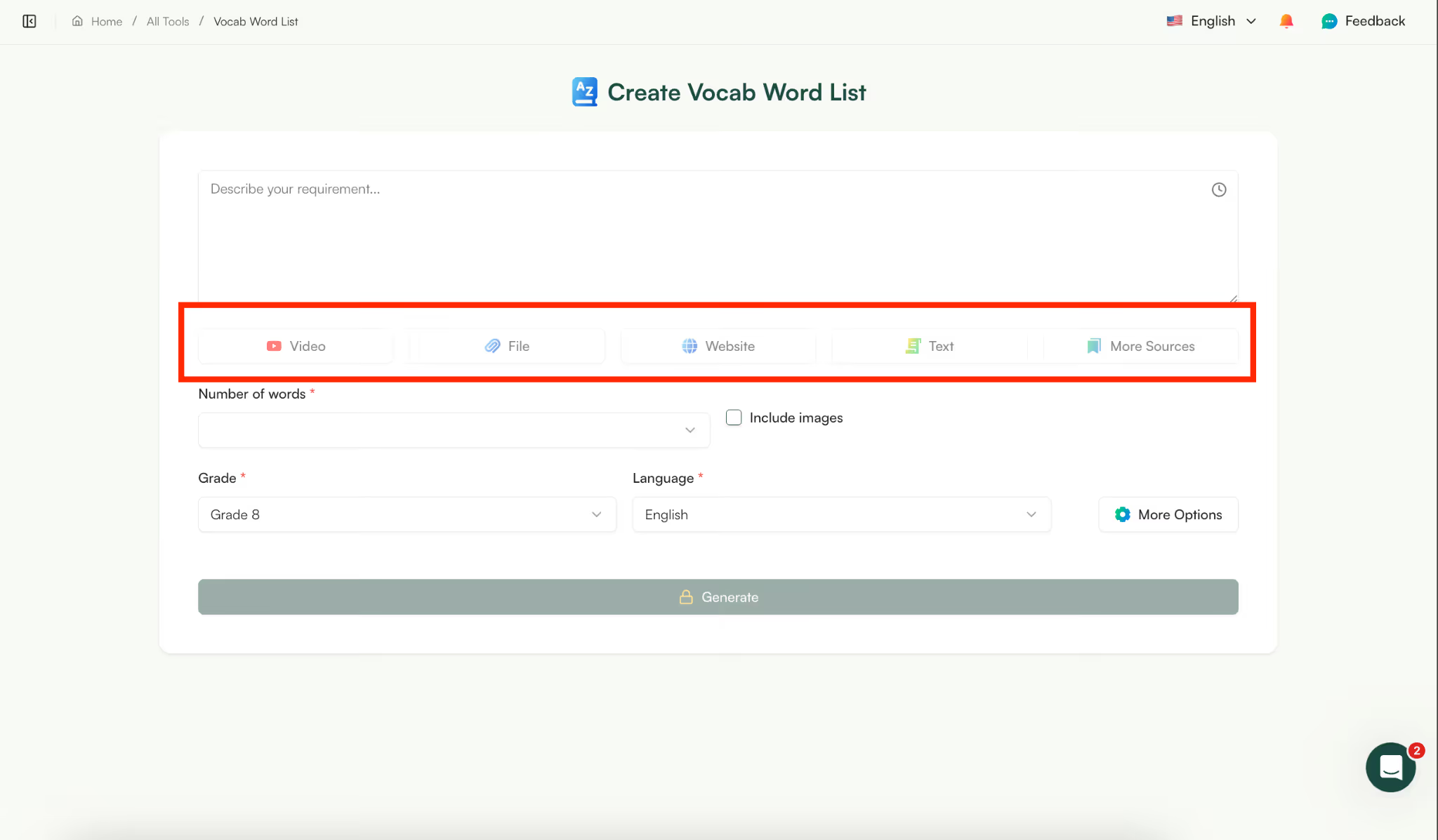
Once you’re inside the tool, you’ll see several options - Youtube video, file, website, text and more sources.
This means that if you’re using Monsha to generate a vocabulary list, you can use anything as reference - video link, document, website link or any previous resource. Monsha will use your selection as a reference and create a vocabulary list based on that.
Unlike other AI tools like ChatGPT, Monsha doesn’t hallucinate, so your content will be 100% based on your reference with no extra fluff that you need to edit later.
If you have nothing to add as a reference, just write a topic to generate a vocabulary list or use a prompt like “Create a vocabulary list for photosynthesis”.
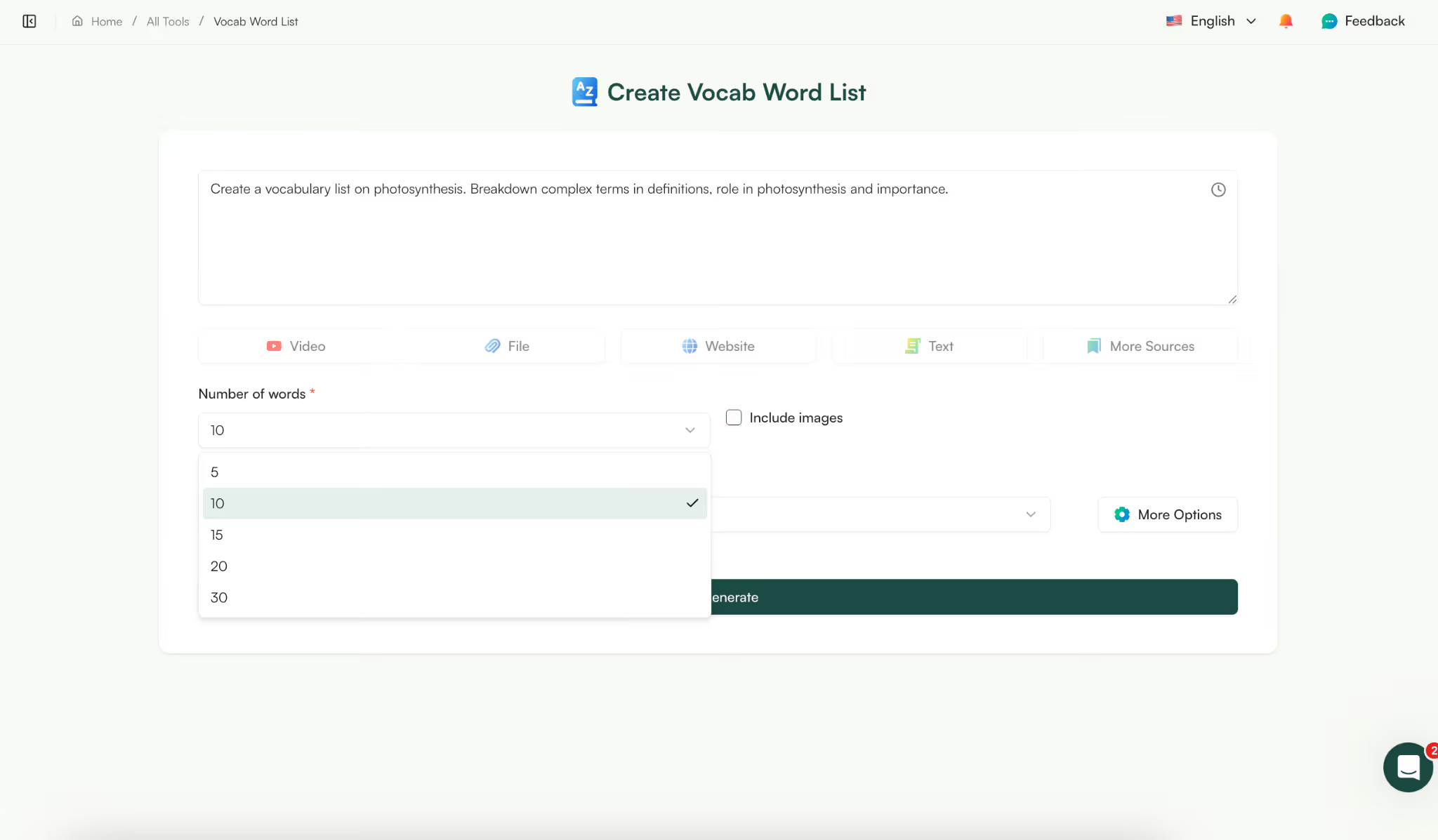
Now choose the number of slides. Whether you want a short intro deck or a full classroom presentation, this controls how detailed your AI-generated slides will be.
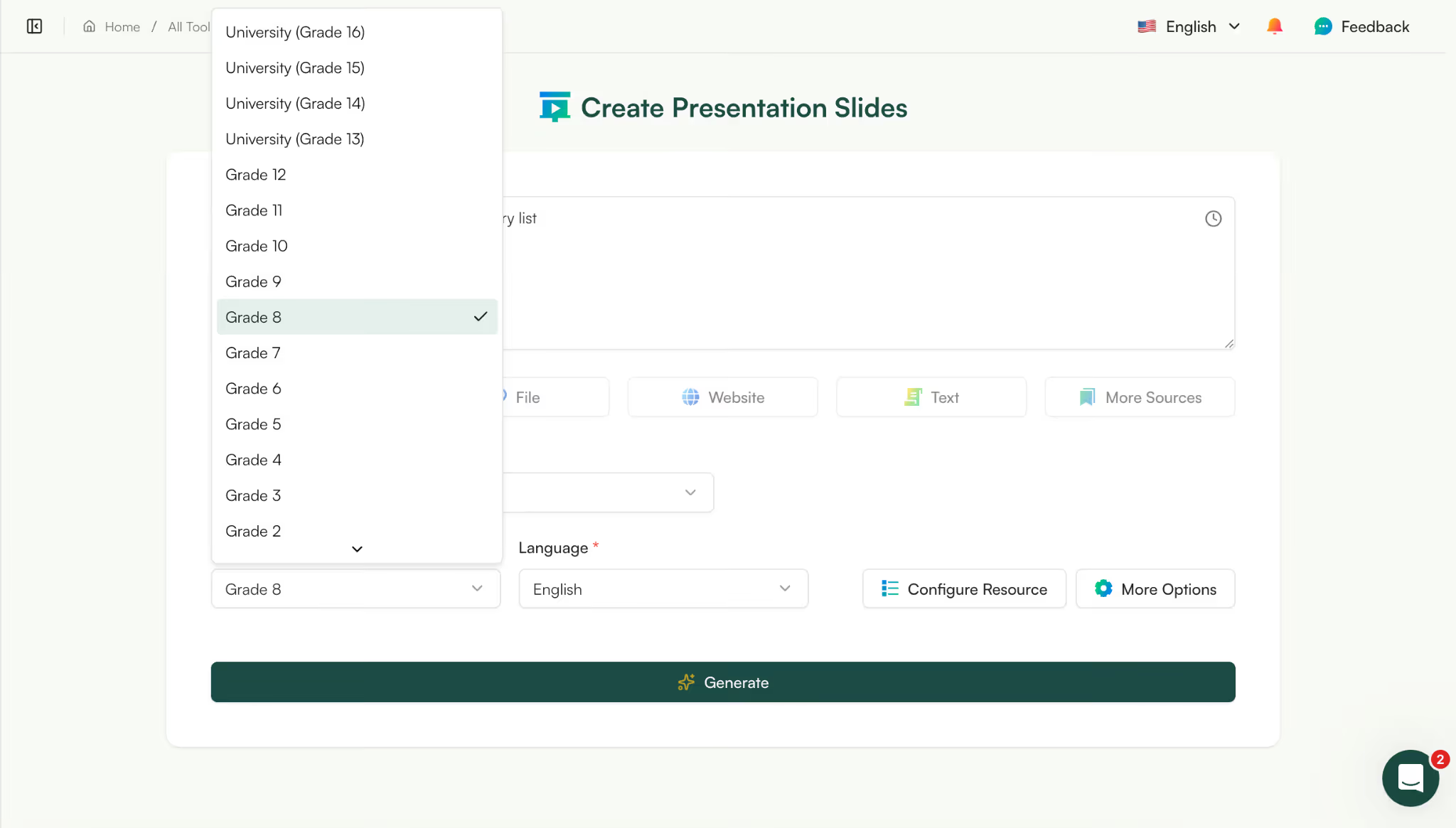
If you didn’t connect a course earlier, Monsha will ask for:
This helps the AI vocabulary generator create slides that match your students.
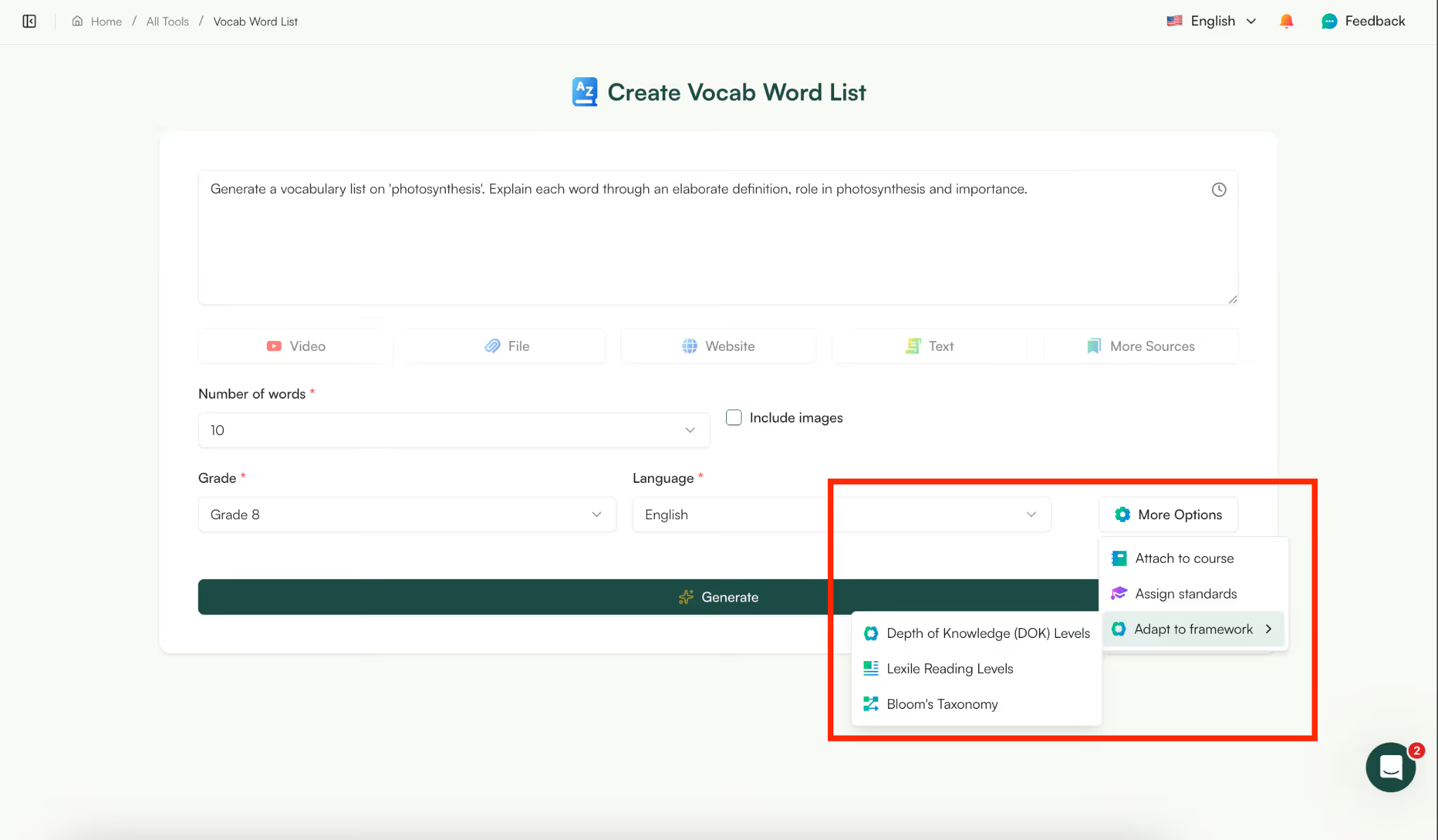
You can differentiate your resource even more by choosing:
This helps when you’re differentiating content or planning assessments.
If you need more tips on differentiating your teaching resources, you can join our Facebook community.

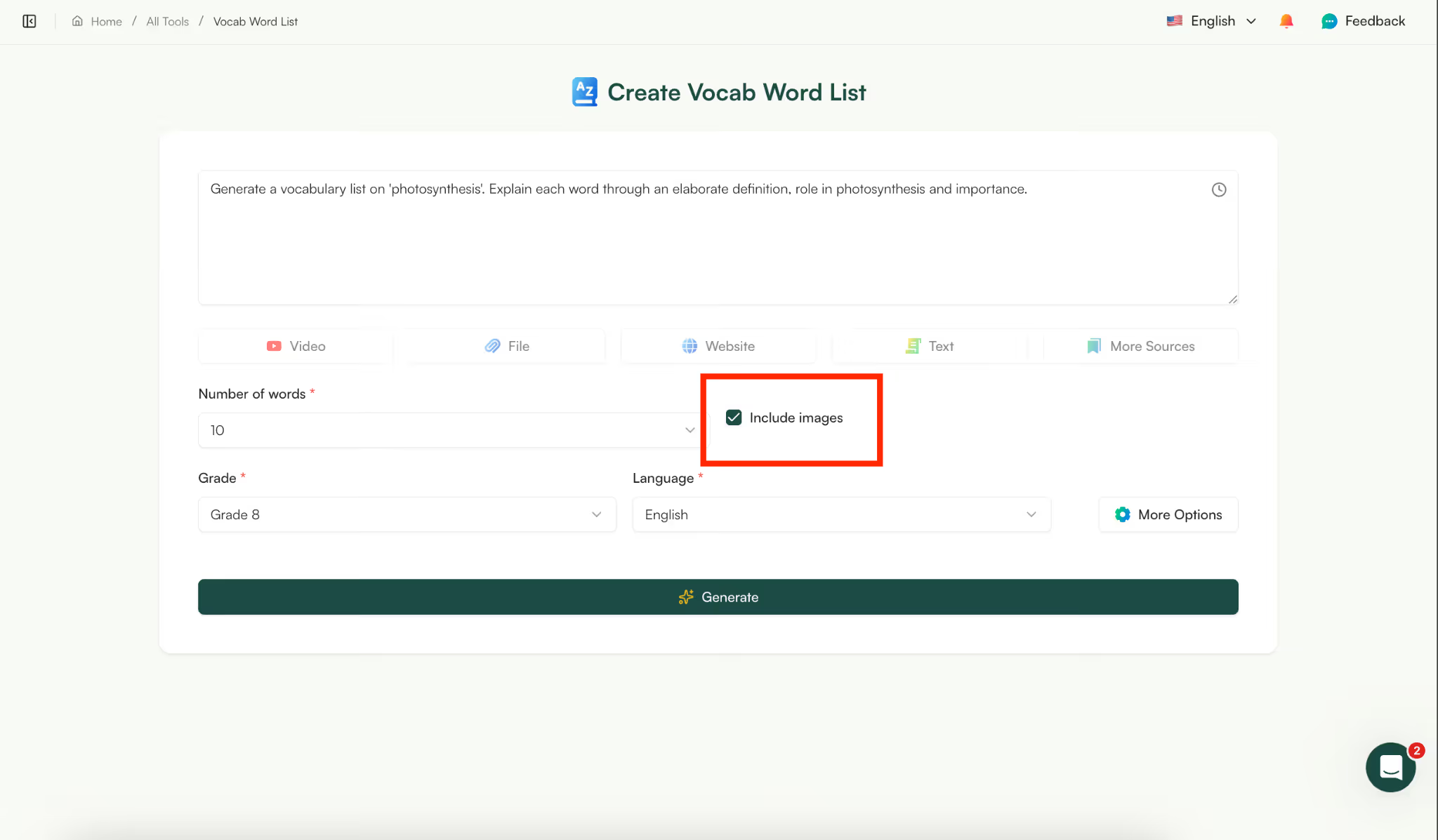
At this point, you can choose to include images in your vocabulary list. The vocabulary list generator will automatically generate images based on each word.
After you click ‘generate’, Monsha’s Vocabulary Generator will share a list of vocabulary words with you.
.gif)
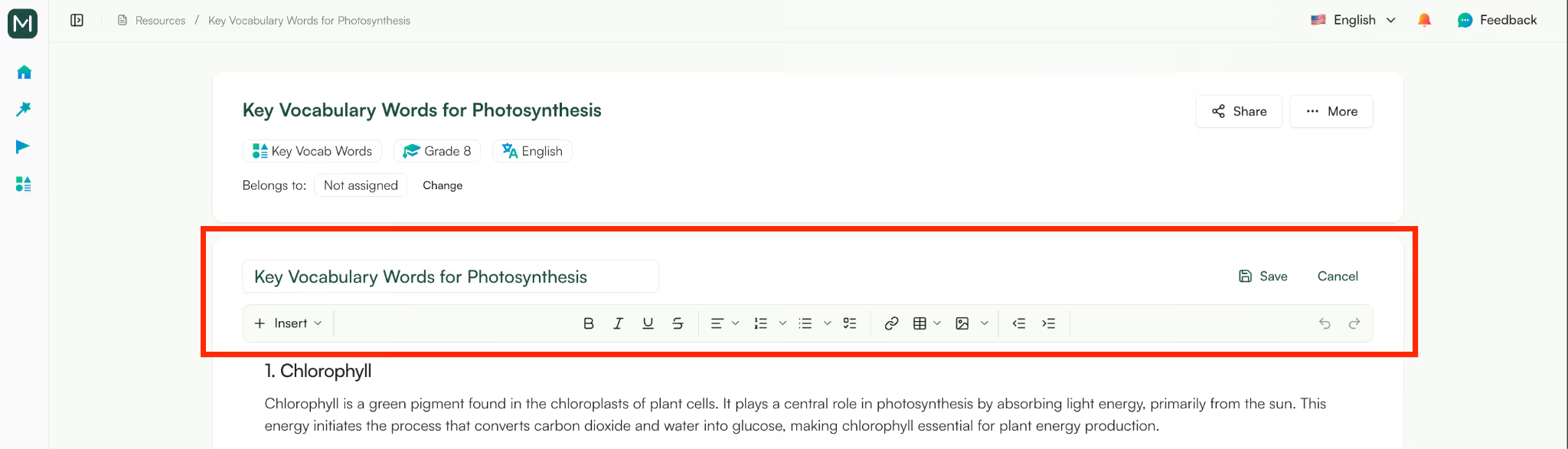
Now, you’ll get a list of vocabulary words from your chosen topic with images. Monsha’s editor lets you tweak text or images. You can also add tables, bullet points or URLs to make your vocabulary list more extensive.
There’s a quick actions tab beneath your resource where you can prompt to make any changes in your vocabulary list.
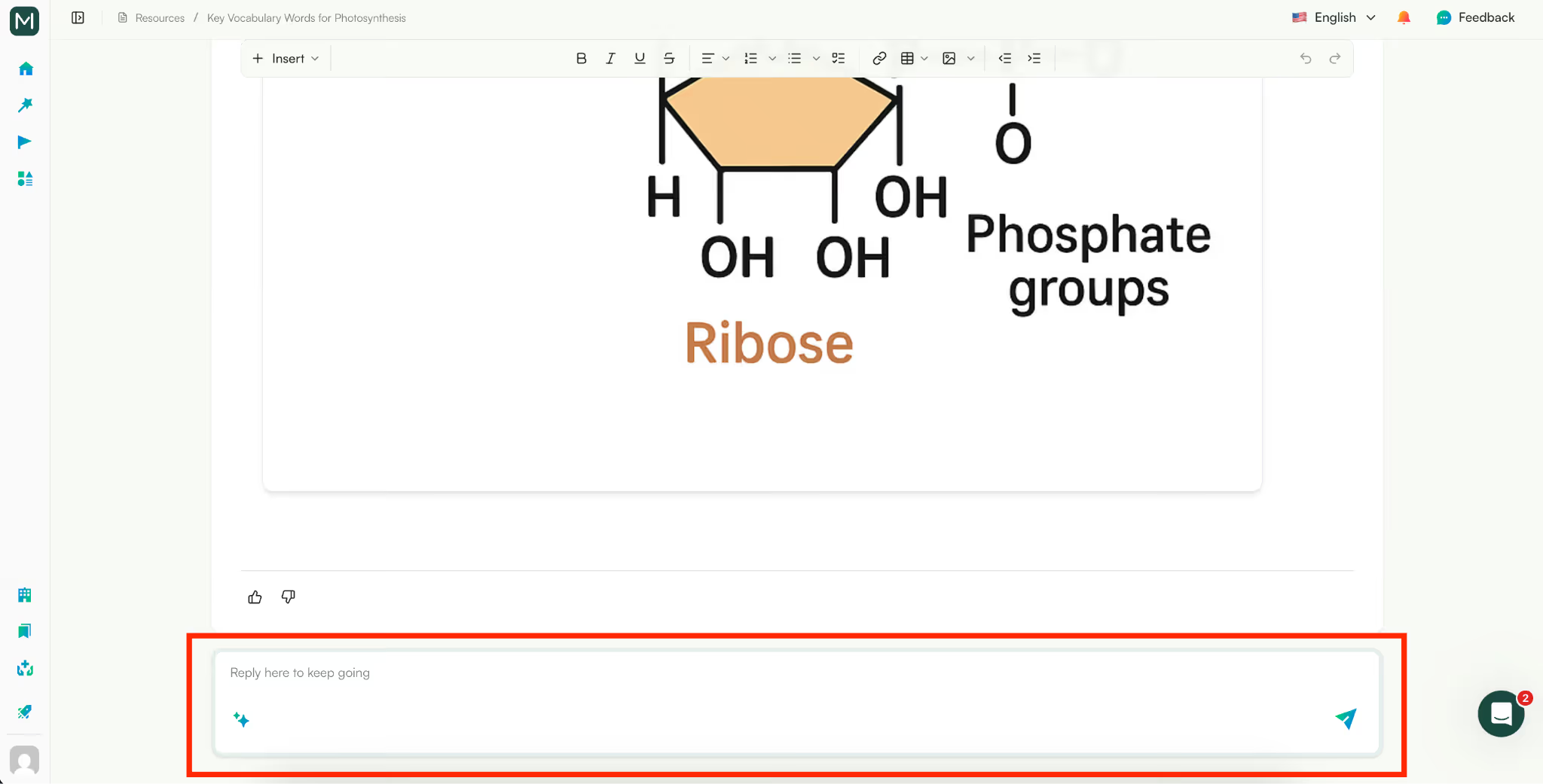
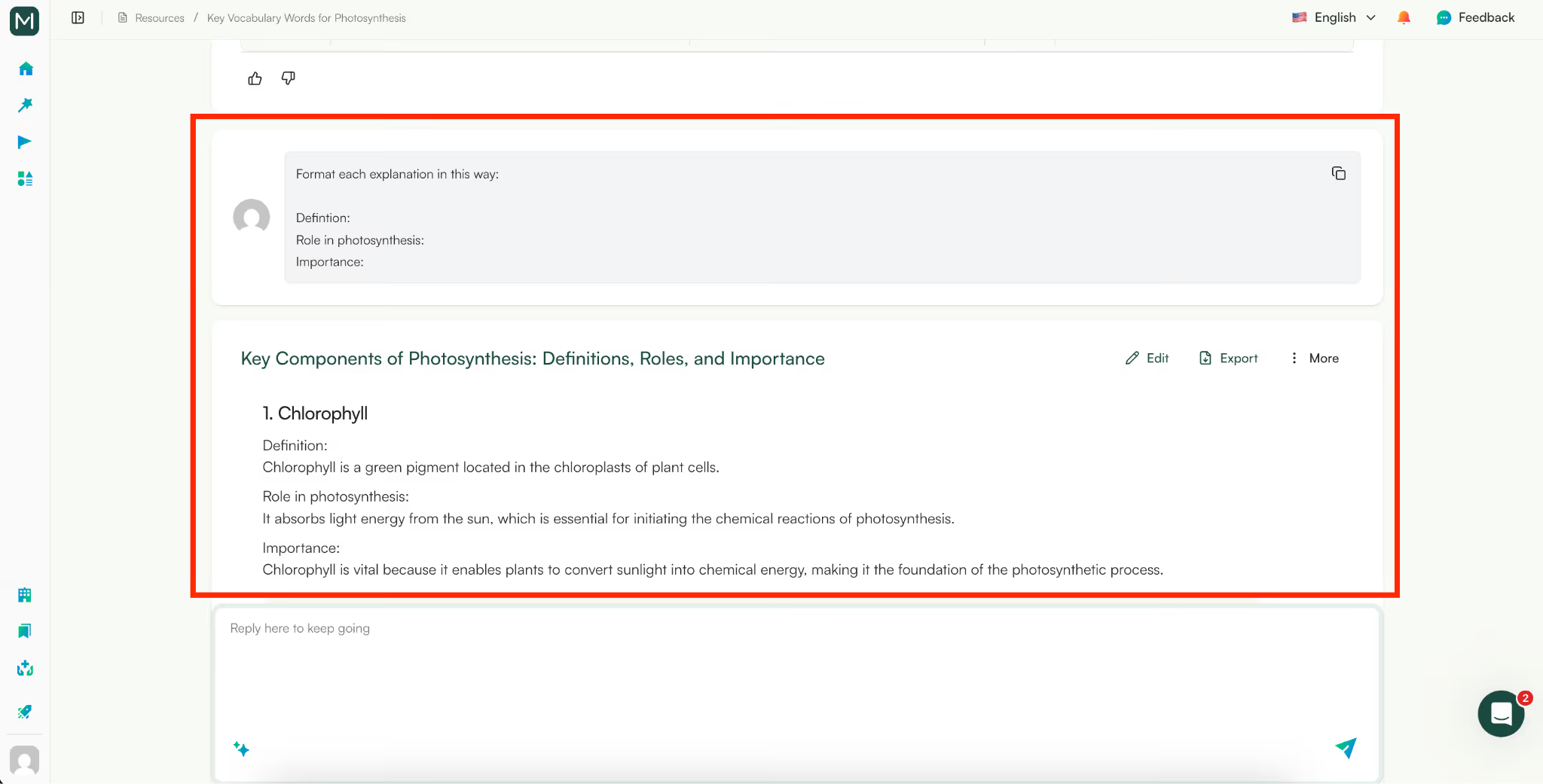
For example, I wrote this prompt to make my vocabulary list a little more extensive.
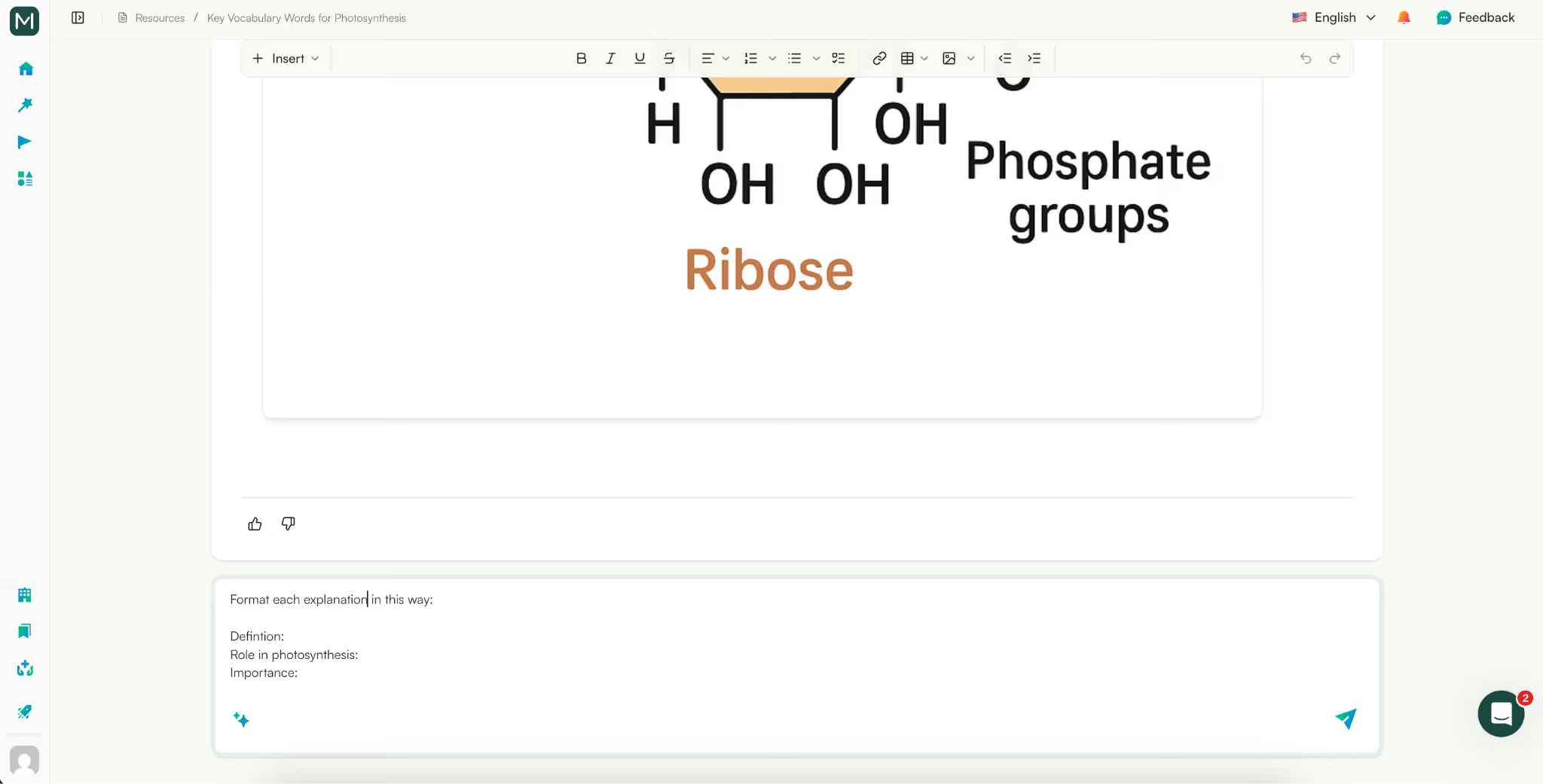
And Monsha instantly applied these changes.
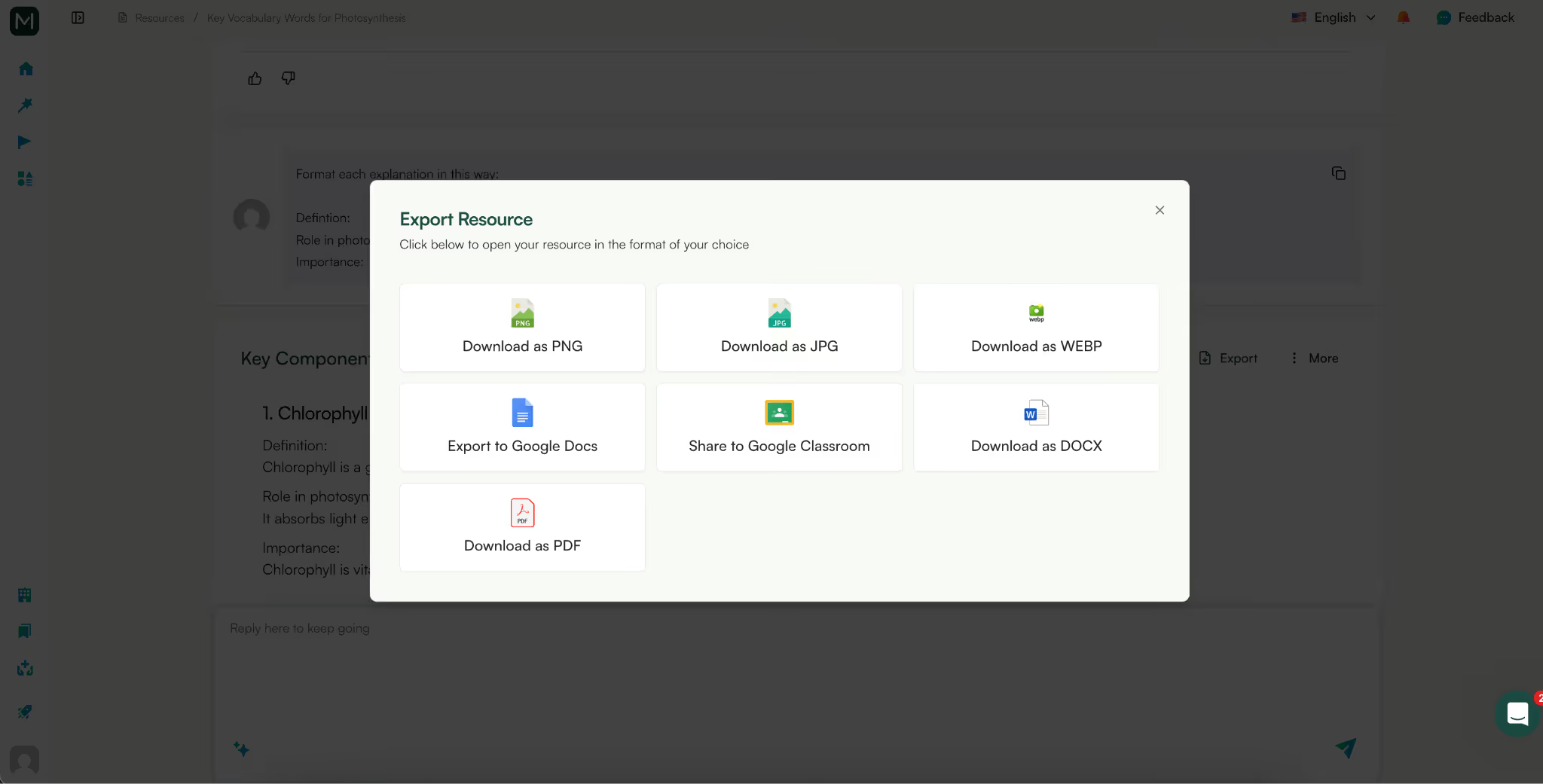
Now, if you’re satisfied with the vocabulary list generated by Monsha, you can export to Google Docs and Google Classroom. You can also download it directly as PNG, JPG, WEBP or PDF.
This whole thing literally takes 3 minutes from prompting to export. And you get a fully customized vocabulary list for your preferred topic. Even if you generate one vocabulary list every day for the whole week, it’ll take only 18 minutes in total.
Imagine how much time you save. This way, you can generate any teaching material with Monsha AI.
You can start generating vocabulary lists with Monsha right now. It’s totally free.
Now that you can have created a vocabulary list with Monsha, it’s super easy to convert that document into a presentation slide.
Here’s the step by step process to turn your vocab word list into a PPT slide with Monsha:
Log in to Monsha and this time select the presentation maker tool.
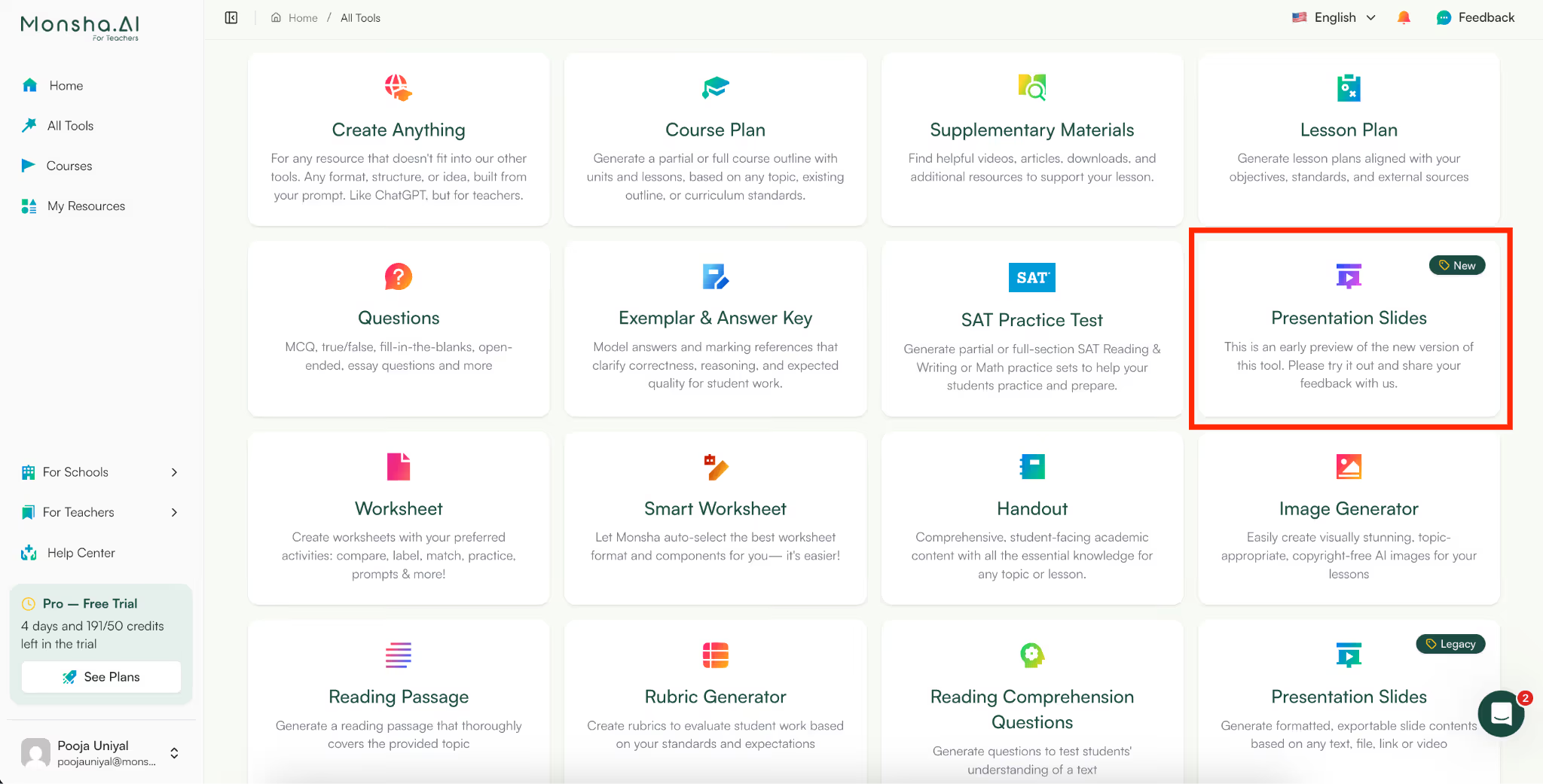
To create a presentation from a vocabulary list, select ‘Monsha resource” in the sources.
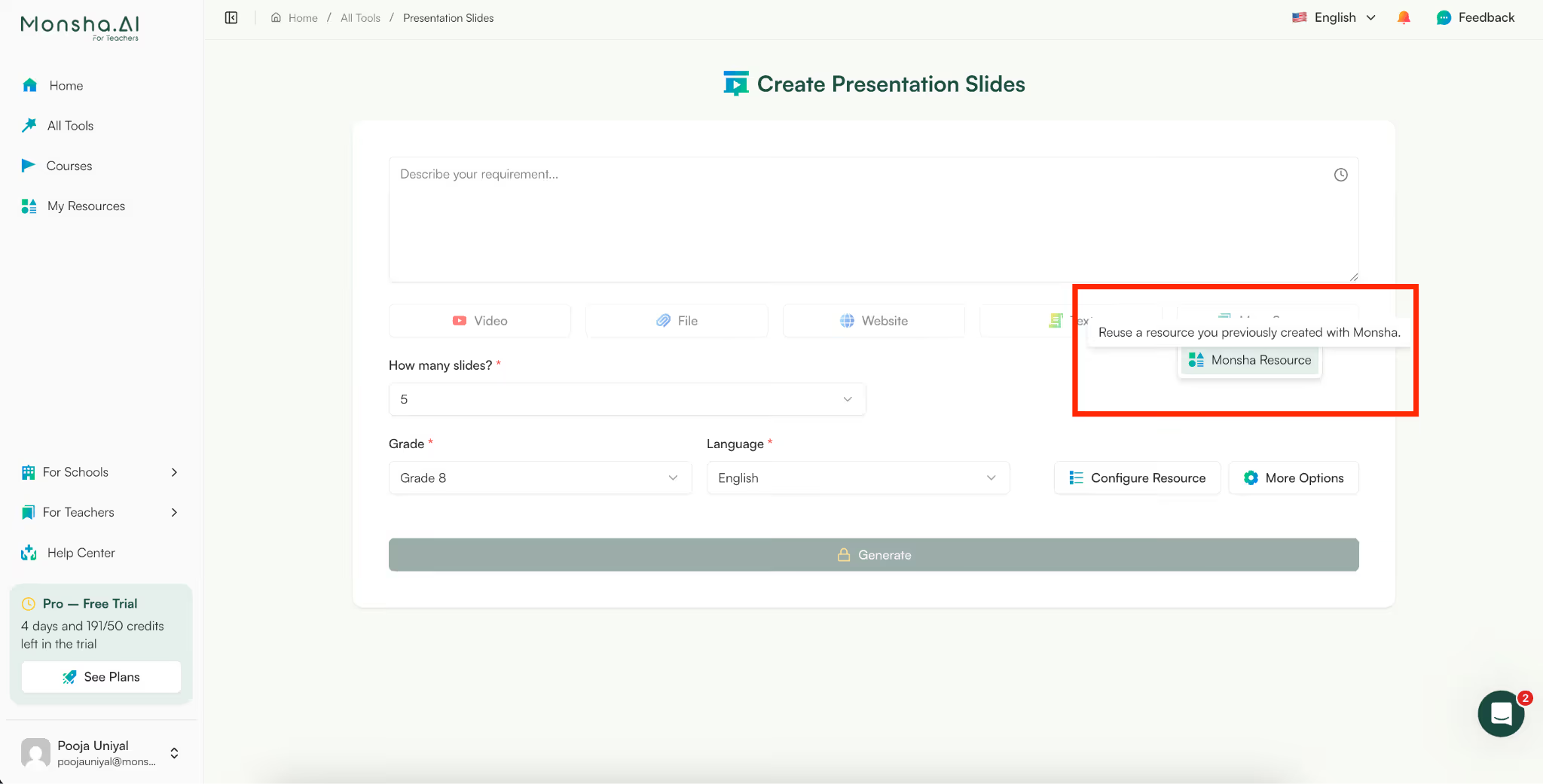
Once you click on it, you’ll see a list of your past resources. You’ll find your vocabulary list right there. Select that.
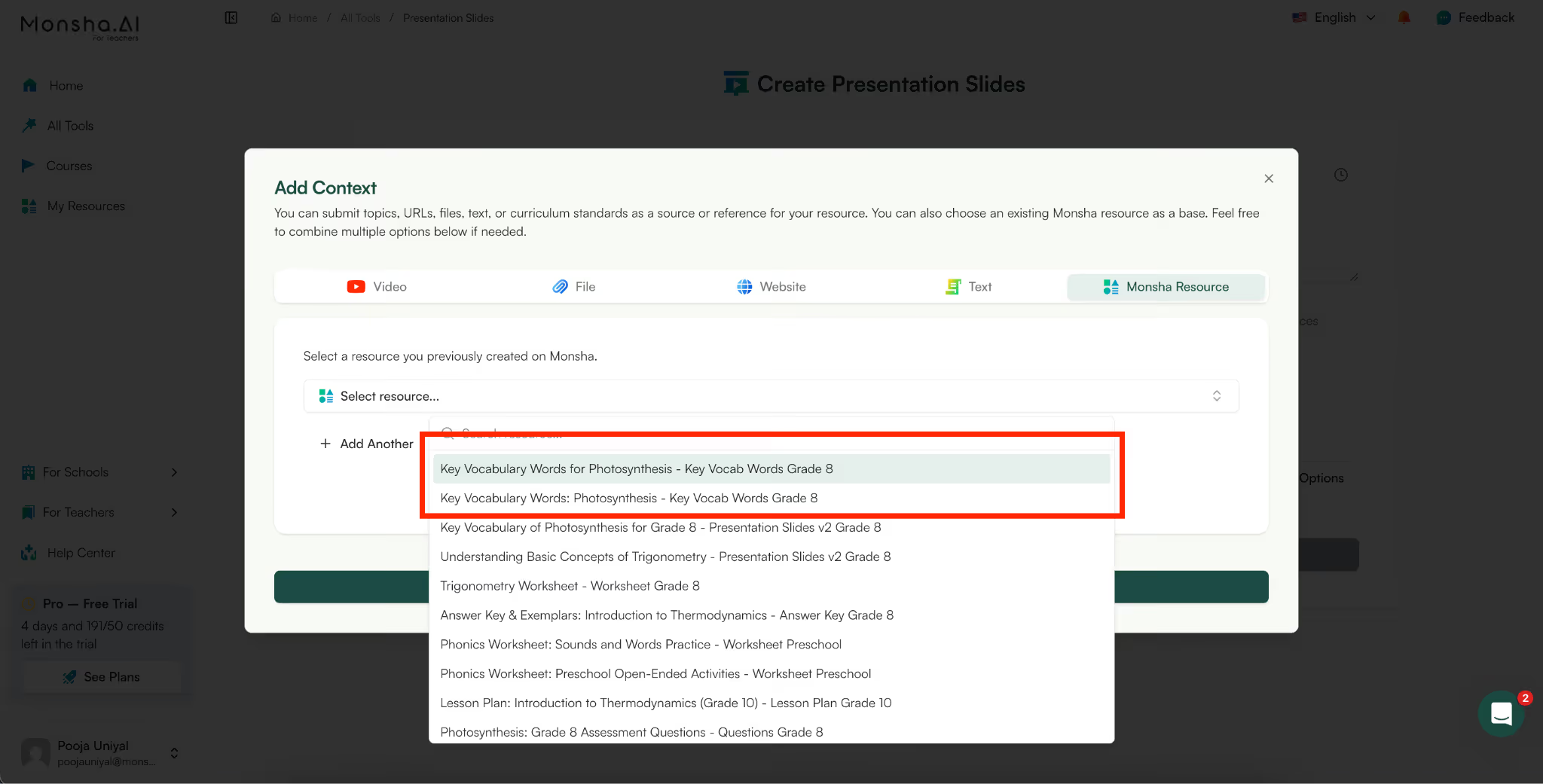
Since we want to create PPT slides with vocabulary lists, we’re selecting Monsha resources. Otherwise, you can create presentations from youtube videos, website links and PDFs as well.
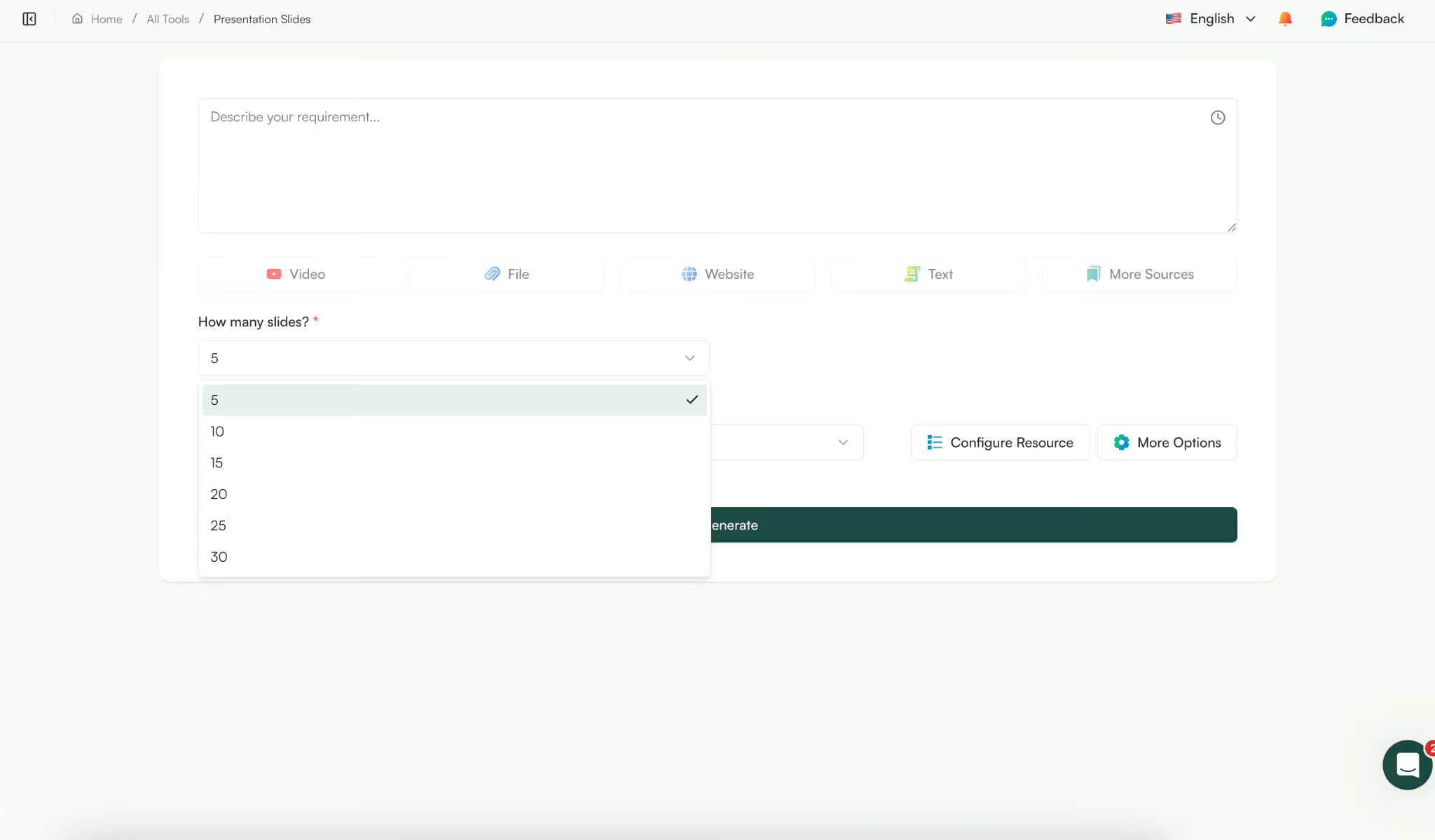
Then, select the number of slides for your presentation slides.
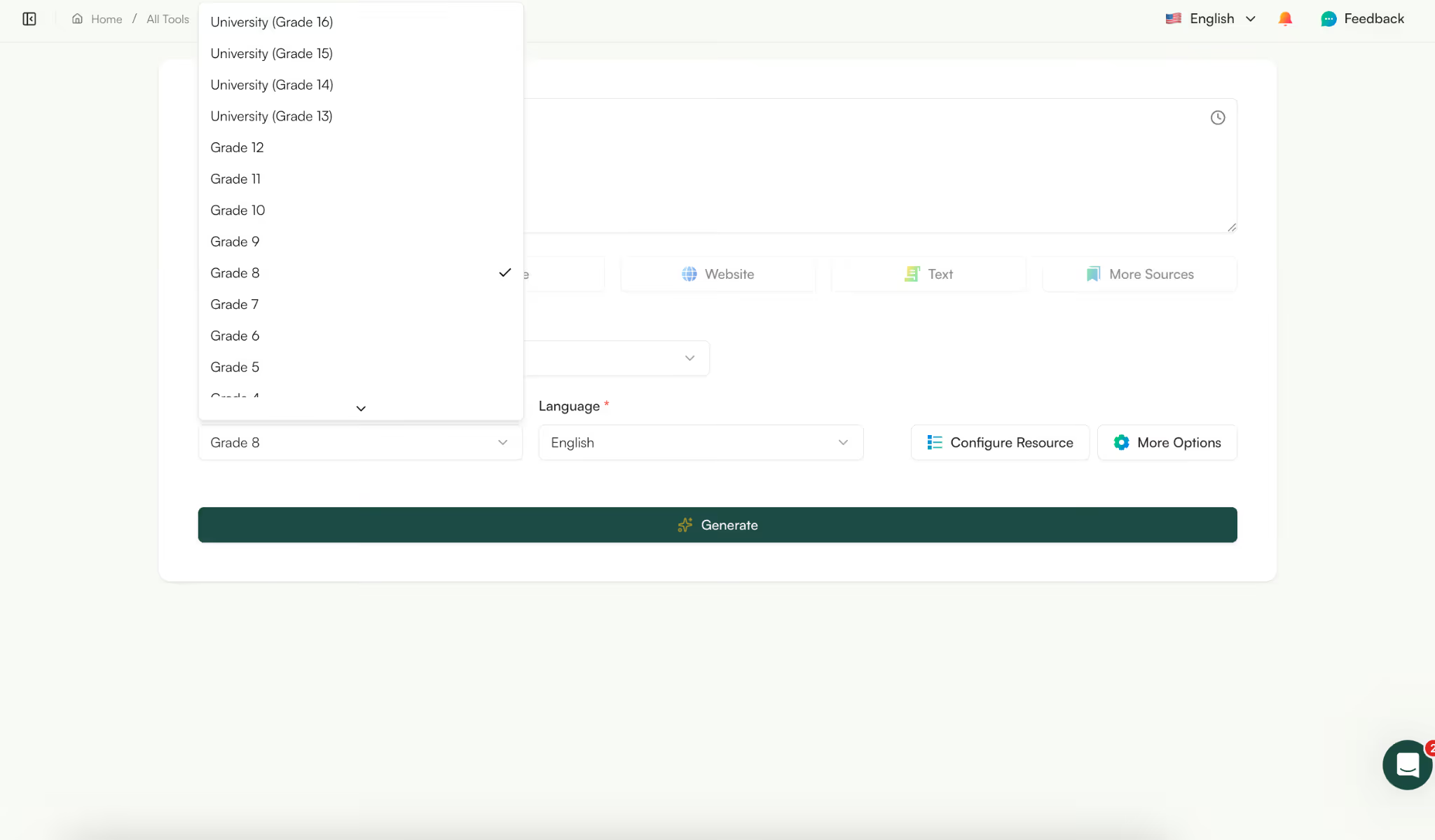
Select the grade and language for your AI presentation.
Click ‘Generate’ and Monsha will generate a presentation outline with you. If you want to make any changes to the content, add or remove anything.
If you’re satisfied with the content, click ‘generate presentation’ and Monsha will generate the presentation for you.
.gif)
AI this step, you can edit the presentation if you want. There are several ways to do this. You can go to each slide, select ‘edit’ and simply ask the AI to make any changes for you.
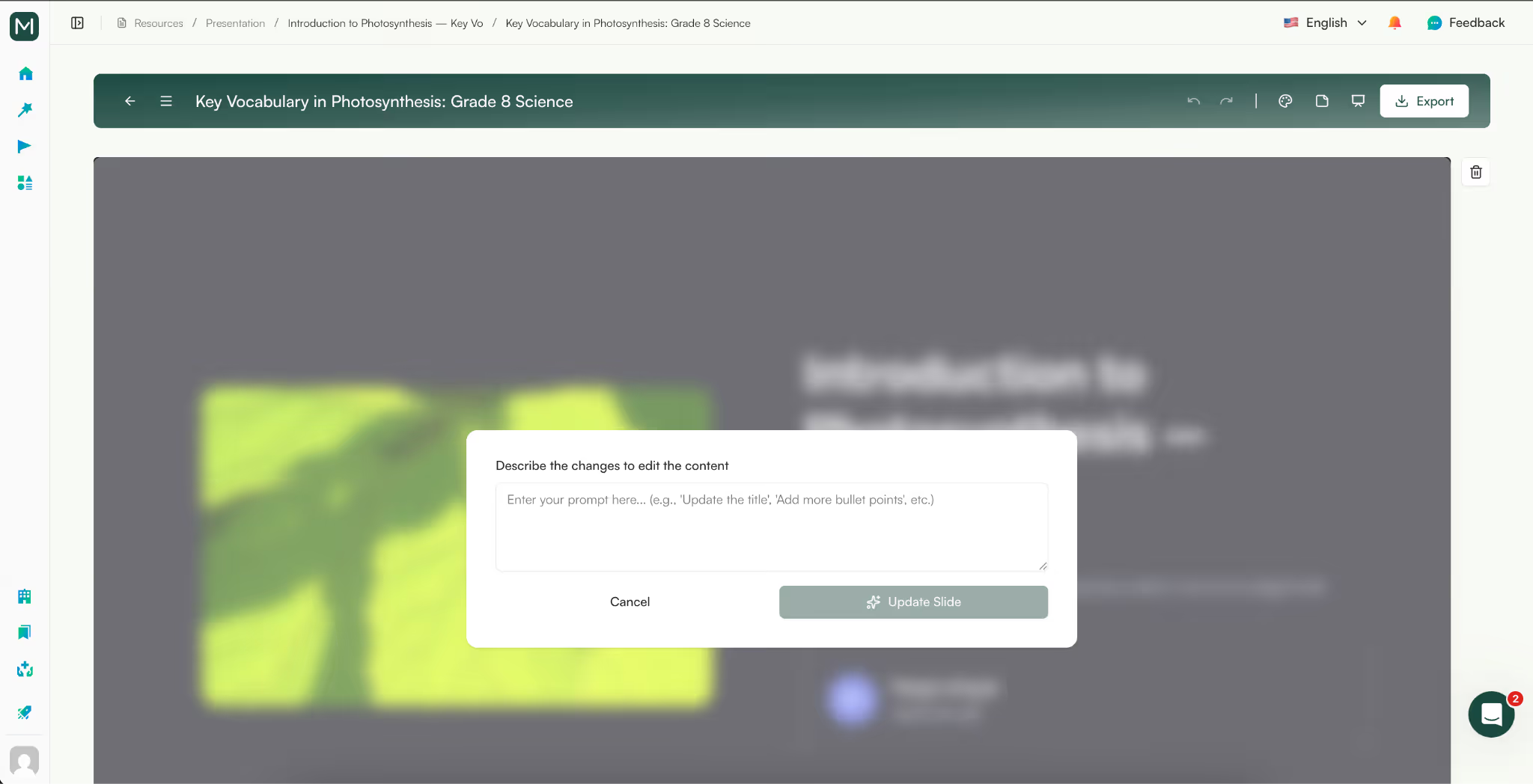
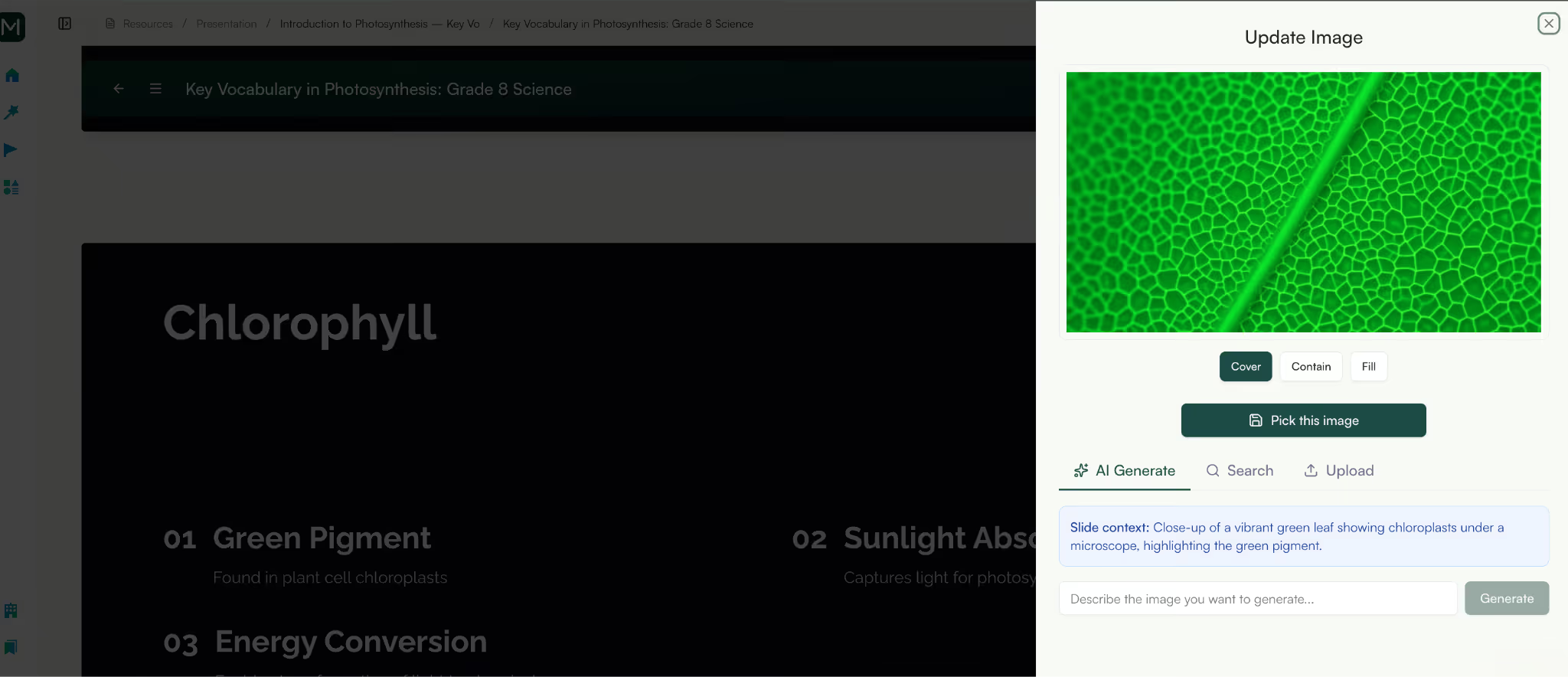
Or, you can select each image and regenerate for the presentation. You can choose to add an image from the web, regenerate the image with AI or upload your own images. Basically, you can fully customize the presentation to your satisfaction.
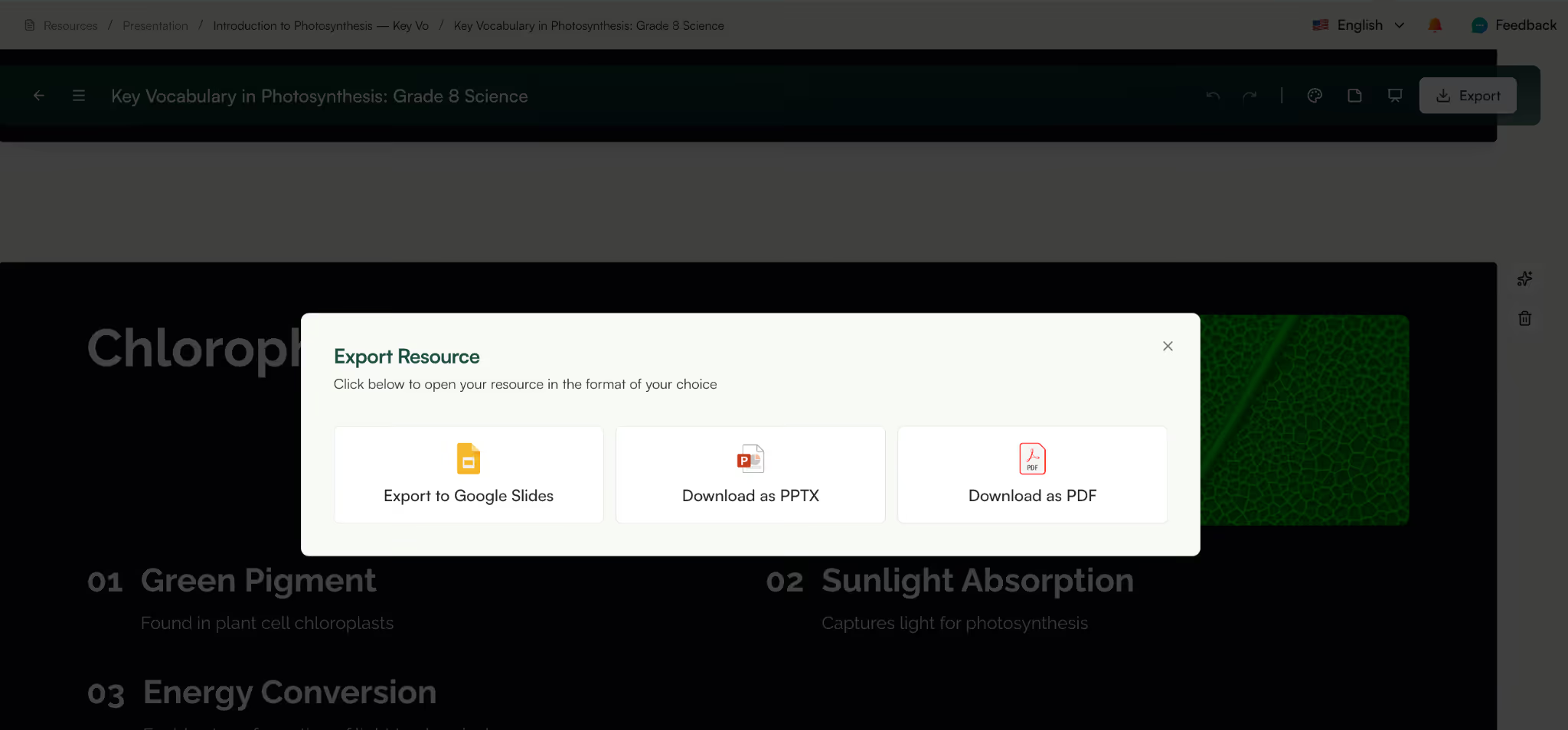
With Monsha, you can export in the format your PPT slide in any format you need: Download or share your presentation as PPT, PDF, DOC, Google Slides, or other formats, ready to use wherever you teach.
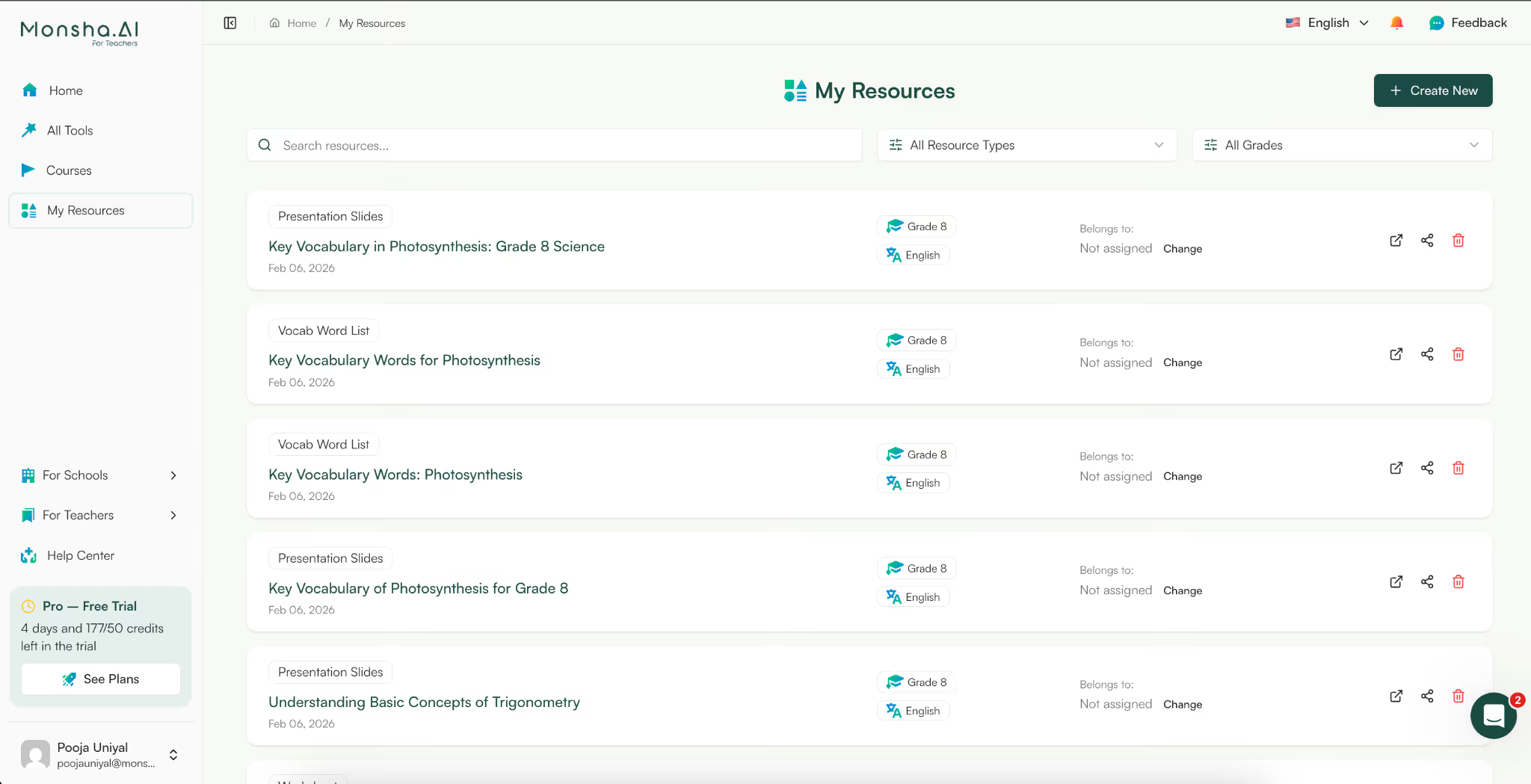
We know creating teaching resources is not a one time job. So, your presentation doesn’t have to stand alone, neither does your vocabulary list.
You can generate worksheets, reading comprehension questions, tests, lesson plans, or study materials directly from your resources without repeating any work.
And because everything is saved in your Monsha account, your resources are always available to revisit, update, or reuse whenever you need them.
Try Monsha AI today and see how effortlessly your lessons come together.




AI in Education Content
Pooja Uniyal works closely with teachers and schools to understand and guide how AI is being used in real classrooms today. Her work at Monsha focuses on capturing practical teaching workflows and turning them into clear, usable guidance for educators exploring AI in their daily planning.
Join thousands of educators who use Monsha to plan courses, design units, build lessons, and create classroom-ready materials faster. Monsha brings AI-powered curriculum planning and resource creation into a simple workflow for teachers and schools.
Get started for free

.avif)
.avif)