This guide shows how to convert PowerPoint slides into a Google Form quiz using an AI quiz generator. Create Google Form quizzes faster by reusing existing teaching resources instead of starting from scratch.
.avif)
You’ve just finished teaching a lesson using PowerPoint slides.
Now you want to check whether students actually understood it.
The obvious next step is to create a Google Form quiz. But if you try to do this manually, the process quickly becomes slow - rewriting slide content as questions, choosing formats, and setting everything up inside Google Forms.
This is where an AI quiz generator can save time. Instead of rebuilding your lesson into a quiz from scratch, you can convert your PowerPoint slides directly into a structured Google Form quiz - keeping the focus on assessment quality, not setup work.
.avif)
Google Forms works well but only after the hard part is done.
When teachers try to create a Google Form quiz manually, they often run into the same issues:
This is where most “how to create a Google Form quiz free” guides fall short. They show where to click, but not how to build a quiz that actually reflects what was taught.
An AI-powered workflow changes this. Instead of building quizzes after teaching, you generate assessments from your teaching material. That’s the difference between using Google Forms as a tool and using it as part of a teaching system.
Turning an existing PowerPoint into a Google Form quiz shouldn’t mean rewriting every question from scratch. With the right AI quiz generator, you can reuse your slides, preserve instructional intent, and create a structured quiz in minutes.
Here’s exactly how to convert PowerPoint slides into a Google Forms quiz using Monsha.
Start by logging into your Monsha account. This is where all your teaching resources - presentations, worksheets, and past materials - are stored and ready to be reused.
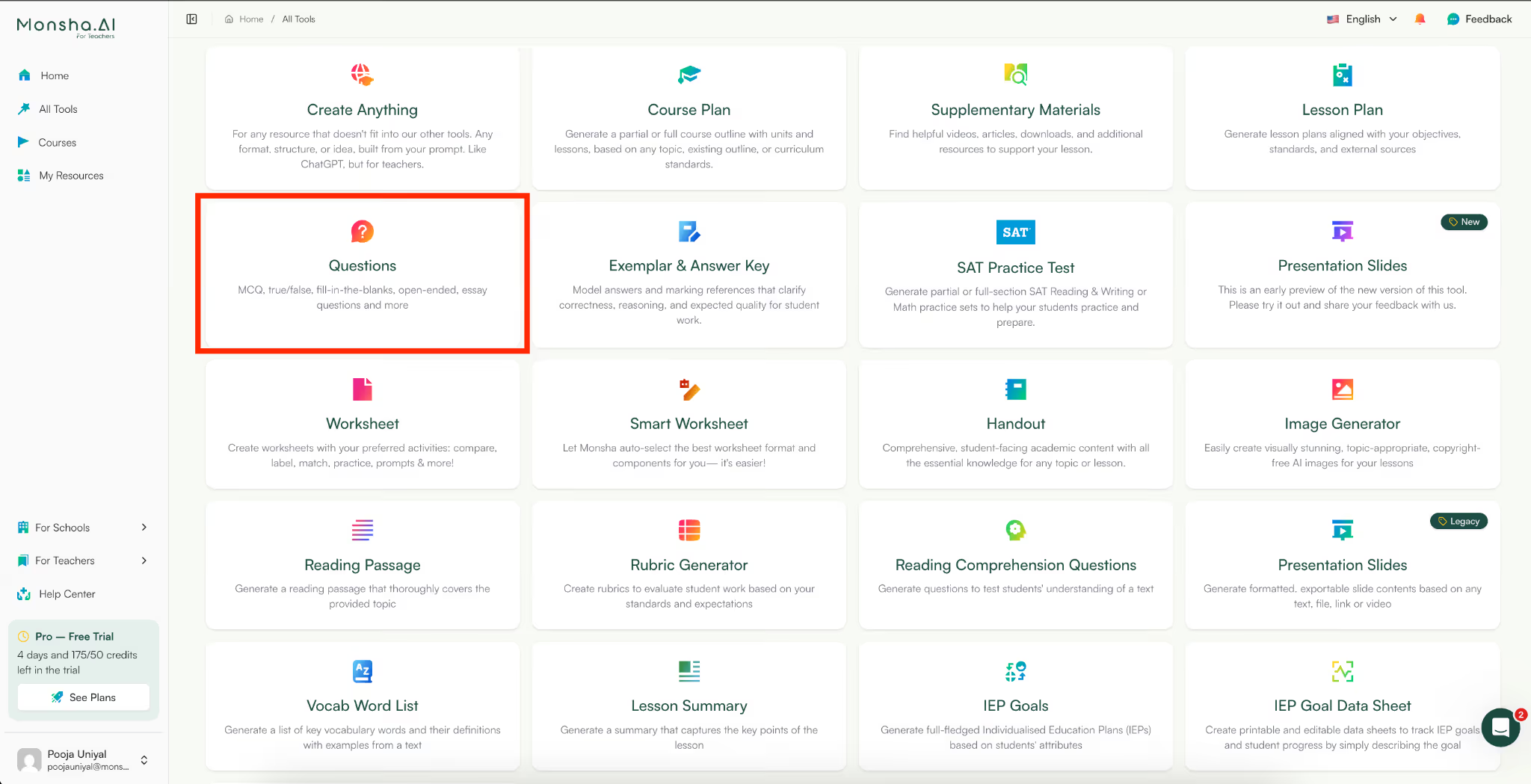
From the main dashboard, go to the Tools menu and select Questions. This tool is designed specifically to generate assessment-ready questions from existing content, making it ideal when you want to create a Google Form quiz without starting from zero.
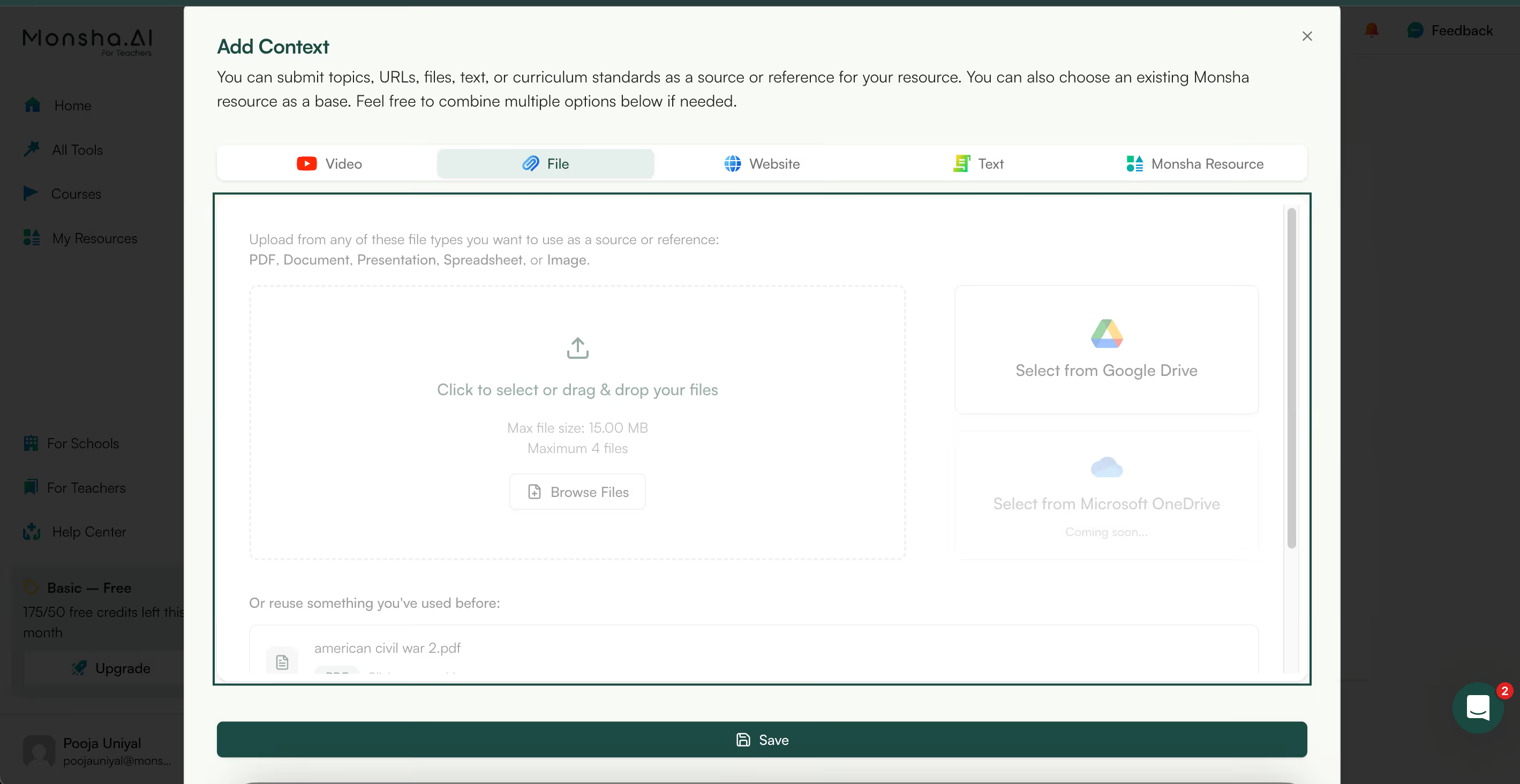
Once the tool opens, you’ll see multiple input options such as video, file, website, text, and Monsha resource.
To convert a PowerPoint:
Monsha analyzes the content of your slides and uses that as reference to create quis questions for you.
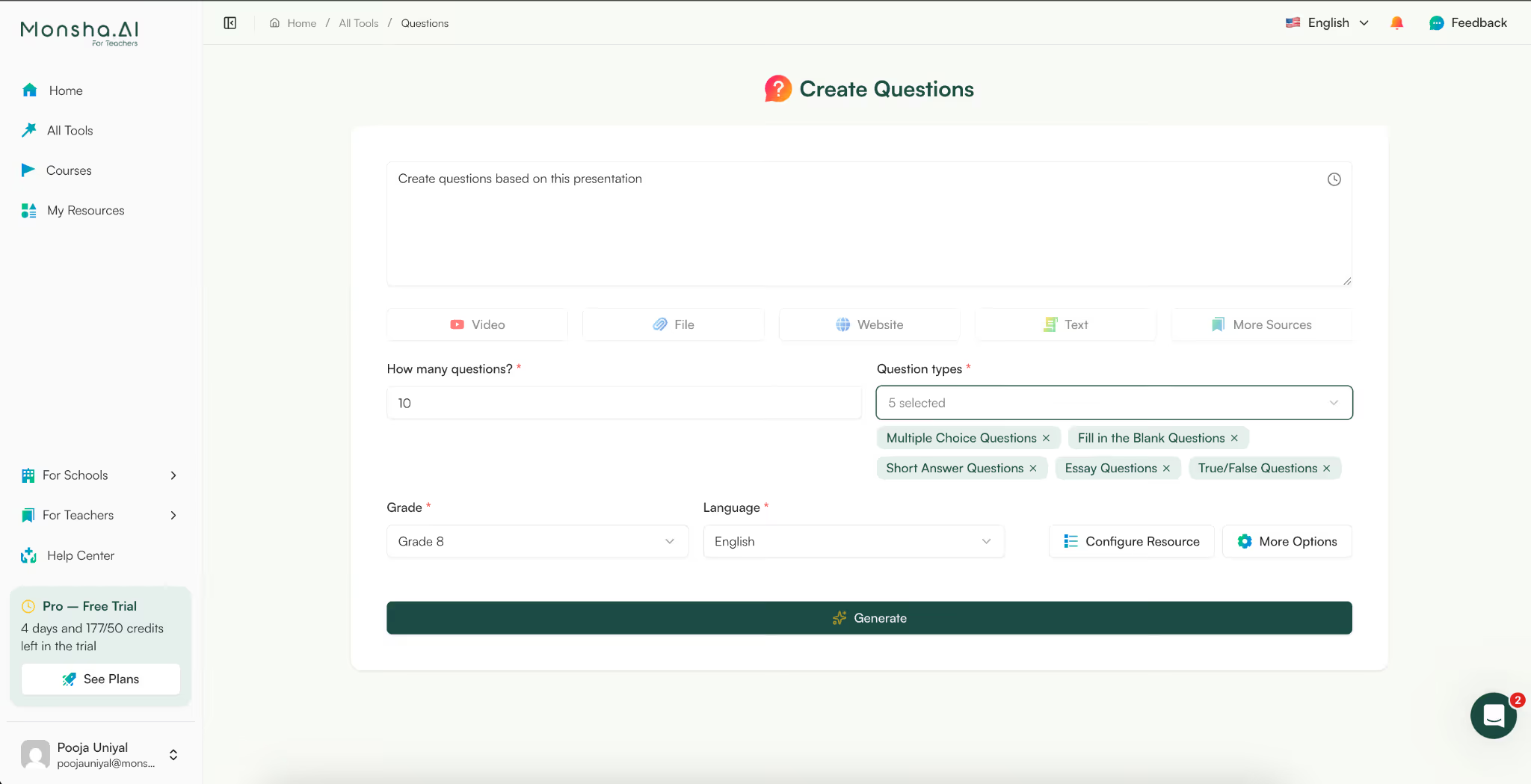
This is where Monsha works as a true AI quiz generator, not just a question spinner.
You can choose both the number and types of questions, including:
This flexibility helps you create a Google Form quiz that evaluates both objective recall and deeper conceptual understanding - something experienced teachers care deeply about.
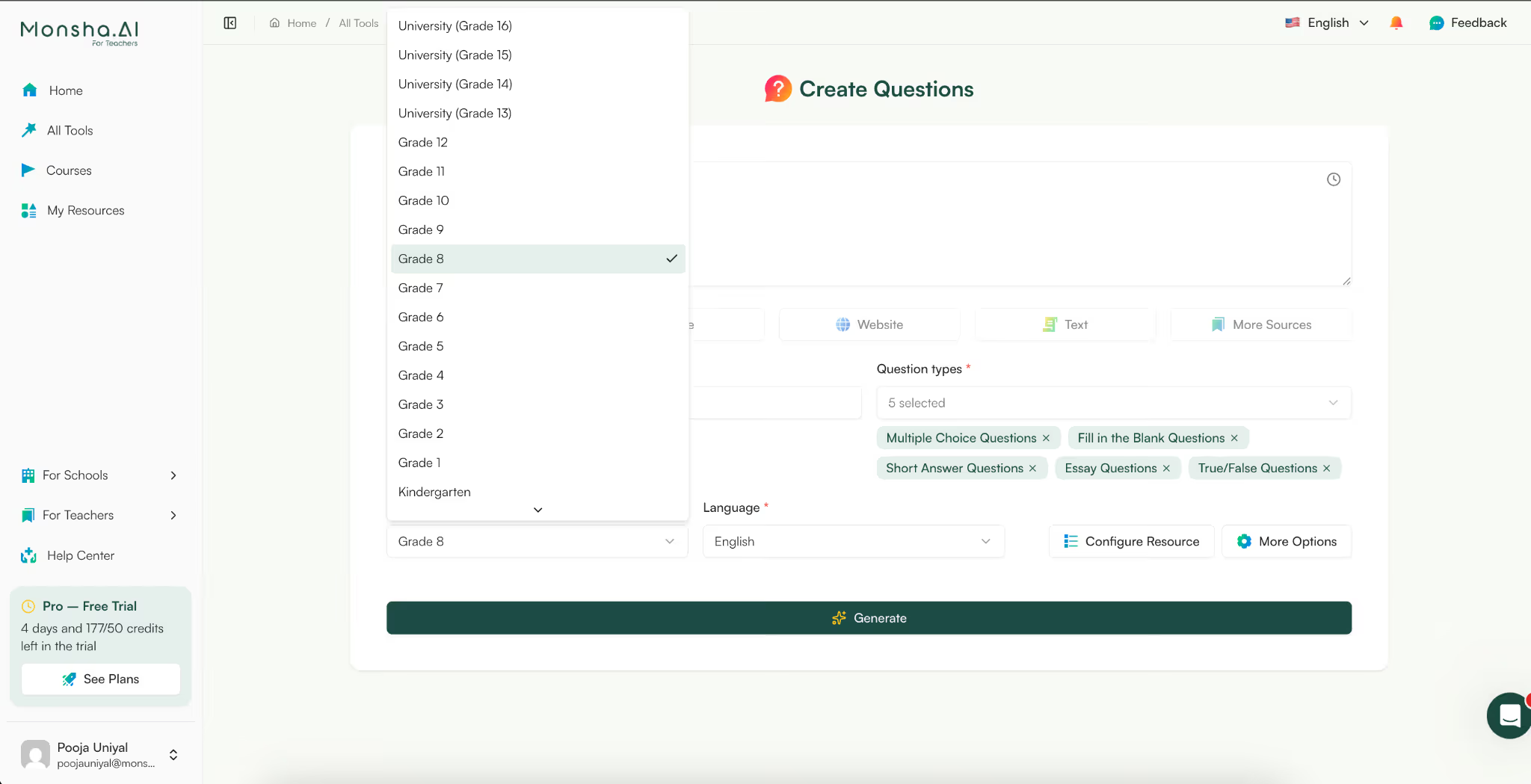
Next, specify the grade and language. This ensures the questions match your students’ reading level and curriculum expectations, especially useful when you’re creating quizzes for mixed-ability classrooms.
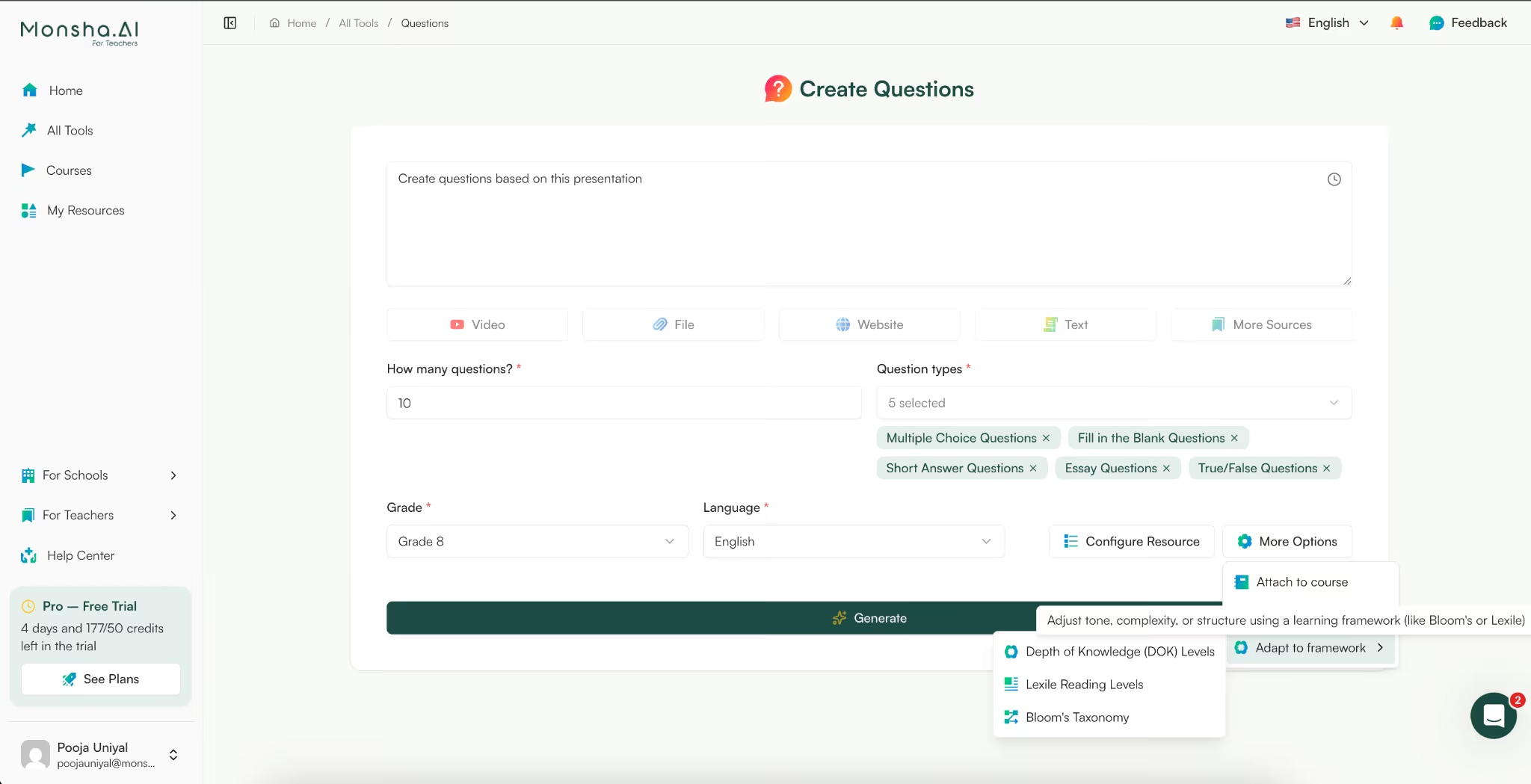
Before generating the quiz, you can apply instructional frameworks such as:
These frameworks help you differentiate your quiz, ensuring it’s not just a recall-heavy assessment. Instead, you get a balanced Google Form quiz that works across different learning abilities and cognitive levels.
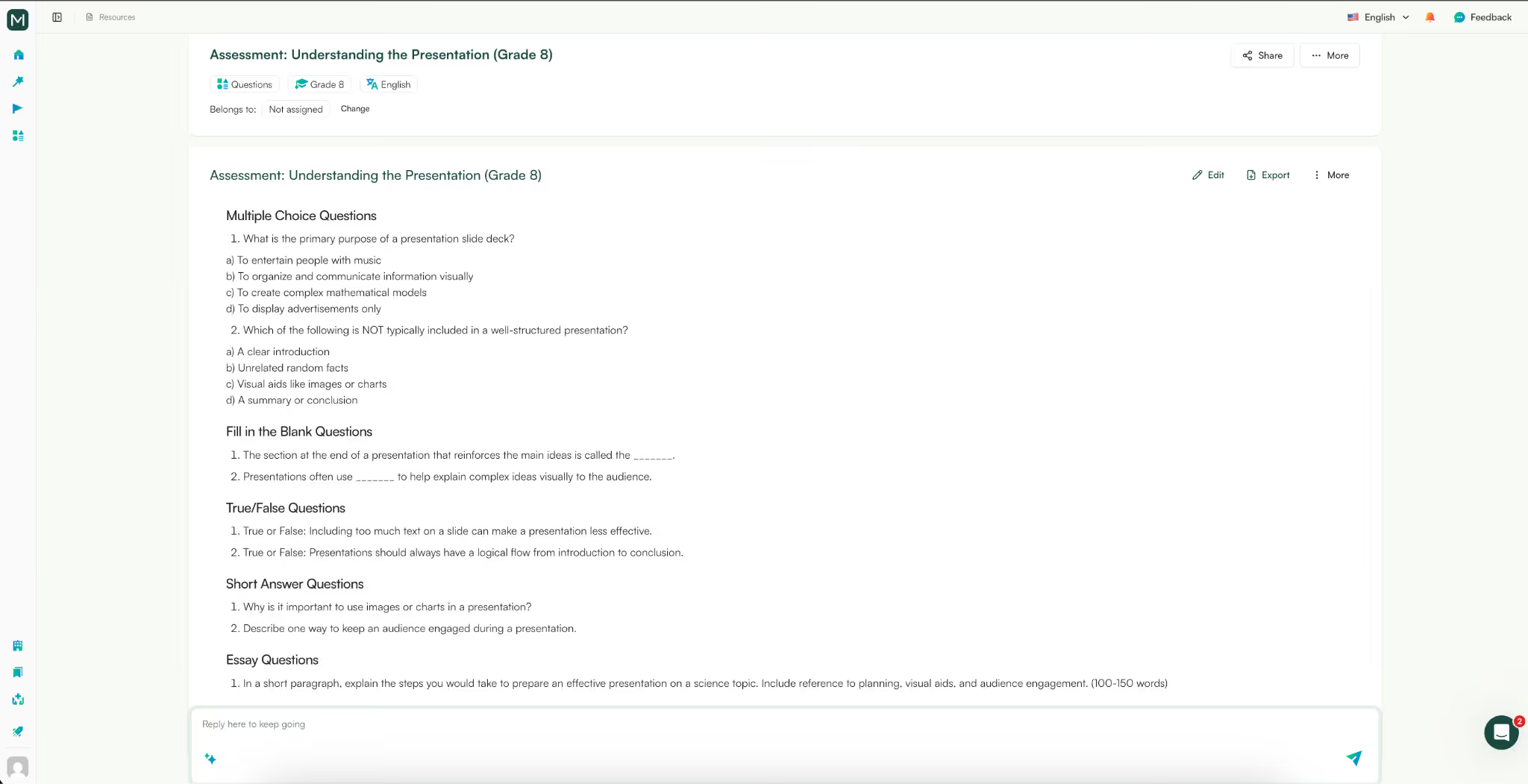
Once all inputs are set, click Generate. Monsha creates a quiz directly from your PowerPoint slides, aligned with:
This saves hours compared to manually trying to create a Google Form quiz from slide content.
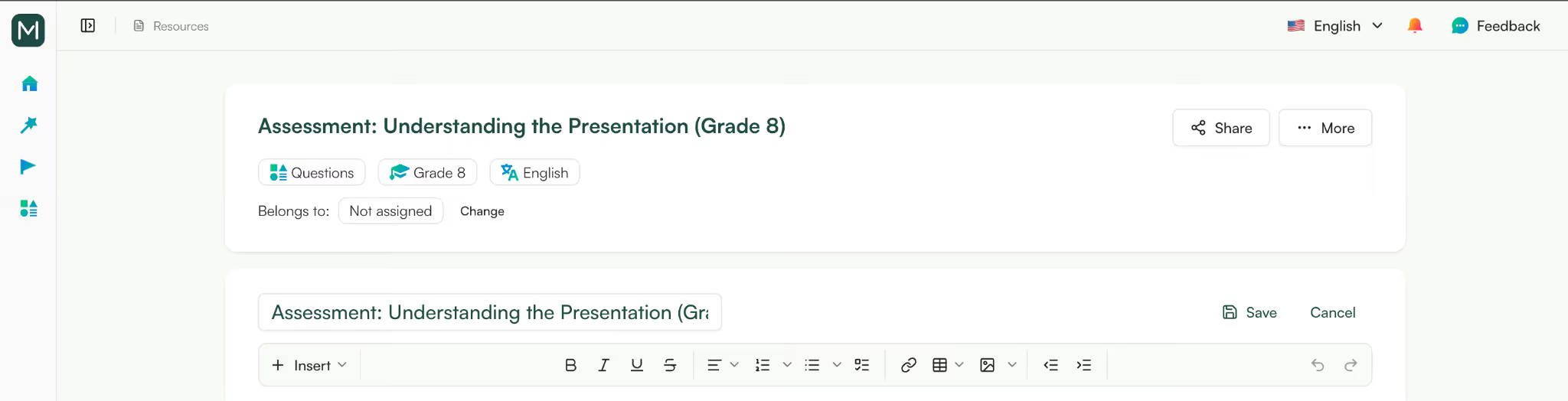
Before exporting, you can use Monsha’s editor to:
This step ensures your quiz feels classroom-ready and not auto-generated. The goal is clarity, not flash.
Now comes the final step.
Once your quiz is ready, click Export to Google Forms. Monsha will prompt you to connect your Google account and automatically transfer the quiz into Google Forms.
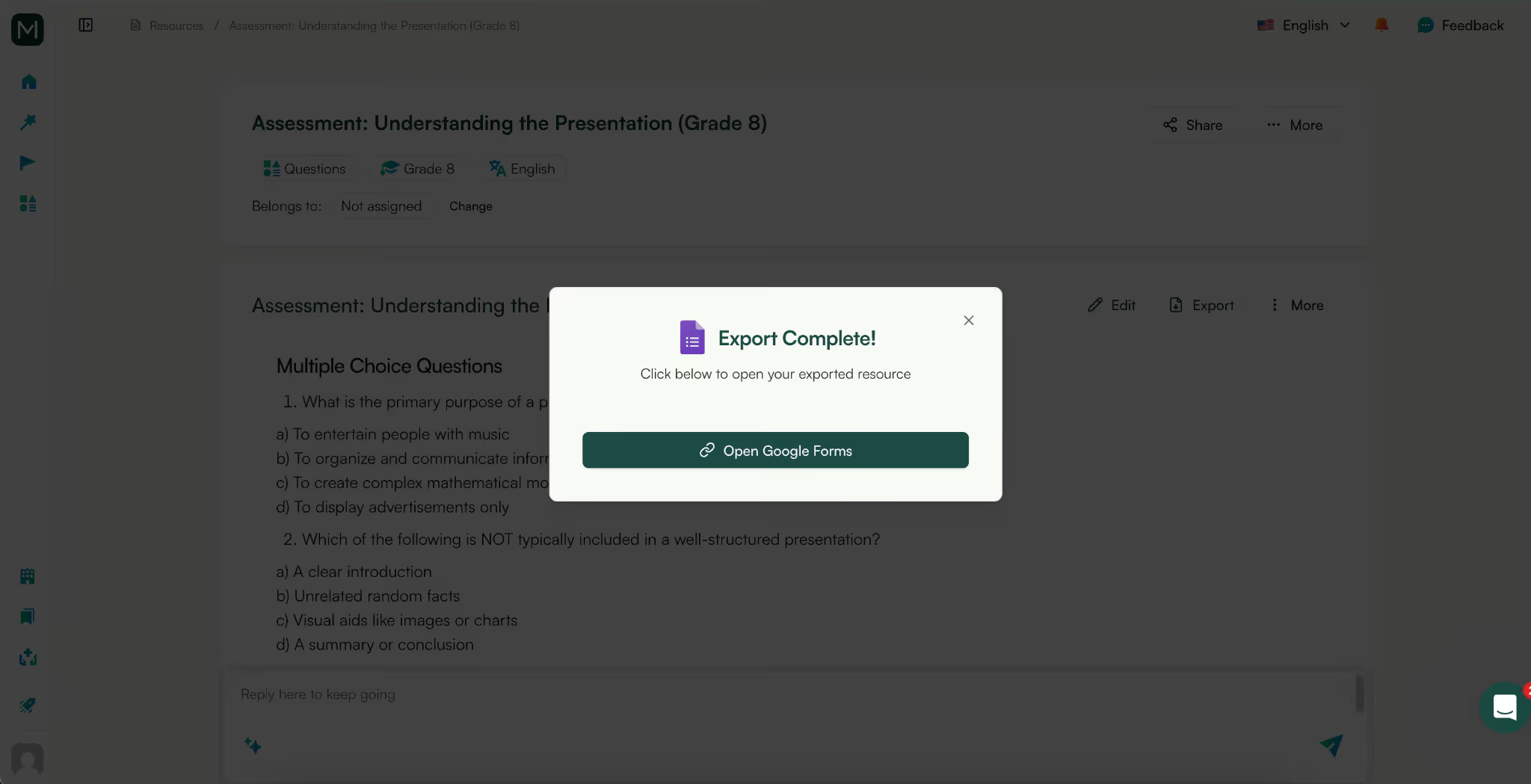
The result:
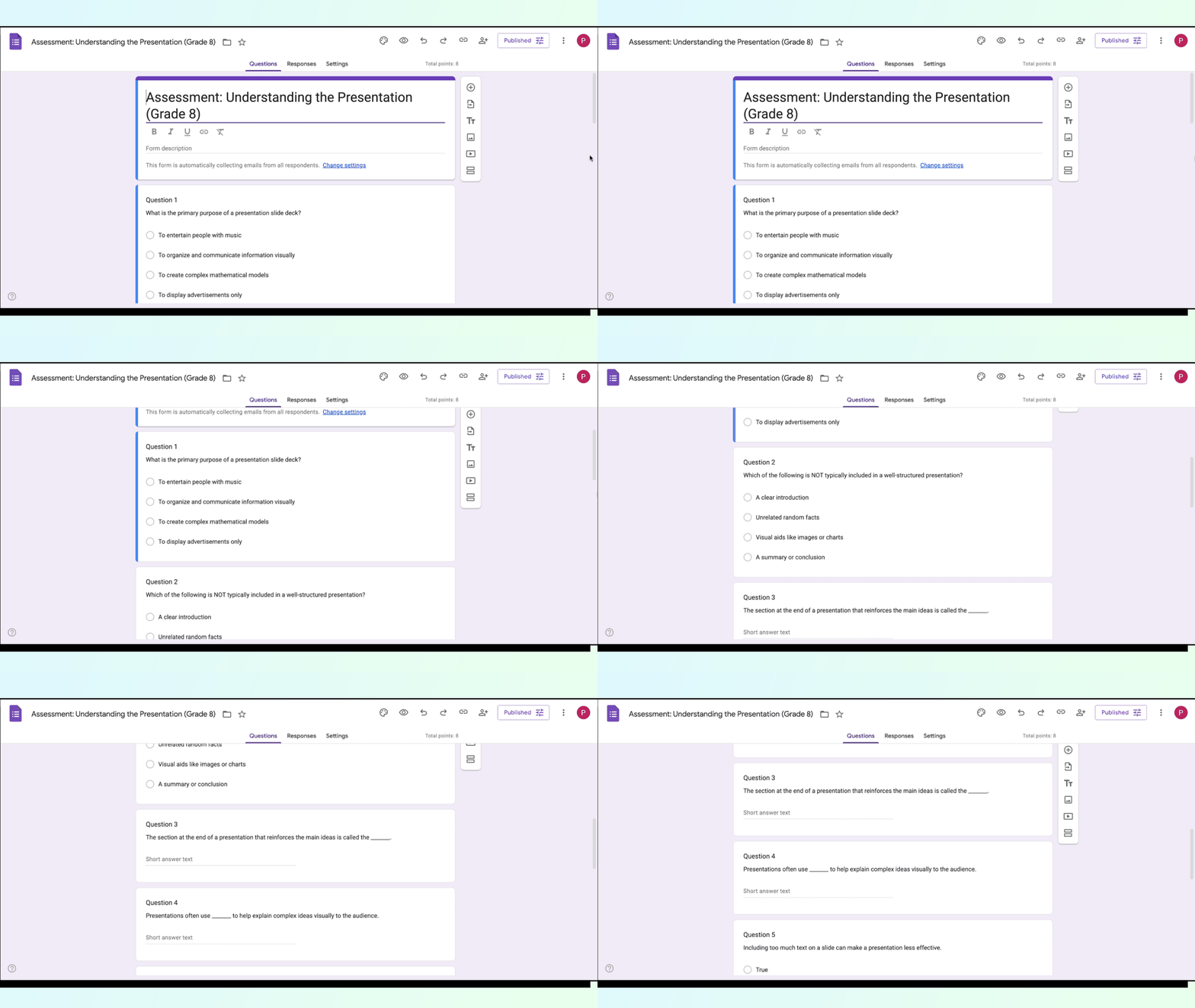
If you’re looking for a way to create a Google Form quiz free of repetitive setup work, this workflow removes the biggest friction, question creation and formatting, while still giving you full control inside Google Forms.
Creating a quiz shouldn’t mean redoing the work you’ve already done.
When your lesson lives in PowerPoint slides, the smartest approach is to reuse that material - not manually rewrite it into a Google Form quiz. That’s where Monsha stands out.
Monsha isn’t just an AI quiz generator. It’s a tool designed to convert one teaching resource into another - slides into quizzes, content into questions, lessons into assessments - while preserving instructional intent.
Instead of treating quizzes as isolated tasks, Monsha fits naturally into a teacher’s workflow: teach first, assess next, without duplication of effort.
Whether you want to generate varied question types, differentiate by learning frameworks, or export directly to Google Forms, Monsha removes the manual steps that usually slow assessment creation down. The result is a Google Form quiz that actually reflects what you taught - not a rushed version built under time pressure.
If you’re looking for a faster, more reliable way to create Google Form quizzes from existing materials, Monsha is built for exactly that.
Try Monsha now and turn the resources you already have into the assessments you need, without starting from scratch.




AI in Education Content
Pooja Uniyal works closely with teachers and schools to understand and guide how AI is being used in real classrooms today. Her work at Monsha focuses on capturing practical teaching workflows and turning them into clear, usable guidance for educators exploring AI in their daily planning.
Join thousands of educators who use Monsha to plan courses, design units, build lessons, and create classroom-ready materials faster. Monsha brings AI-powered curriculum planning and resource creation into a simple workflow for teachers and schools.
Get started for free

.avif)
.avif)