Discover how to convert lesson plan to PPT quickly and accurately. Use Monsha to create a detailed lesson planning PPT that aligns with objectives, activities, and assessment without rebuilding slides from scratch.
.avif)
You’ve planned a lesson.
Your detailed lesson plan includes:
Now you want to create a presentation and you start rebuilding the same thing again.
You shorten paragraphs. Turn activities into bullet points. Rearrange the order so it fits a slide format. What should have taken five minutes turns into thirty.
This is where most teachers lose time.
Lesson planning and presentation should not be two separate tasks. If your lesson is already structured, your slides should reflect that structure automatically.
The simplest solution is to convert the lesson plan to PPT directly.
Instead of copying and pasting content, you turn your existing lesson plan into a structured lesson planning PPT that mirrors your teaching flow. Objectives stay first. Concepts stay organized. Practice and assessment remain aligned.
In this guide, you’ll see exactly how to create a classroom-ready presentation from your lesson plan without rebuilding everything from scratch.

You’ve already written the lesson plan.
Now you just need a clean lesson planning PPT that follows the same structure, without copying and pasting everything manually.
Instead of recreating your work slide by slide, you can convert lesson plans to PPT in minutes - while keeping your objectives, pacing, and classroom flow intact.
Here’s how to do it with Monsha.
Monsha is an AI presentation maker designed specifically for teachers. It builds slides directly from your existing materials, including detailed lesson plans.
You can create:
If you don’t have a lesson plan ready, you can generate a lesson plan inside Monsha first and then immediately turn that into a detailed lesson planning PPT.
The workflow stays simple.
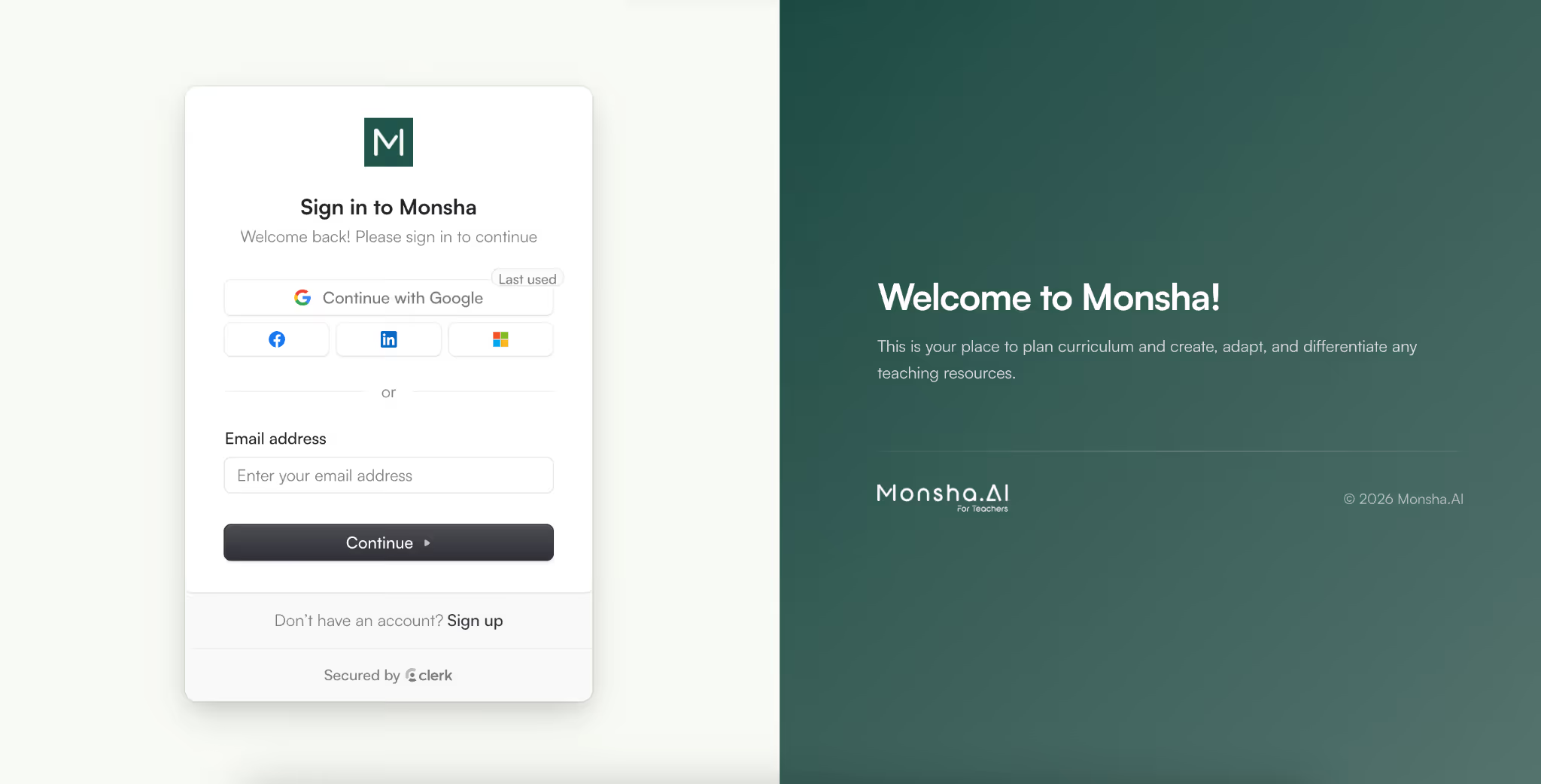
Go to Monsha and sign up or log in. It takes just a moment to access your dashboard.
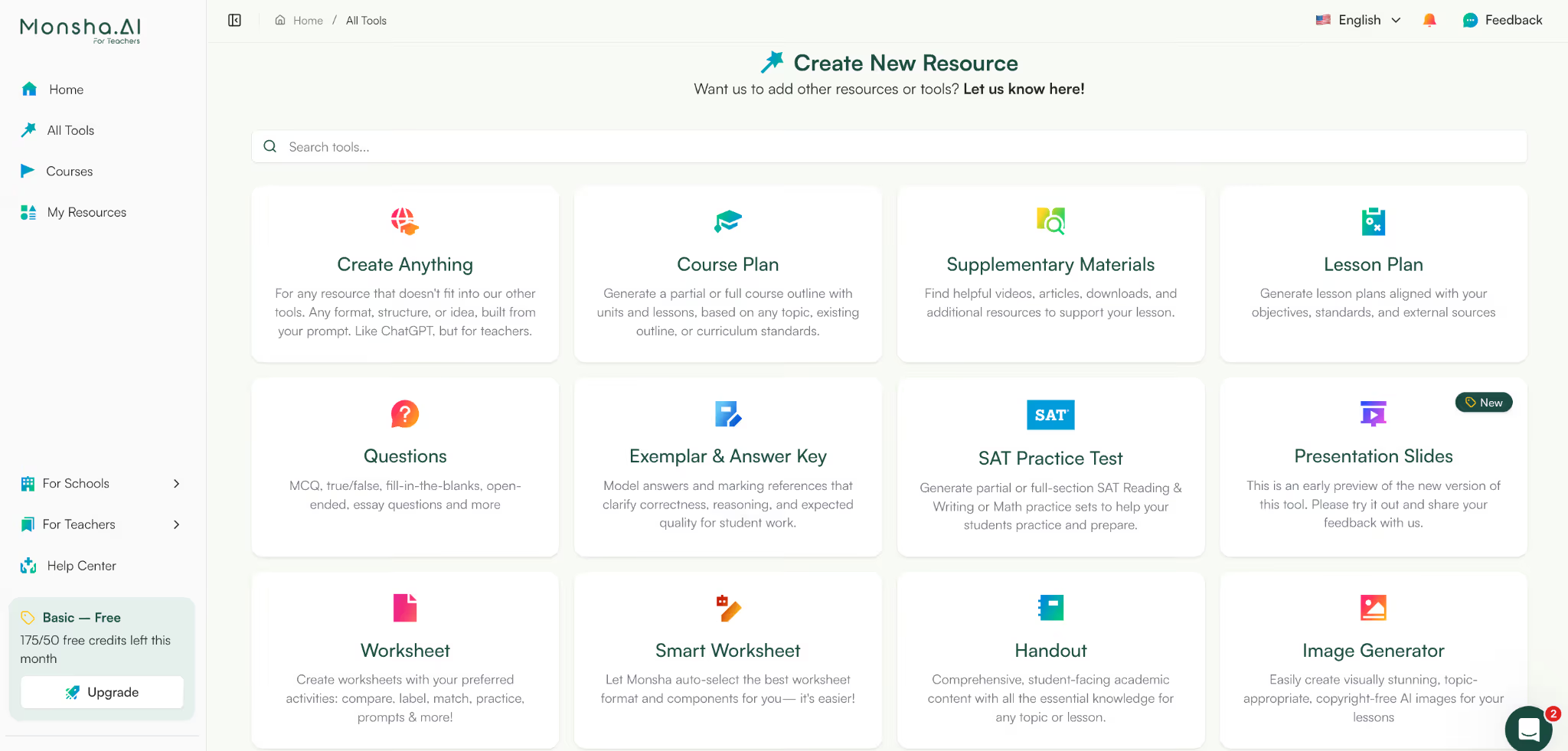
Inside your dashboard, you’ll see different resource types you can create.
Select “Presentation Slides”.
This is where you’ll begin transforming your written lesson plan into a structured lesson planning and presentation deck.
Before generating slides, you can link them to a course, unit, or lesson.
This step is optional but helpful if you want your lesson planning PPT to:
If you're experimenting, you can skip this.
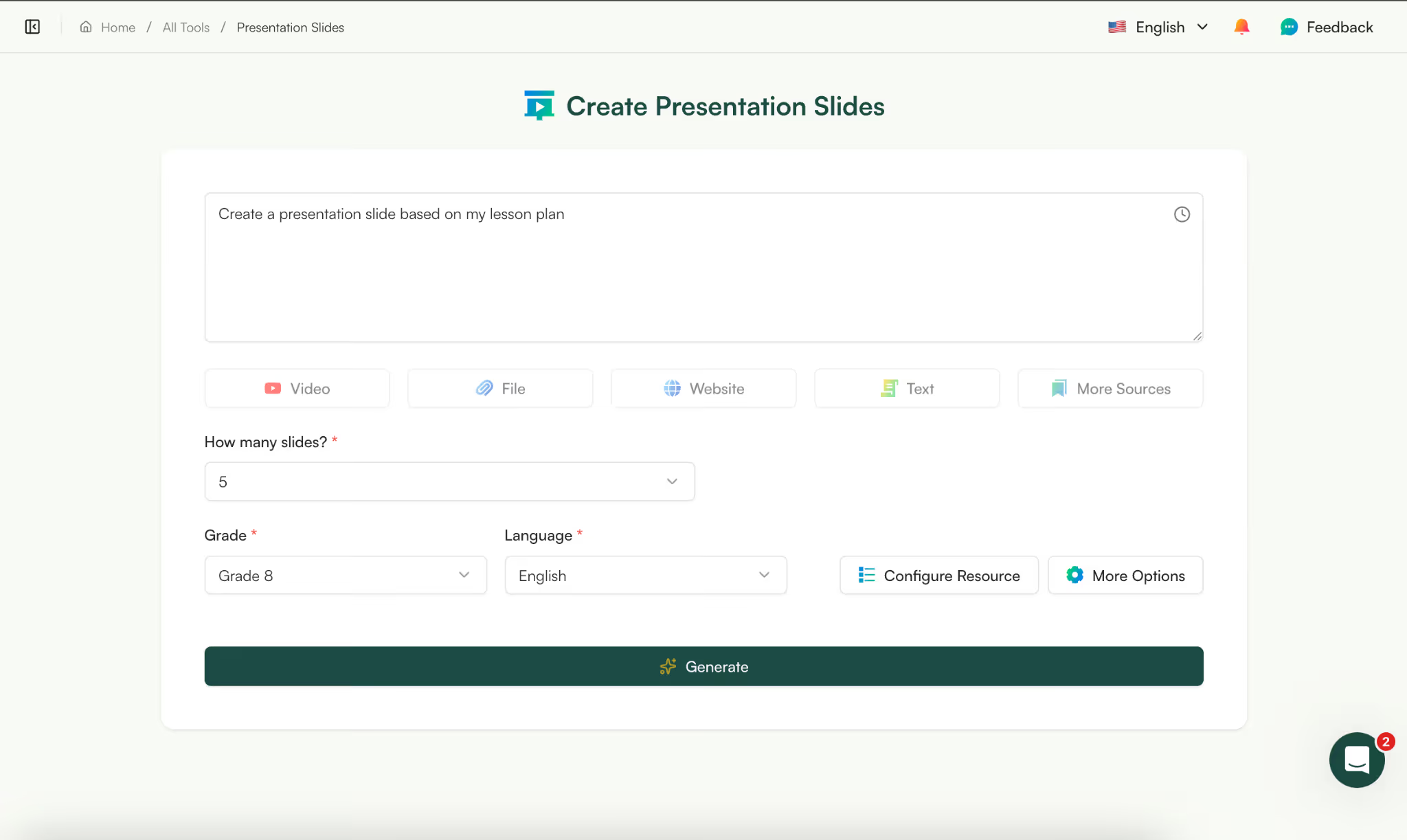
Instead of starting with blank slides, you choose what your presentation should be built from.
Monsha lets you choose from several types of sources like:
To convert the lesson plan to PPT, select “File” and upload your lesson plan document (PDF, Word, etc.).
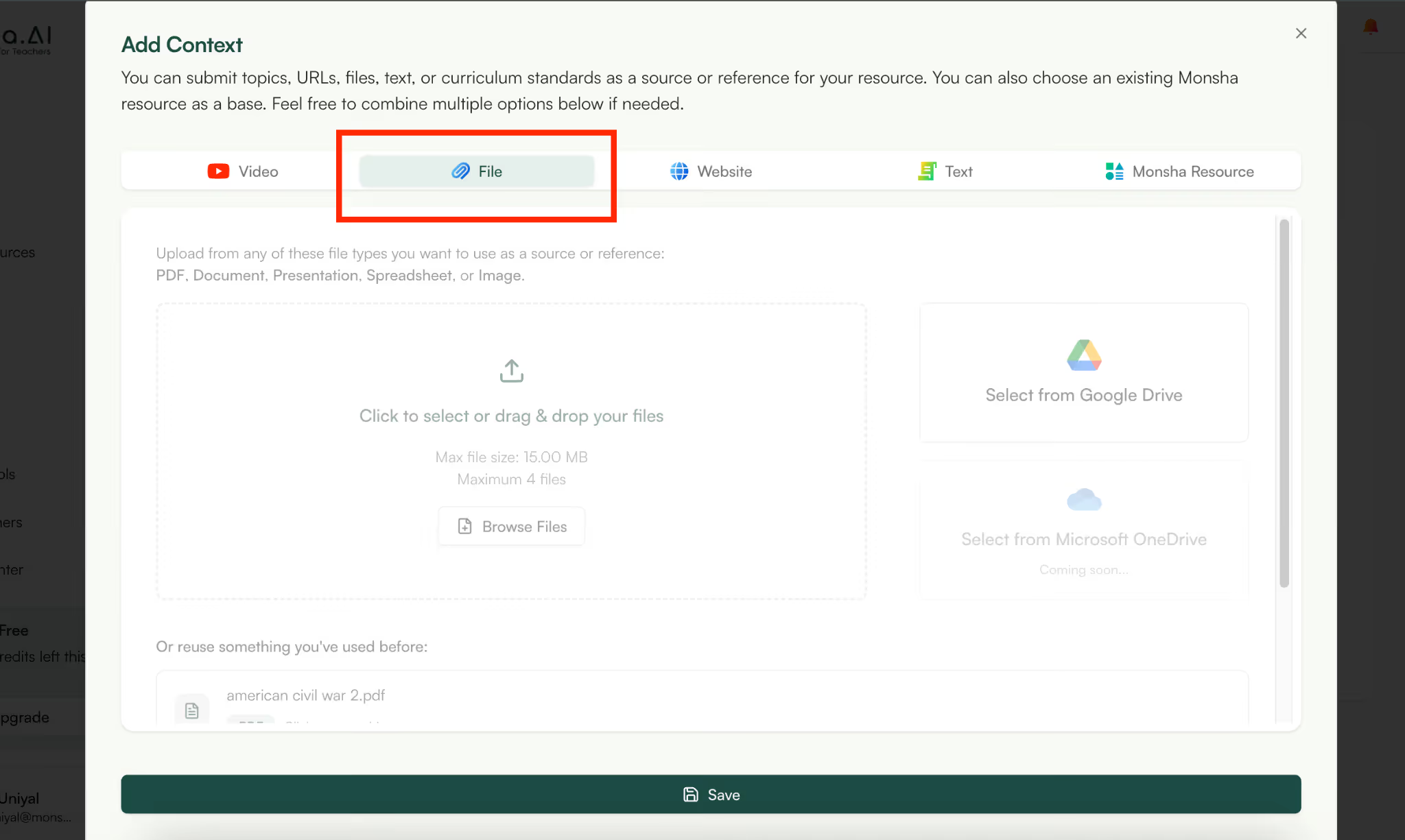
Monsha uses your uploaded lesson plan as the reference. That means your slides reflect your original structure, not generic filler content.
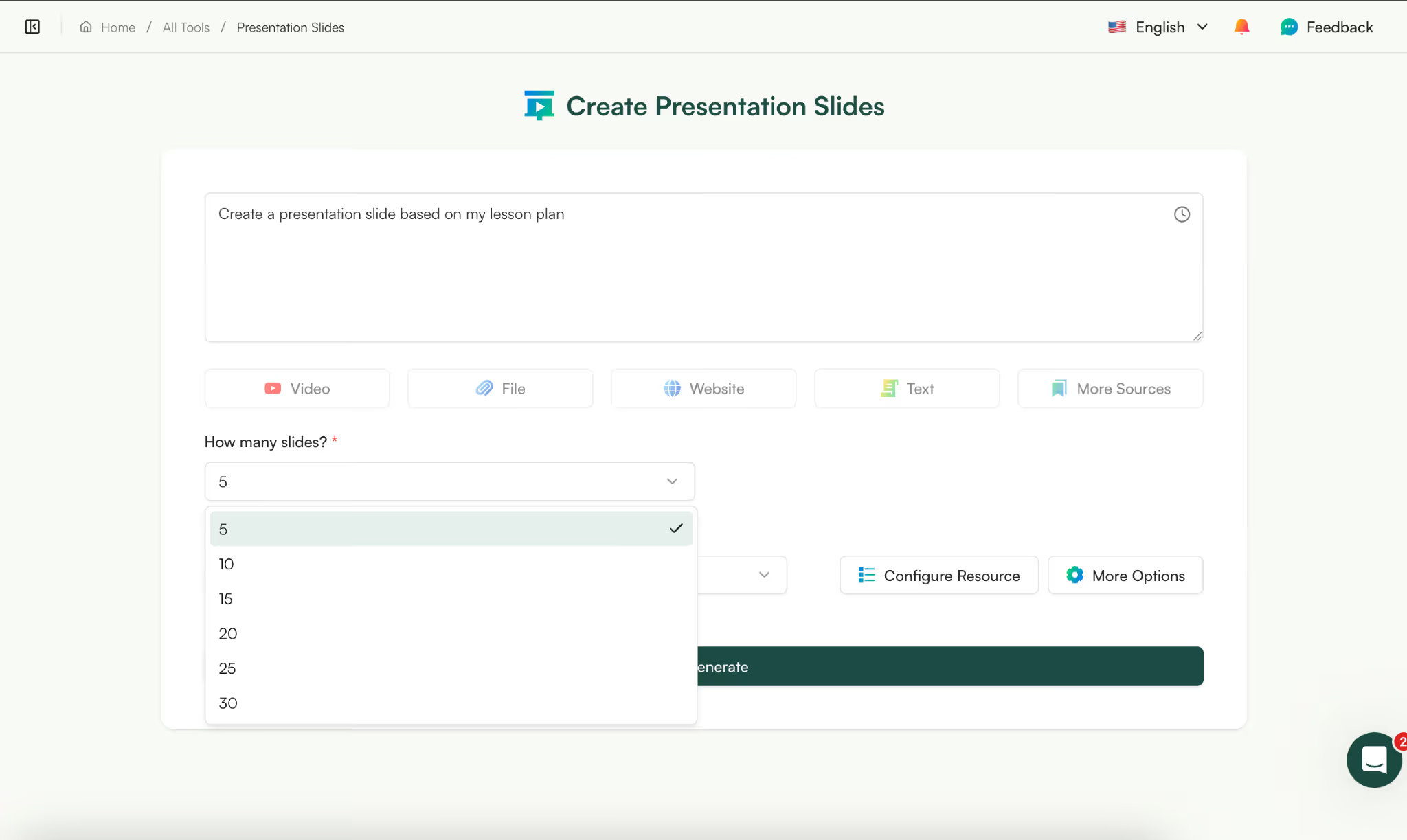
Now decide how detailed you want your presentation to be.
Fewer slides → condensed overview.
More slides → expanded explanations, guided practice, and assessment prompts.
With this setting, you control how your lesson plan will be distributed across the presentation.
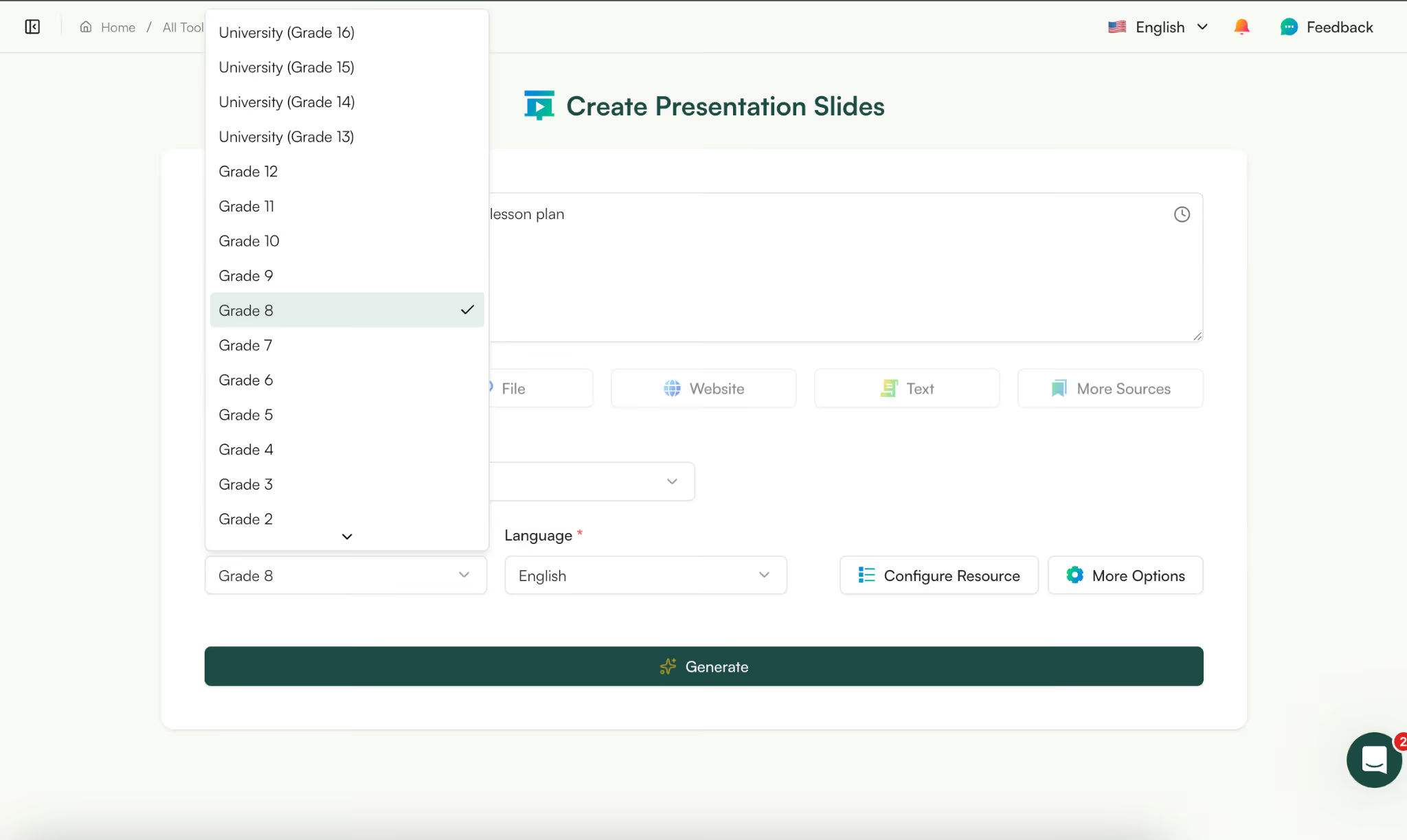
If your slides aren’t attached to a course, Monsha will ask you to choose:
This ensures the vocabulary and explanations in your lesson planning PPT match your students.
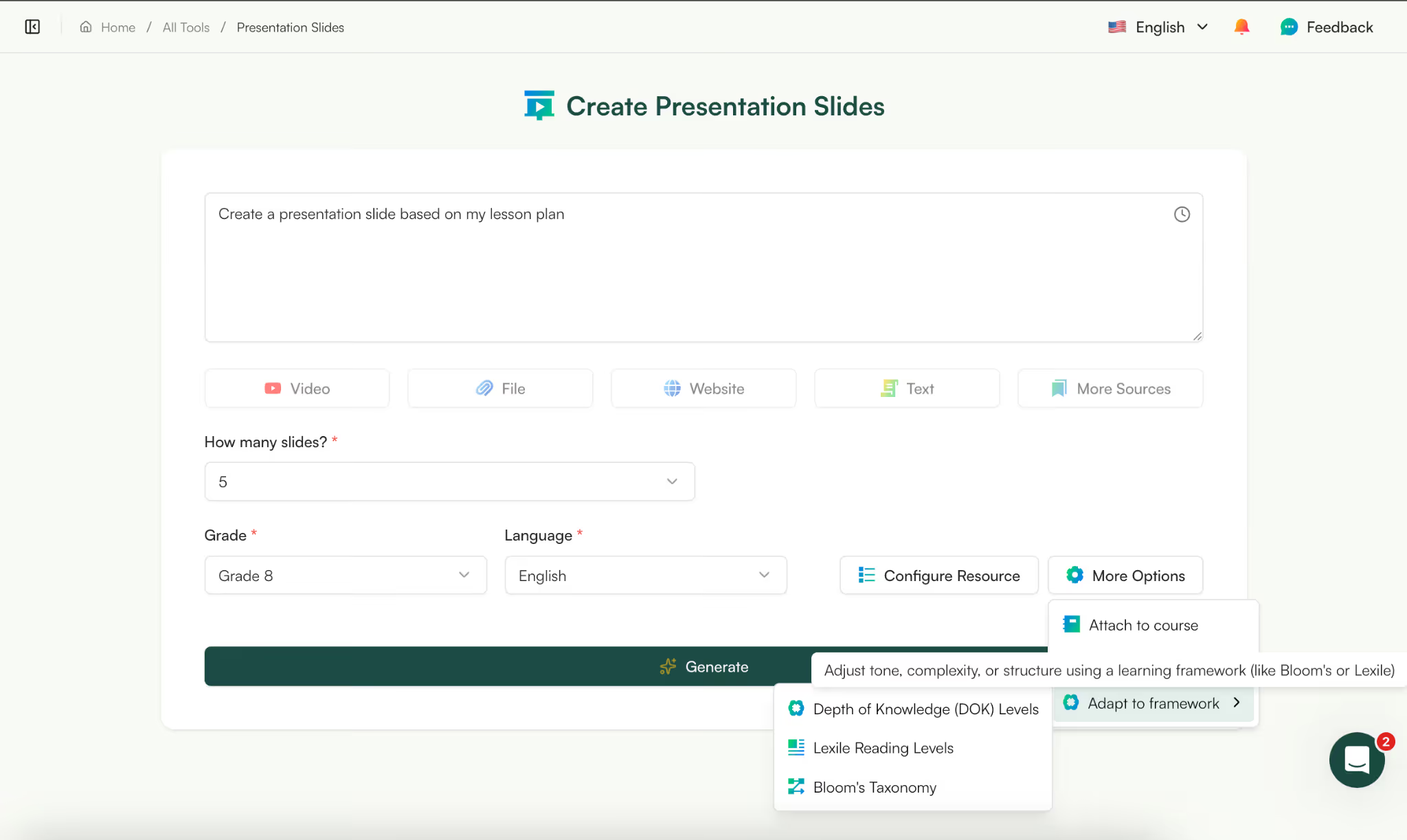
You can further refine your slides by selecting:
This is especially useful when creating differentiated versions of the same lesson planning and presentation materials.
Instead of rewriting content manually, the rigor adjusts based on your selection.
If you need more tips on differentiating your teaching resources, you can join our Facebook community.

When you click Generate, Monsha first creates a structured outline of your slides.
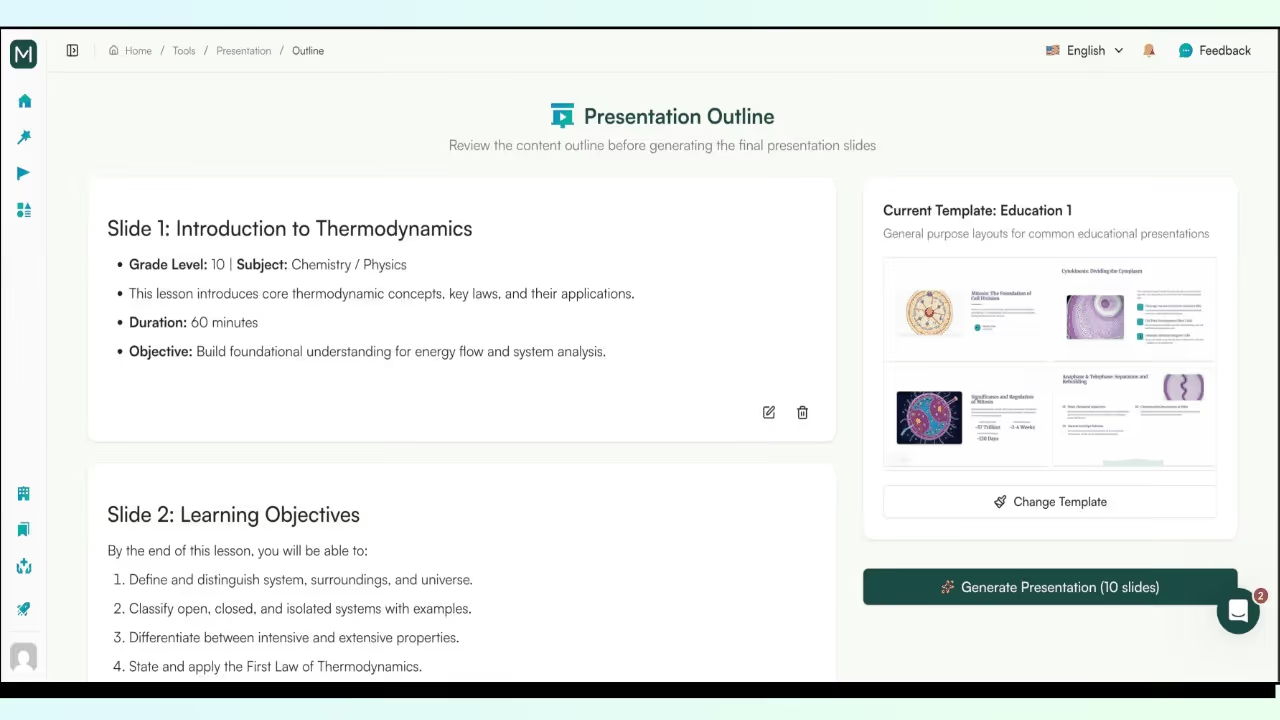
As you can see, my lesson plan was on the topic of ‘thermodynamics’, so Monsha has created a presentation based on the same lesson plan content.
In the outline, you can see:
You can edit the presentation content directly in this view - adjust wording, add bullets, format text - before creating the final deck.
Once everything looks right, generate the final slides.
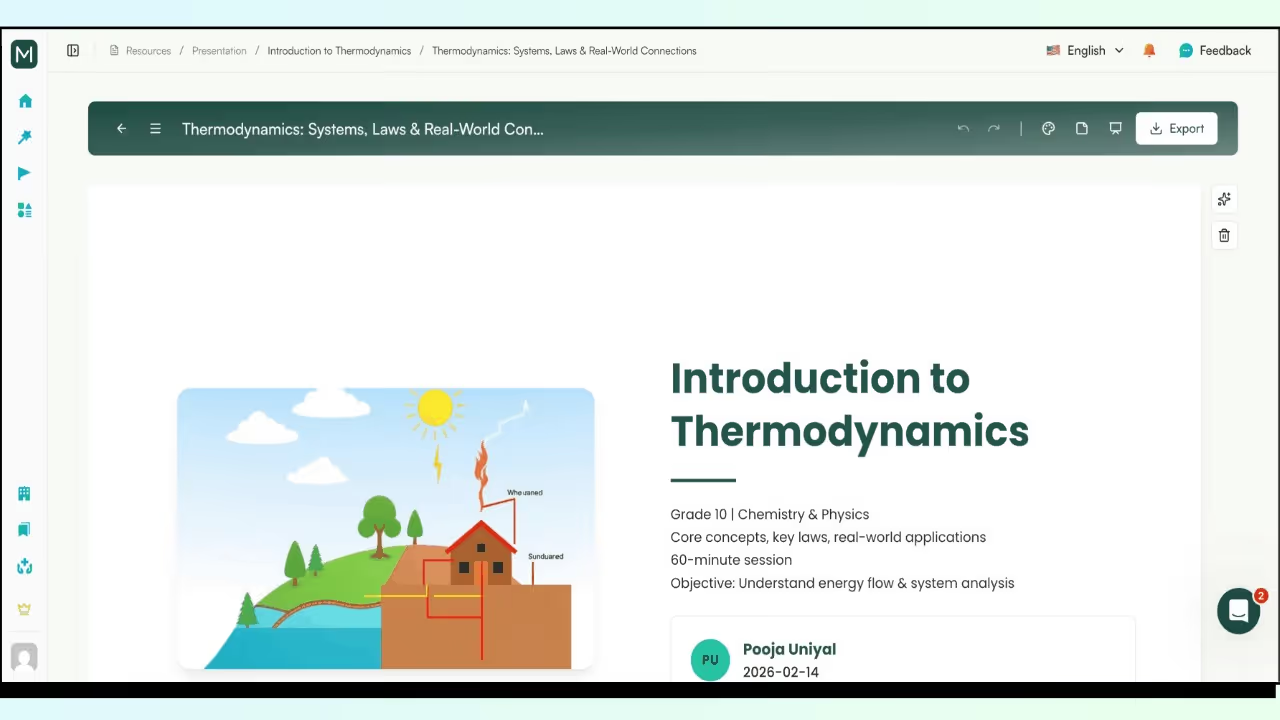
Your written lesson plan becomes a classroom-ready detailed lesson planning PPT without any manually rebuilding slides, restructuring objectives or retyping activities.
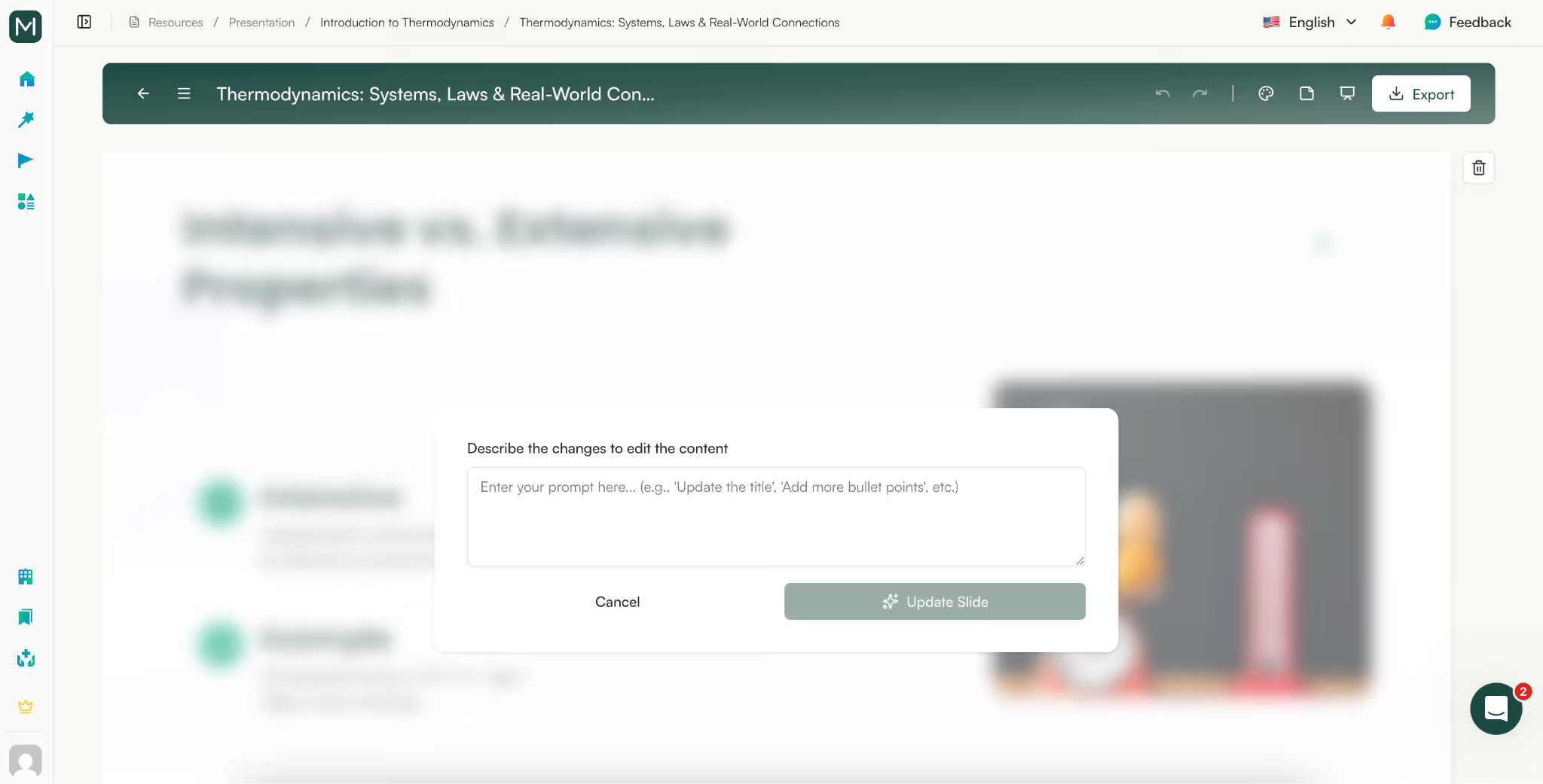
You can open any individual slide, click “Edit,” and ask the AI to refine it. You can simplify explanations, add more examples, strengthen higher-order questions, or adjust tone.
This makes it easy to polish your lesson planning PPT without rewriting content.
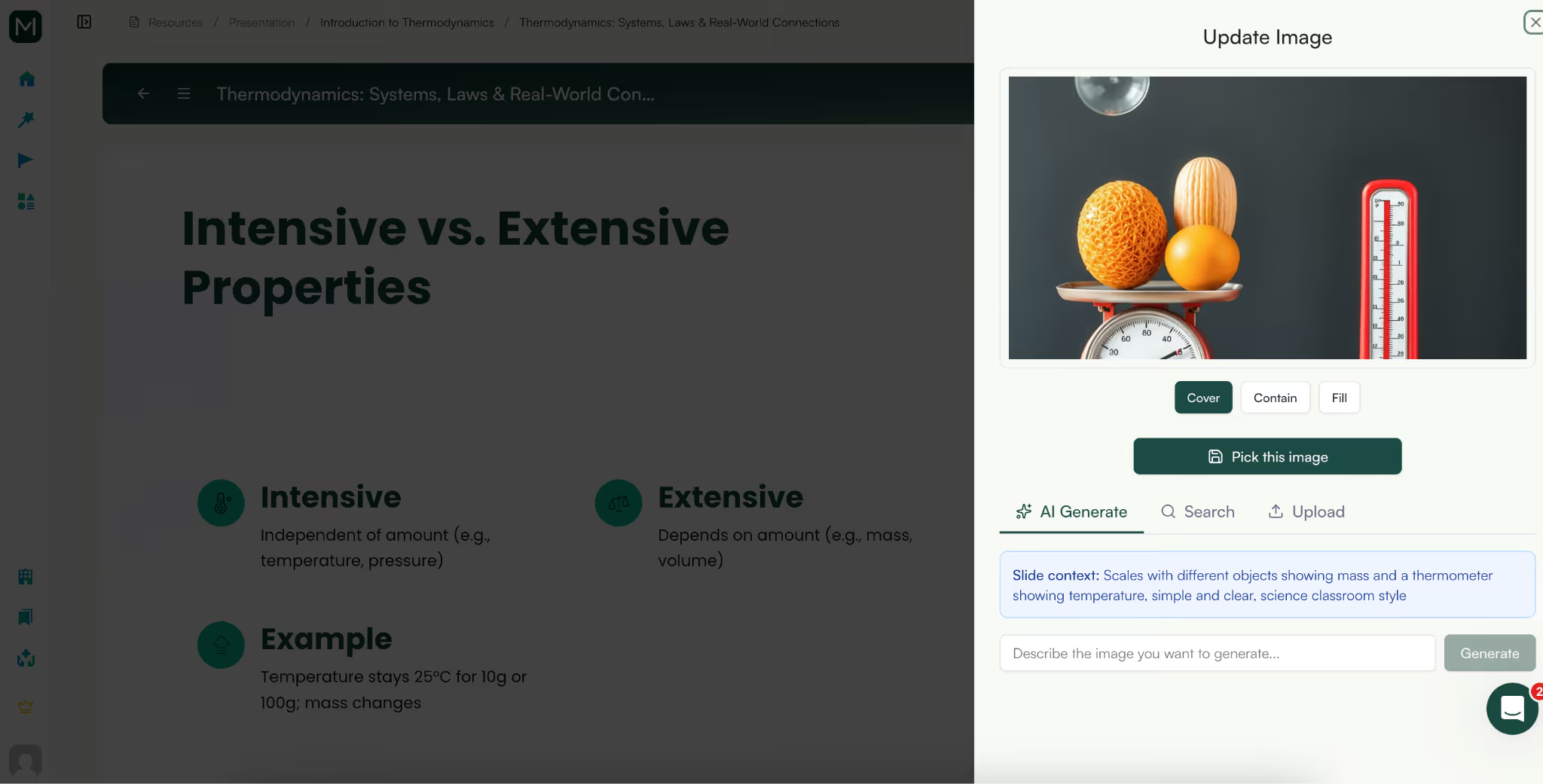
You can also regenerate images separately for each slide. Monsha lets you insert web-based images, create new ones with AI, or upload your own.
Whether you're building a visually rich introduction or a clean, text-focused detailed lesson planning PPT, you have full control over how your lesson planning and presentation materials look.
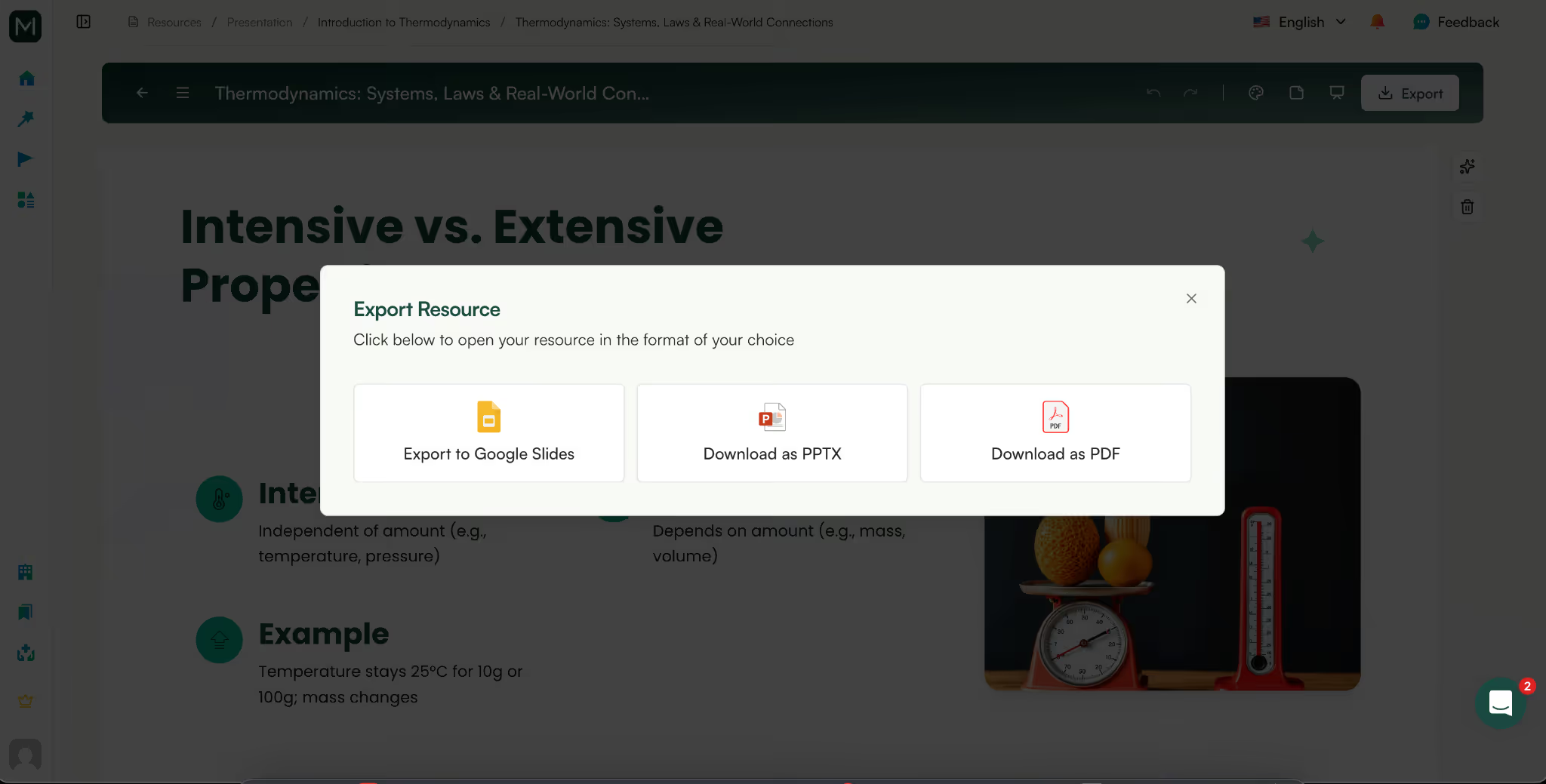
Once finalized, you can download or share your presentation in the format you need - PPT, PDF, DOC, Google Slides, and more.
With most AI presentation makers, your presentation exists in isolation. Everytime you want to create another one, you have to start from scratch and you can’t make use of that presentation to create anything else.
But in Monsha, once you’ve built your lesson planning PPT, you can instantly generate supporting materials from it - worksheets, reading comprehension questions, quizzes, study guides, even a revised lesson plan - without starting over.
There’s no copying content into another tool. No rewriting the same objectives again.
Your lesson planning and presentation materials stay connected, so one resource naturally leads to the next.
And because everything is stored in your Monsha account, you can return to your slides anytime to update them, adjust rigor, or reuse them next term when you need a refreshed detailed lesson planning PPT.
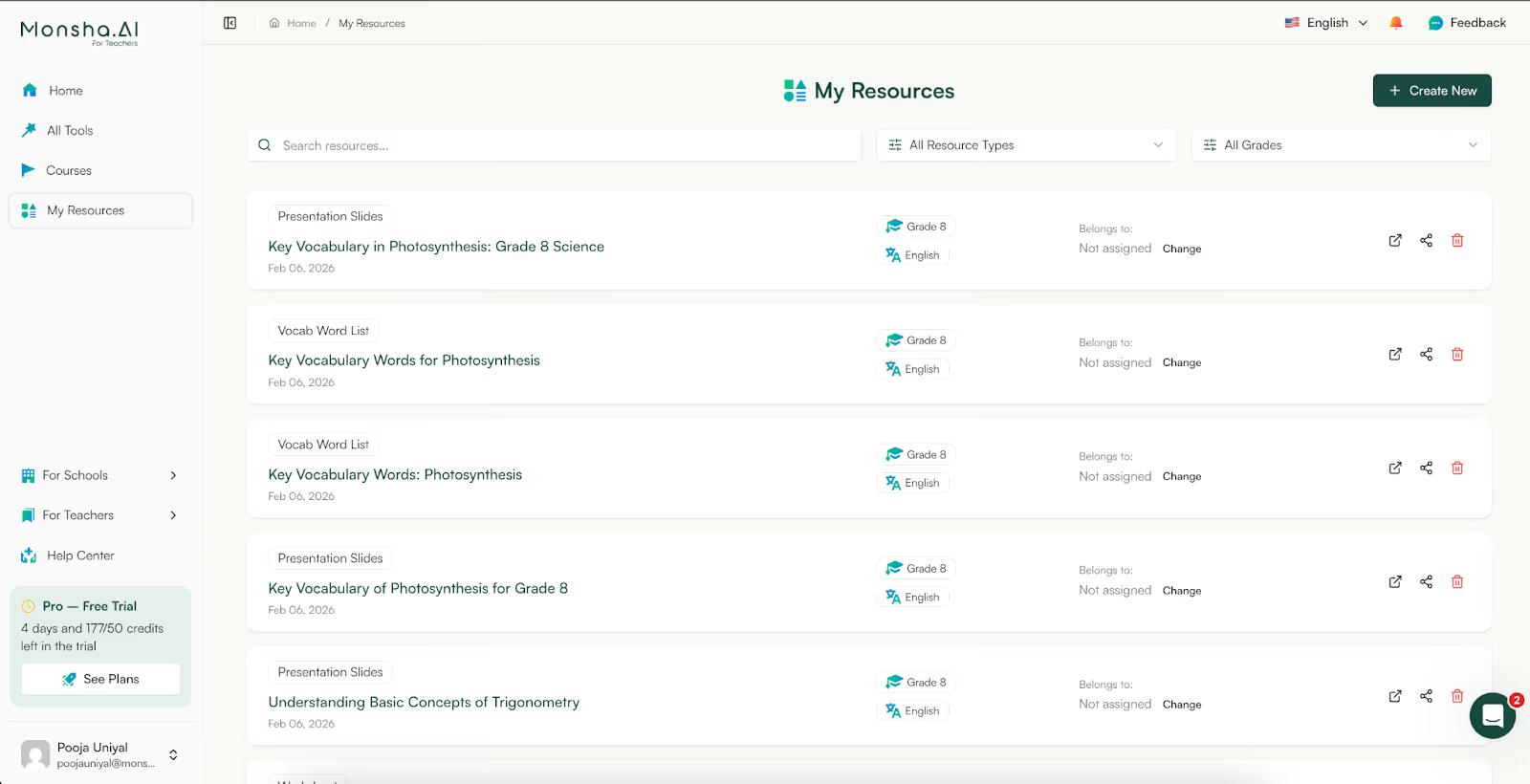
Most AI slide tools are built for business decks. They organize content for pitching ideas, not teaching lessons. Monsha is different. It is built specifically for classroom instruction.
When you convert the lesson plan to PPT inside Monsha, your slides follow a real teaching sequence.
This is what makes it ideal for creating a detailed lesson planning PPT that actually works in a live classroom.
Monsha also accounts for curriculum alignment, grade level expectations, Bloom’s Taxonomy, Depth of Knowledge, and reading levels. Your lesson planning and presentation materials are not just formatted into slides. They are shaped to match how students learn.
If you want a faster, cleaner way to convert lesson plans to PPT without losing instructional quality, Monsha is built for that exact purpose.
Create your next lesson planning PPT with Monsha and see how much time you save while keeping your teaching structure intact.




AI in Education Content
Pooja Uniyal works closely with teachers and schools to understand and guide how AI is being used in real classrooms today. Her work at Monsha focuses on capturing practical teaching workflows and turning them into clear, usable guidance for educators exploring AI in their daily planning.
Join thousands of educators who use Monsha to plan courses, design units, build lessons, and create classroom-ready materials faster. Monsha brings AI-powered curriculum planning and resource creation into a simple workflow for teachers and schools.
Get started for free

.avif)
.avif)