Generate AI report card comments for an entire class using Monsha, or use Claude for a handful of students. A reviewed-draft workflow for teachers.

It's Sunday night. You still have twenty-seven comments to write before Friday, across four subjects, for a class of thirty. You opened ChatGPT once already this weekend, copied the first draft, and paused at the third student because every comment was starting the same way. The tab is still open.
This article walks through two methods for AI report card comments. Monsha's Report Card Comments tool is built for the whole class. Claude is the right tool for the handful of students who need more than a template can give them.
You already know what the one-student workflow looks like. Paste in Jordan's strengths and growth areas, ask ChatGPT for a three-to-five-sentence comment, skim it, copy it into PowerSchool, move on. It's the workflow every teacher blog from 2023 showed you, and honestly, it works fine for Jordan.
The problem is the other twenty-nine students.
By student five, the openings all sound like "Jordan has had a productive term in mathematics," and you're rewriting each one so admin doesn't flag the pattern. By twelve, the phrasing is softening into the same three adjectives, and you're wondering if anyone will notice that Maria and Alex have nearly identical comments for their writing growth. By twenty, the weekend is gone.
The teachers on r/Teachers describing this are describing a volume problem. One of them wrote, "I did like 20 reports in about an hour and a half. Massive time saver." Another teacher, same subreddit, different week: "I got in trouble today because I copy and pasted my comments." Same tool. The first teacher made it under the wire. The second had a principal who read every comment closely.
A tool that writes one good comment doesn't actually save the weekend. It saves maybe the first fifteen minutes of it. You still have twenty-nine more chats to open, student notes to paste, and character counts to check by eye. The class is the unit of work. A tutorial that treats it as thirty single-comment sessions is teaching the part you already know how to do.
One exception worth flagging before we get into the methods. If your district has you on a dropdown menu of pre-set comments with no free-text field, as one teacher described on r/Teachers, this article isn't going to help you fill your SIS on Friday. What it can still help with is the narrative bits most cards leave you with: a learning-skills box, a general comments field, a note home for parents, and whatever end-of-term summary you write outside the official system.
Before you open Monsha or Claude, get clear on what a finished comment actually looks like in your jurisdiction. A finished comment is the reviewed version with your name on it, after you've read and corrected whatever draft the AI produced. Both methods below have to clear that picture. If the picture is fuzzy, the method doesn't matter.
Four parts make up the picture: the required structure, the character limit, what has to be included, and the tone. Three of those four change with where you teach. One stays the same across all of them.
If you teach in a K-6 / primary / elementary classroom in one of the four biggest English-language markets, the rules look like this.
The table is the baseline. For the specific rules your district, board, school, or ministry adds on top, check your reporting handbook or your SIS documentation. The structure rule is the one admin will notice first if you miss it.
Character limits are the quiet part that catches most teachers out, and they're the first thing AI tends to get wrong. Most US SIS platforms (PowerSchool, Infinite Campus, Schoology) cap comment fields somewhere between about 250 and 2000 characters, depending on how the district configures the field. Canadian Edsby and Maplewood boards set their own ranges. SeeSaw at the elementary end does too. You find your district's exact number by typing one character past the visible field and watching the counter turn red, or by asking your instructional coach. Write that number down before you generate anything. Rewriting every comment after the fact is the hidden second weekend you didn't budget for.
Tone is the part that travels across every jurisdiction. Parents read the comment in a kitchen, at night, after work, without your voice in the room. Angela Watson of Truth For Teachers puts it plainly: "You will not be in the room when the parent reads your words, and s/he won't know your tone/intentions." Her working move is to end each comment with a supportive statement so the feedback doesn't feel like an attack. The rule holds at 300 characters in a standards-based US district, and it holds in a Kent primary summer report where the comment fills half a page. Evidence plus a supportive close.
The fourth piece is the one that doesn't change: AI drafts, you review. Whichever method you pick in the next two sections, what comes out of the tool is a draft. You read every comment. You check every name. You catch the sentence that sounds almost right but is wrong. You sign it. The tool doesn't sign it. The review rule isn't a disclaimer tucked at the bottom of the article. It's the working definition of "finished" that every method below assumes, and it's what keeps the twenty-ninth student from being a copy of the first.
You already have the four-part picture from the previous section: structure, character limit, required content, tone. Monsha's Report Card Comments tool handles all four in one pass, whether you're writing for a class of thirty on Sunday or for a single student you want to spend longer with.
It's the same tool either way. Only the input route changes. The review loop is identical.
The starting point is app.monsha.ai/tools/report-card-comments. Open it, and the top of the screen reads "Generate Bulk Report Card Comments."

Monsha offers two input modes on the first screen.
When to use which:
The review features work the same way in both modes.
Four controls sit at the top of the input screen. Set them once for the class. They apply to every student in the batch.
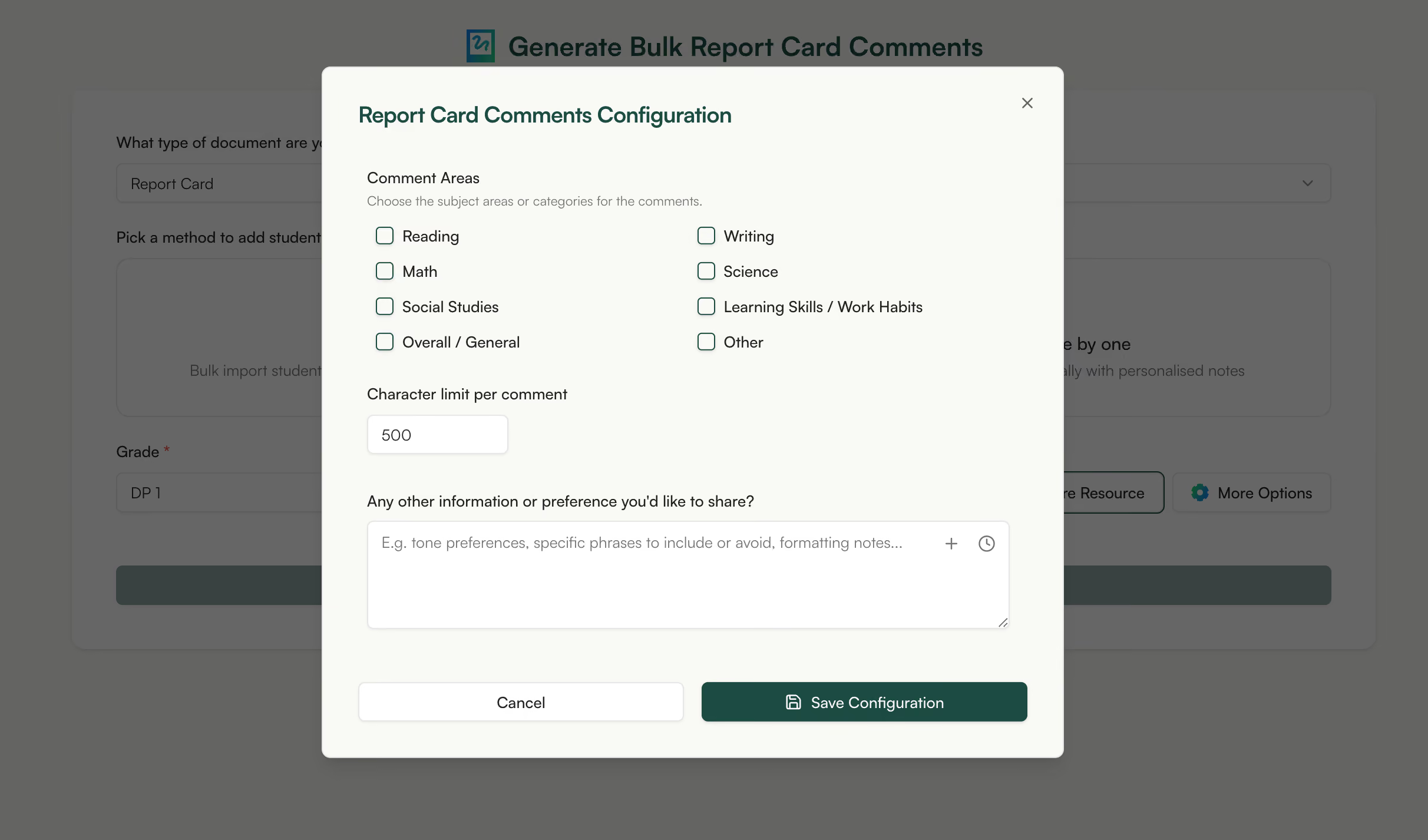
More Options adds lesson attachments, standards alignment, and framework adaptation when you want those folded in.
Click Generate. Monsha drafts one comment per student.

The no-identical-openings rule lives inside this step. It's what stops the twenty-ninth student from reading like a copy of the first. Every comment opens differently, respects the character cap you set, and pulls from the notes you wrote in each student's row.
What you get back is not finished work. It's a set of drafts, one per student, ready for you to read. You can just try it below.
Each comment opens in its own panel. You read the draft, and when a sentence needs work, you have two ways to fix it.
Option 1: Rewrite it yourself in the built-in editor.
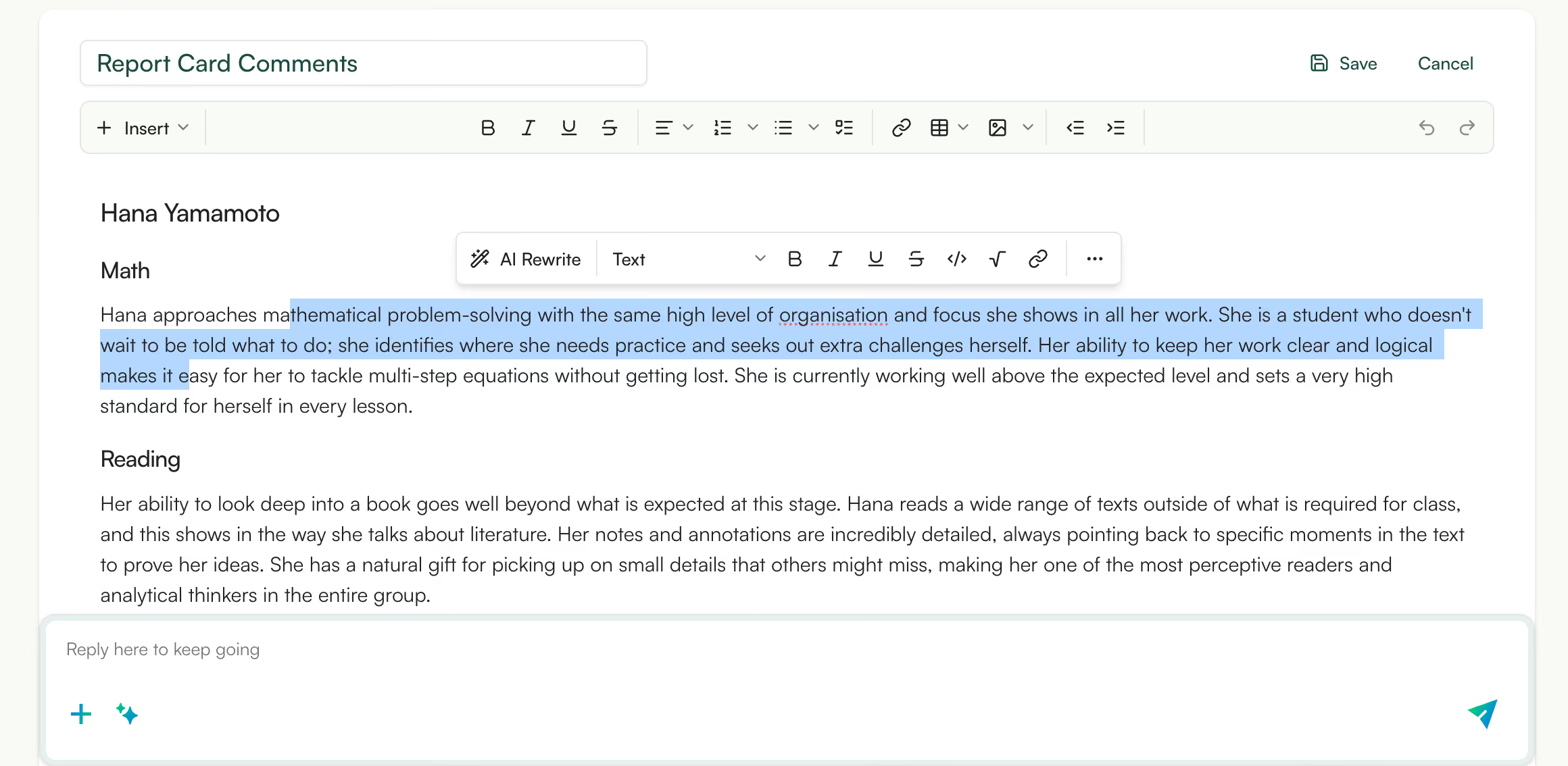
The Edit pane lets you type directly into any comment, the way you would in a word processor. Character by character, sentence by sentence, with the character counter running live against the cap you set. Use it when you know exactly how a sentence should read and you'd rather just write it.
Option 2: Use the AI-powered Quick prompts menu.
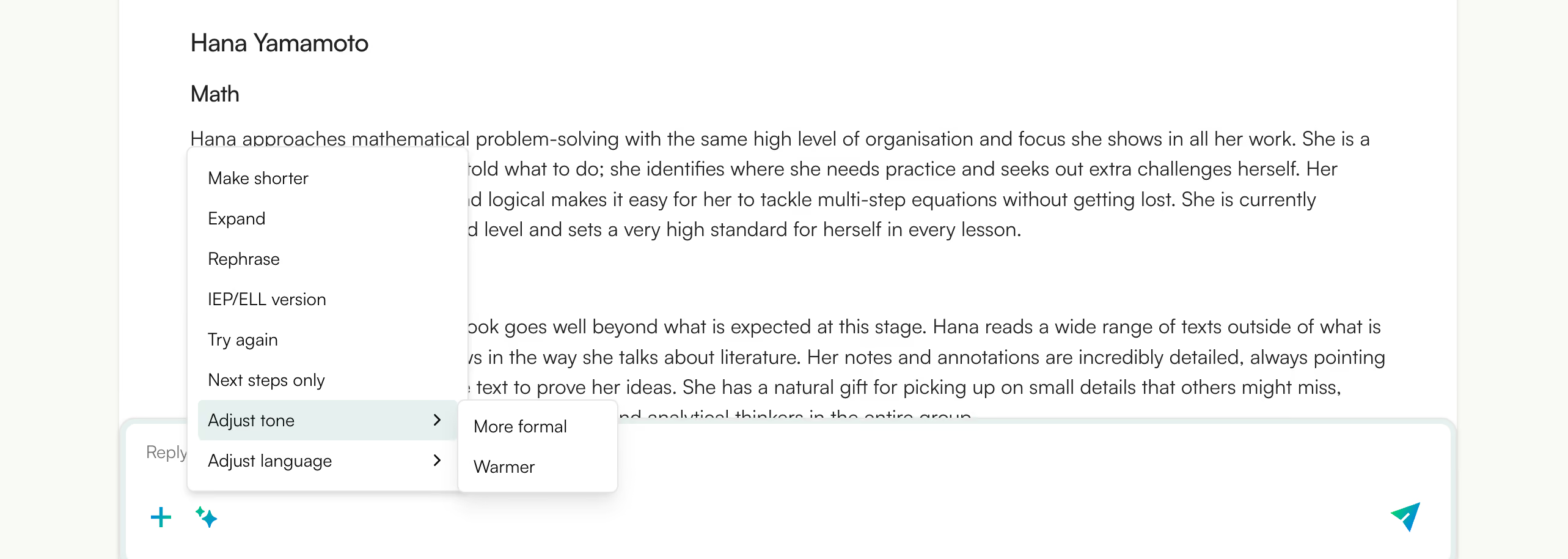
Reach for the one that matches the problem:
A few more review controls sit alongside:
If your board prefers the glow-and-grow comment structure, Monsha has a sibling prompt you can run the same roster through.
Your name is on every comment. Edit rewrites them by hand. Quick prompts rewrite them with AI. Either way, the draft comes from Monsha and the judgement stays with you.
When each comment reads the way you want it to, you have two ways out:
Either way, the reporting round is done when you close the tab.
A handful of students every round need more care than the batch can give them.
Claude earns its place when you have a few students the tool needs to think about, not thirty. If your Sunday finished clean in Monsha and you're now staring at the three or four students who don't fit a template, this is the right moment to open Claude.
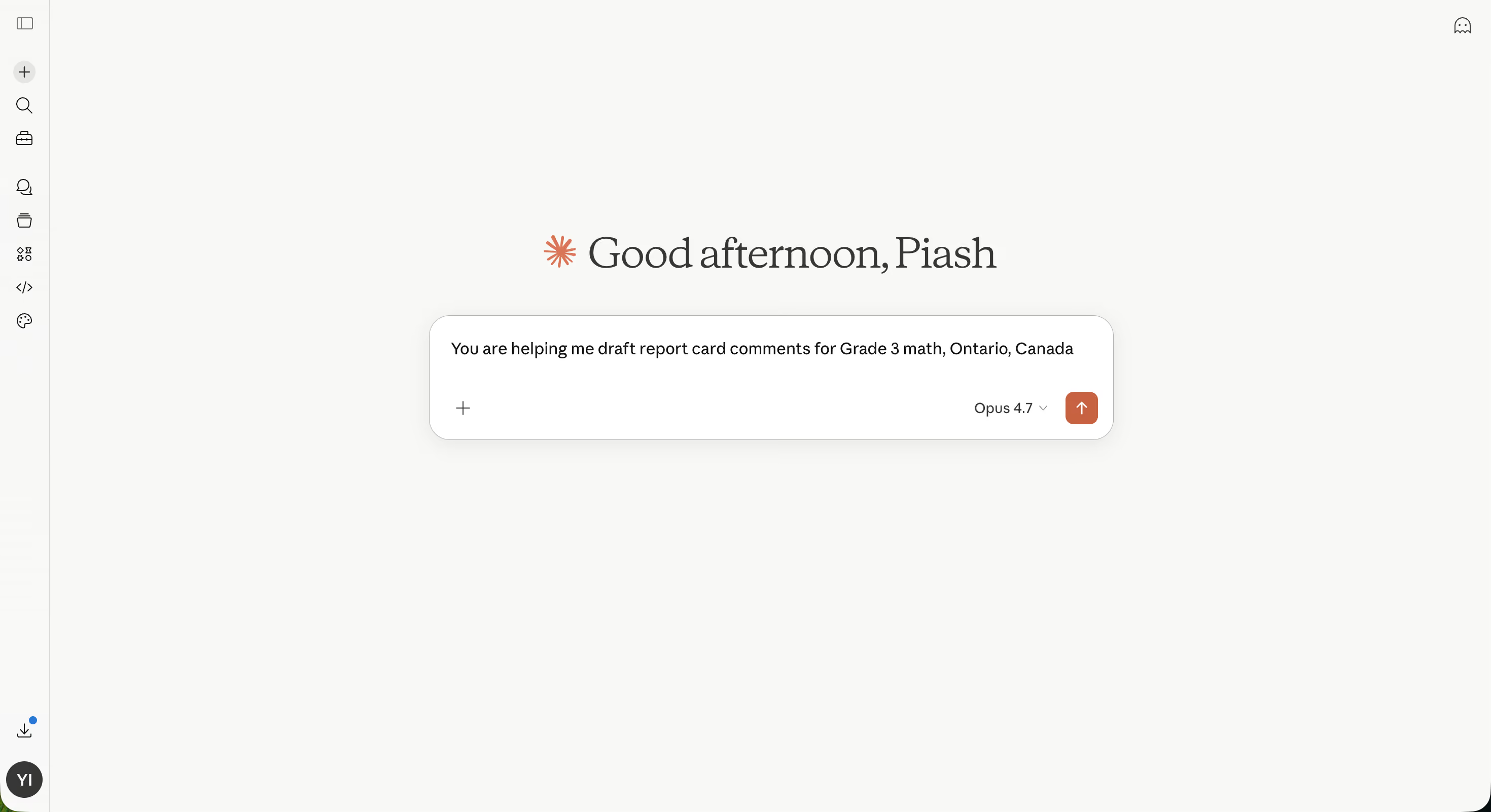
Reach for Claude when:
If none of those apply, the class-level workflow in Method 1 is the faster path.
Paste this into Claude. Replace the jurisdictional block with yours and the student notes with your own.
You are helping me draft report card comments for Grade 3 math, Ontario, Canada.

I need one comment per student below. Each comment must:
- Follow a Strengths / Next Steps structure tied to Ontario's Growing Success policy.
- Stay under 500 characters.
- Use the student's first name twice.
- Open with a different sentence pattern from every other comment in this batch.
- Cite at least one specific piece of classroom evidence from the notes I provide.
- End with a supportive statement.

Return the five comments as a numbered list. After each comment, add the character count in parentheses so I can verify against my SIS cap.

Students:
1. Maya. Strengths: place value fluency, strong mental math. Growth: showing work on two-step word problems. Evidence: 18/20 on unit quiz, lost 3 marks for not labelling units on Q9.
2. Ezra. Strengths: explains thinking aloud. Growth: precision with metric units (cm vs m). Evidence: strong in number talks, wobbly on cm-to-m conversion.
3. Priya. Strengths: persistence with multi-step problems. Growth: checking arithmetic for slips. Evidence: always attempts extensions, loses marks on small errors in otherwise solid reasoning.
4. Kofi. Strengths: visualising fractions on a number line. Growth: reading problems fully before starting. Evidence: perfect on fraction equivalence quiz, answered the wrong question on two word problems this month.
5. Alice. Strengths: collaborates well in math groups. Growth: confidence on independent tasks. Evidence: leads in small groups, freezes on open-ended quiz questions.
The prompt works because every constraint Monsha handles inside its UI, you've spelled out in plain English: jurisdiction, structure, character cap, name usage, opening variation, evidence, and tone. Claude reads the full set before it writes a word.
For a pre-built single-comment prompt you can adapt into any variation of this, Monsha keeps one on the site.
The prompt above holds for five students in one sitting. At thirty, the same approach runs into real problems.
That's not Claude's fault. Claude is a general-purpose chatbot, and the class batch is the job a purpose-built tool handles. When the group is five students, the friction is tolerable. At thirty, it's a second weekend.
The prompt above works in ChatGPT too. It transfers whole. Teachers on r/Teachers who mention better voice-matching tend to cite Claude, but ChatGPT is the one most teachers already have open, which usually decides it. The tradeoffs are the same either way: character limit compliance drifts, context rebuilds every session, and the full list above applies when you try to batch your class inside either chatbot.
One note before you paste. You're sending student names and notes to a general-purpose chatbot. Check your district's AI policy first, and strip names to initials if your policy is strict or unclear.
That check applies to both methods. So do the hardest students in any class.

The 25 students who slot into a template are done. The 3 to 5 who don't are still open in a tab.
These are the IEP students whose comment has to align with a Progress Report you wrote three weeks ago. The ELL or EAL learner whose comment should reflect language acquisition progress, not content-area performance. The student whose notes are honest and mostly unflattering, and who you've been circling around for a week.
Both methods handle this. The mechanics differ.
The first thing to settle is whether the student has accommodations only, or a modified program.
For a student with accommodations only, the comment works the same way as any other. The grade reflects grade-level curriculum. You don't reference the IEP in the comment text. The accommodations help the student access the work, not change what they're being assessed on.
For a student on a modified program, the comment has to name that clearly. ETFO guidance for Ontario teachers requires a specific statement in the Strengths/Next Steps section: the grade is based on expectations in the IEP that vary from the grade-level curriculum. The comment then translates that progress, in plain language, for the family. The IEP Progress Report documents the measurable goal data. Your comment summarises it for a parent who wasn't in those meetings.
Most AI tools don't know what's in the Progress Report unless you put it there. If you also need to write IEP goals this cycle, generate IEP goals using AI covers that workflow.
In Monsha, the IEP/ELL version Quick prompt applies accommodations-first framing to the draft. Then use Chat to add the specific IEP expectations the comment needs to reference. In Claude, a follow-up prompt handles the same job: "Rewrite this comment in accommodations-first language. The student is on a modified Grade 3 math program. The IEP Progress Report documents [goal]. Name the IEP expectations basis." What neither tool can do is decide whether the program is modified or accommodations-only. That call is yours.
Two different comments serve two different purposes. One describes where a student is in their language acquisition. The other describes content-area performance. You need to know which one you're writing.
A Grade 4 student who arrived in September and is reading at a Grade 1 level in English hasn't fallen behind in reading. The comment should reflect where they are in language acquisition. Many ELL parents are also navigating English, and a comment that plainly describes stage-appropriate language growth is easier to act on than one that reads as a generic academic summary.
In Monsha, Chat is the right move: "Revise this comment so it reflects language acquisition progress, not grade-level content performance." In Claude, add an EAL stage column to your student table and a line to the system message that applies the same framing for flagged students.
You know which student this is. The notes are honest and mostly unflattering.
AI won't manufacture strengths that aren't there. What it does is find language for what actually is true. If the only honest anchor in your notes is that a student showed persistence on one specific task, that's where to start.
In Monsha, reach for Next steps only when the draft comes back too strengths-heavy, then use Adjust tone so the comment is supportive without overclaiming. In Claude, write the student's notes honestly, growth areas included, and add a guardrail to the system message: "Do not manufacture positive evidence the teacher hasn't provided."
You still have to review what comes back against what you actually observed. That's true for every student. For this one, it matters more.
The comment that comes back for revision is almost never wrong in every way. It's usually one specific thing: the name used once instead of twice, the opening sentence matching another student's, the character count running over the PowerSchool cap. Your principal is reading 30 of these in sequence. Those patterns are obvious.
You can check for all of it before you send.
In Monsha, run Make shorter first if the draft runs over the SIS cap. Then scan the opening sentences across the batch; if two look similar, use Rephrase on one. The Edit pane handles any line that doesn't read like you.
In Claude, paste the batch's opening sentences at the end of the chat and ask: "Scan the opening sentence of each comment. Flag any duplicates or near-duplicates and suggest a replacement." Claude returns the flags in the same window.
Find one sentence that doesn't sound like you and rewrite it. Not the whole comment. Just that sentence.
In Monsha, Adjust tone shifts the register without regenerating from scratch. The Edit pane puts the text in front of you for a targeted word swap. If one phrase sounds canned, change it and the rest holds.
In Claude, a short voice note in the system message is the simplest fix. Add a line like: "I am a Grade 4 teacher who writes in a direct, warm tone. I say 'works to improve' not 'shows growth,' and 'is still developing' not 'needs improvement.'" Claude applies that across every subsequent draft in the session, without you repeating it per student.
The draft is the starting point. The voice is yours to finish.
Once those eight checks clear, the batch is ready for your SIS.
Both tools do the same thing: they take the blank page out of the equation. The comments still need to be read, adjusted, and checked against every student's actual progress before they go anywhere. That part doesn't change. But showing up to that review with thirty rough drafts already in front of you is a different job than showing up with nothing.
When you're ready to run AI report card comments for your class, the Monsha Report Card Comments tool is where I'd start. Upload your class list, set the grade level and character cap, and let it generate the batch. Read each one before it goes into your SIS. That's the whole workflow.
If you want to use the same kind of approach for other classroom tasks, the tutorial on turning YouTube videos into interactive worksheets is worth a look.




AI for Teachers
We’re the Monsha Team—a group of educators, engineers, and designers building tools to help teachers combat burnout and get back to life.. Our blogs reflect real classroom needs, drawn from conversations with educators around the world and our own journey building Monsha.
Join thousands of educators who use Monsha to plan courses, design units, build lessons, and create classroom-ready materials faster. Monsha brings AI-powered curriculum planning and resource creation into a simple workflow for teachers and schools.
Get started for free


.avif)