Create student-ready mind maps from any topic, lesson, or material with the best AI mind map generator for teachers. Pick a purpose (teaching aid, study guide, brainstorm, chapter summary, or project plan), set the depth, and get an interactive mind map you can edit live, project in class, or print as a handout.
Monsha makes mind map creation flexible, powerful, and refreshingly simple.

Add your topic, lesson notes, chapter PDF, or YouTube link. Pick the mind map type (visual or text-focused), set the purpose (teaching aid, study guide, brainstorm, summary, or project plan), and choose how deep you want to go.

Watch Monsha turn your inputs into a structured, student-ready mind map that shows the connections between ideas, not just a flat list of bullet points.

Add or delete nodes, expand or collapse branches, recolor, or use one-click prompts to go deeper, simplify, rephrase for the grade, or change the purpose. Then print, export to slides, or send to your LMS.
Monsha takes you from a topic to a finished mind map and through every adjustment after, so the same map fits your projector, your handouts, and your LMS.
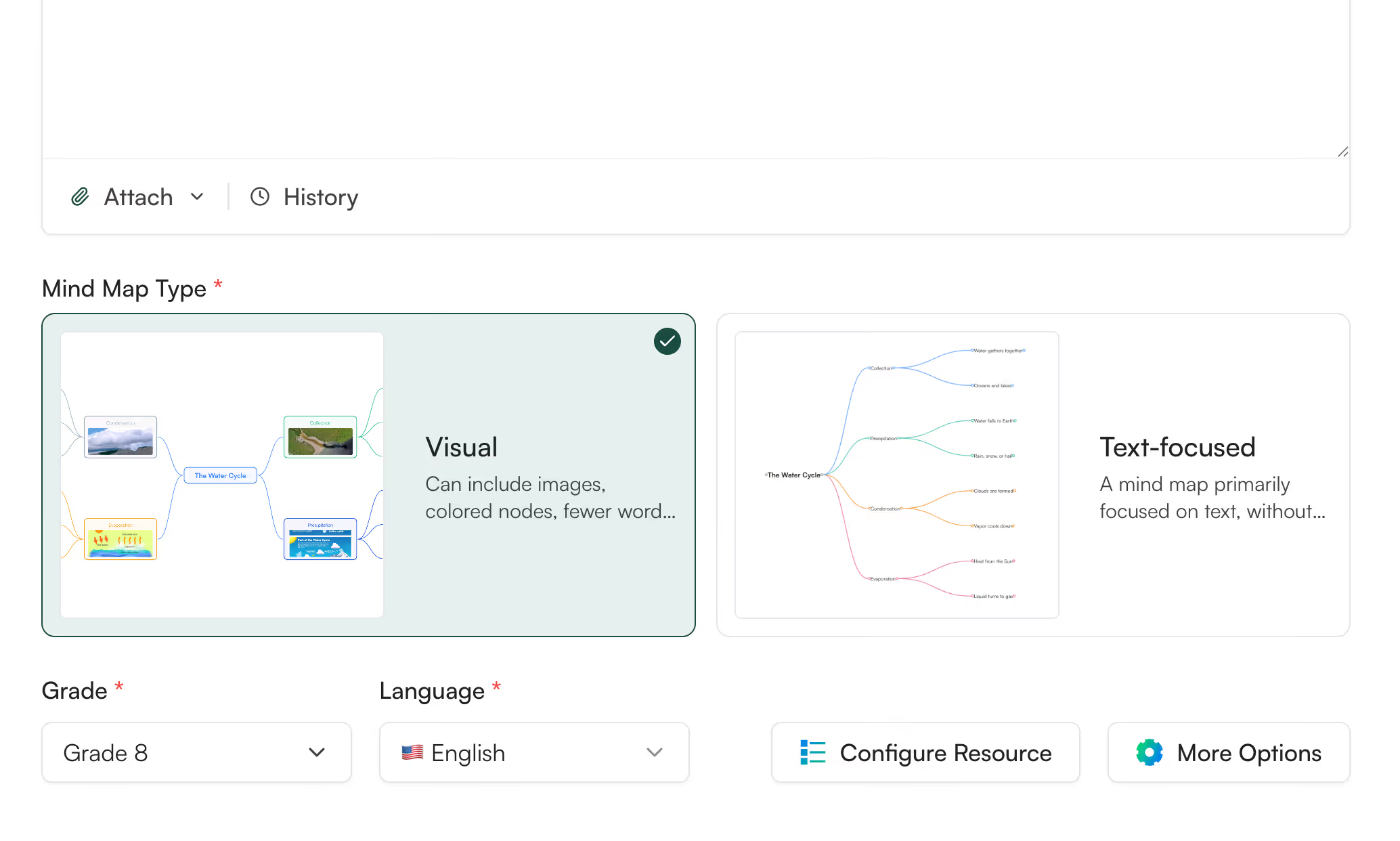
Same prompt, two outputs. Visual mode renders colored branches with images on key concepts, built for the classroom screen. Text-focused renders dense, image-free nodes, built for handouts and revision sheets. Switch styles at input or after generation, and the same content takes its new shape.

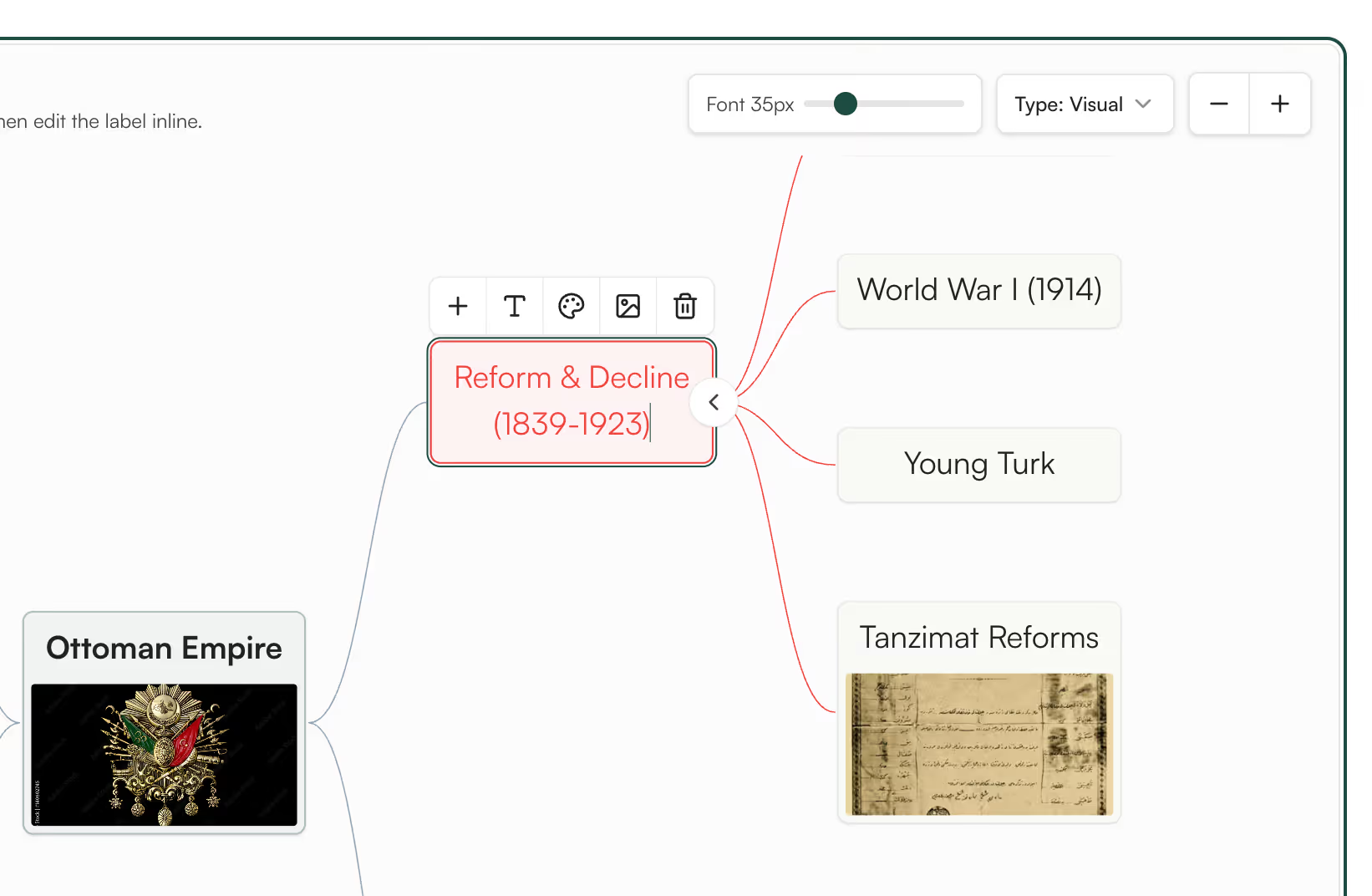
Your mind map is a living canvas, not a final artifact. Add or delete nodes, edit any text, change colors and sizes, expand or collapse branches at any depth, zoom in to focus on a section, pan to present. Tweak the structure to fit your class without re-prompting from scratch.
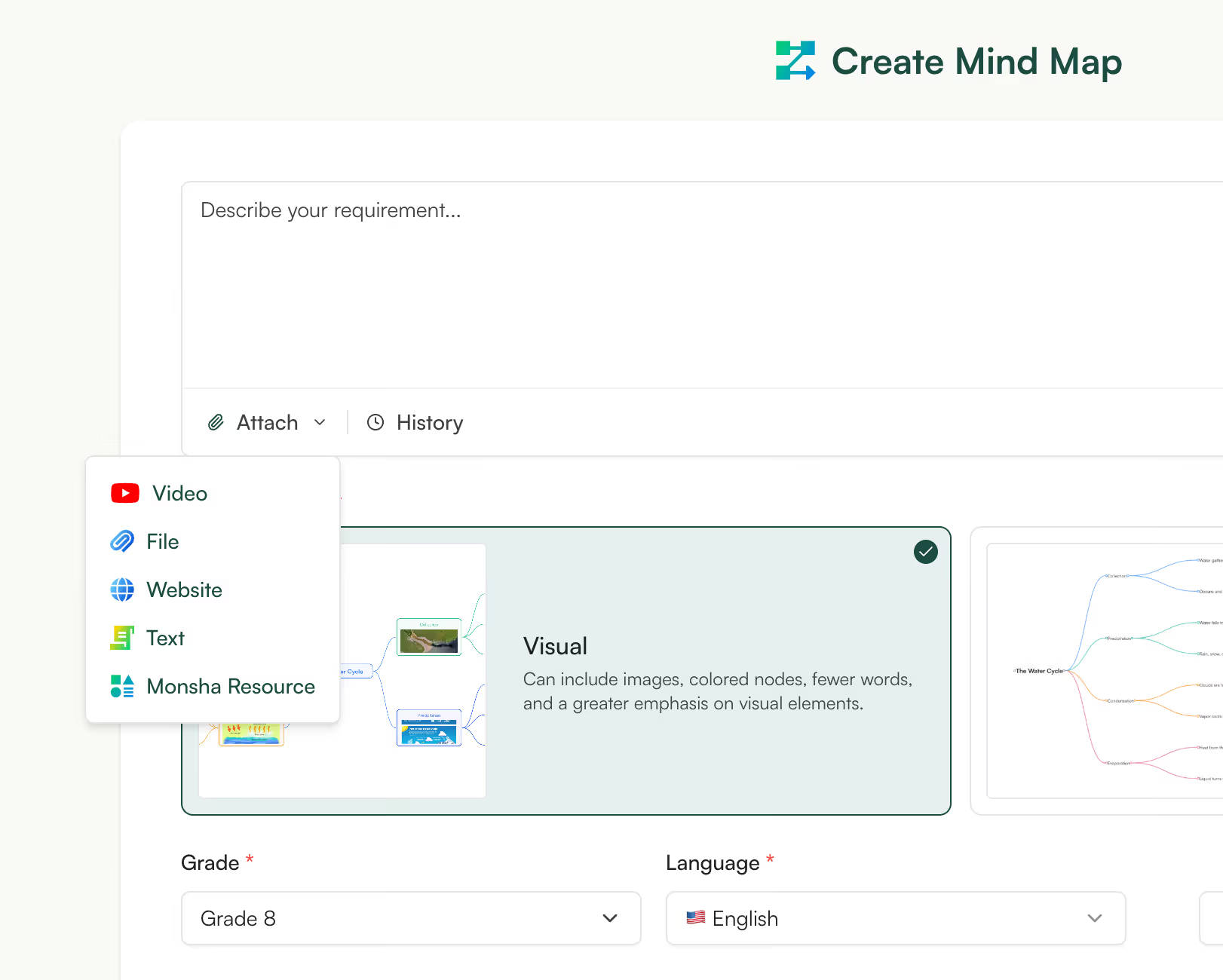
Drop in whatever you teach from and the map shapes around it. A topic, a paragraph, a textbook chapter PDF, a YouTube lecture, a website, your own lesson notes, or another Monsha resource. Combine multiple sources in a single map.
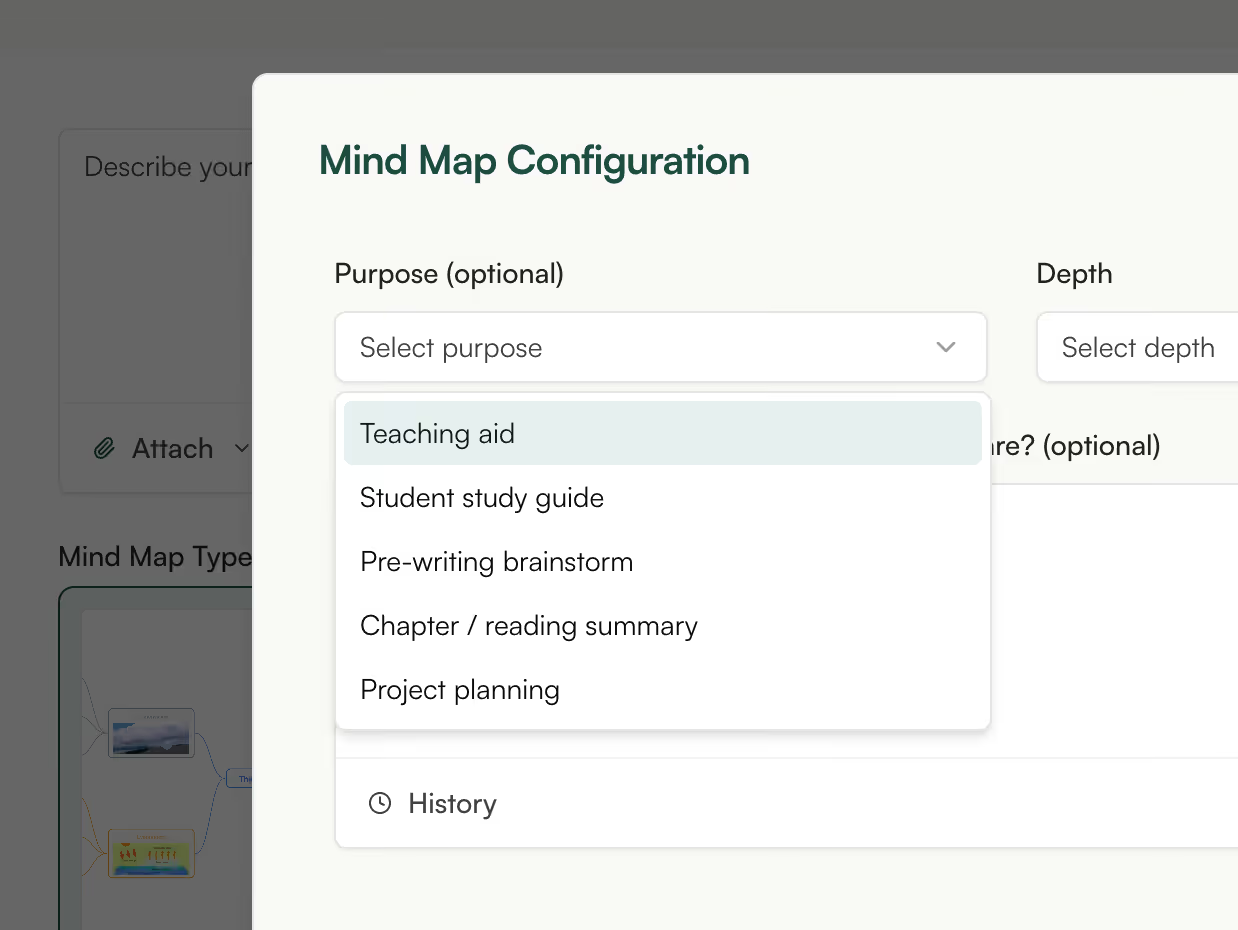
Pick a purpose and the map is built for that job: Teaching aid for balanced classroom coverage; Student study guide for recall and definitions; Pre-writing brainstorm for open exploration; Chapter summary for source-faithful structure; Project planning for sequential sub-tasks. Set the depth, then refine with one click.
Translate the map to 60+ languages for ELL students, or adjust it for grade or Bloom's. Export to PDF, image, Google Drive, or your LMS, and link it to a lesson or standards so it sits inside your unit. Turn the same content into a worksheet, slide deck, or quiz in one click.
This mind map generator is part of the AI tools created for teachers by Monsha. Whether you're an experienced educator or new to the classroom, you can use Monsha as the all-in-one hub for curriculum and lesson planning, daily teaching resources, quizzes, worksheets, and quick differentiation. Every map, lesson, or resource you make stays connected for the full school year, free to start.
Try it nowA mind map is a diagram that starts with one central idea and branches outward into related sub-ideas, showing how concepts connect. Teachers use mind maps to introduce a new topic, summarize a chapter, organize a brainstorm before writing, build a vocabulary web, or recap a unit before a test. The visual structure helps students see the shape of a topic, not just a list of facts. Used in front of a class or handed out as a study aid, a good mind map turns a complex topic into something a student can take in at a glance.
Both organize ideas visually, but they work differently. A mind map starts with one central topic and radiates outward into branches and sub-branches. A concept map can have multiple starting points, with labeled lines describing the relationships between any two concepts. Monsha's tool generates mind maps with a single central node and hierarchical branches, which is the format teachers most often use for brainstorming, summaries, and study guides.
How do students use mind maps to study or revise?
Students use mind maps to compress a chapter, lesson, or topic into one page they can review at a glance. The branches make hierarchy and connection visible, which helps with recall, especially for vocabulary, definitions, and cause-and-effect relationships. A study-guide mind map foregrounds what they need to remember for a test, with definitions and recall cues sitting under each main branch. In Monsha, you can generate a student study guide version of any topic and switch to text-focused mode for printing.
What's the best way to use a mind map for pre-writing or brainstorming?
Start with the writing prompt or topic at the center, then branch out without filtering. Every related idea, question, or angle goes on the map. Once you have a wide first pass, collapse the weaker branches, expand the strongest, and use the structure as the outline for the piece. Monsha's brainstorm purpose mode seeds the map with exploratory questions rather than closed answers, which keeps students generating instead of stopping.
What's the difference between the Visual and Text-focused mind map styles?
Visual mode renders the map with colored branches and illustrative imagery on key concept nodes, designed for projecting on a classroom screen. Text-focused mode renders dense, image-free nodes with more text per node, designed for printing as handouts or revision sheets. The same content can be generated in either style, and you can switch from one to the other after generation without re-prompting. Pick visual when you're teaching with the map in front of students, and text-focused when students will be reading the map on paper.
Can I generate a mind map from a textbook chapter, PDF, or YouTube video?
Yes, attach any source material to the prompt and Monsha builds the mind map from it. Paste in plain text, drop a chapter PDF, share a YouTube link, or use a website URL. You can combine multiple sources in a single map, so a chapter PDF and a related lecture video can feed the same output. This is the fastest way to turn dense source material into a one-page visual a student can actually scan.
How do I pick the right Purpose for my mind map?
Pick the purpose by what you'll do with the map, not the topic of the map. Choose Teaching aid for a balanced map you'll project while teaching, Student study guide when the map is for revision, Pre-writing brainstorm for open exploration before a writing task, Chapter or reading summary when you want the map structurally faithful to a source, or Project planning for sequential, action-oriented sub-tasks. The same topic generates a different map in each purpose mode. If you don't pick one, Monsha defaults to Teaching aid.
How much can I edit the mind map after generating, can I add, delete, recolor, or restructure nodes?
The mind map is a fully interactive canvas, not a static image. Add or delete any node, edit the text inside any node, change colors and sizes, expand or collapse branches at any depth, and zoom or pan to focus on a section. You can also use one-click Quick Actions to ask the AI to rebalance branches, simplify the map, go deeper, or add examples to leaf nodes. Between manual edits and AI-assisted refinements, you rarely need to re-prompt the map from scratch.
Can I export the mind map as a PDF, image, or to Google Drive?
Yes, export to PDF, PNG, JPEG, or WEBP, or send the map directly to Google Drive, Google Docs, or your LMS. You can also share a public link with colleagues or students, with no signup needed on their side. For projection, export as an image and drop it into your slides; for handouts, export as PDF and print at A3 or A4 for clarity. More LMS integrations are on the way.
How do I adapt the mind map for a different grade or for ELL students?
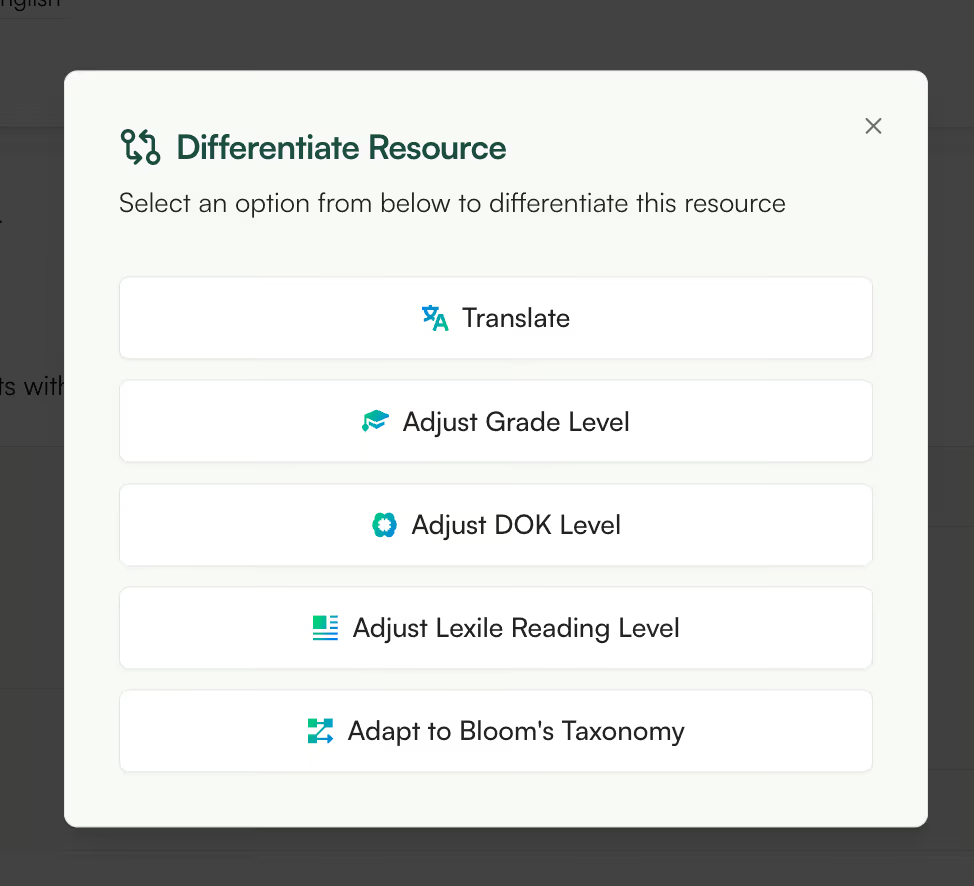
Use Monsha's Differentiate panel to translate the map into 60+ languages, or adjust for grade level, Bloom's taxonomy, DOK, or Lexile level, in three clicks. The same content stays, only the language and complexity shift. For an ELL student, generate the map in English and then differentiate into the student's first language to get both copies side by side. You can also use the Quick Action "Rephrase for students, simpler language" to rewrite the map without changing the structure.
How accurate is an AI-generated mind map?
Accuracy depends on the source material and the topic. When you feed the AI specific source material (a chapter, a lesson plan, a video), the map closely reflects what's in the source. For broad topics generated from a short prompt, the map covers the conventional structure of the subject well, but you should still scan it for anything missing or off. Treat any AI-generated map as a strong first draft you'll edit, not a final artifact. Every Monsha mind map is a fully editable canvas, so a teacher's eye is the last check before students see it.
Is the AI-generated mind map interactive, or just a static image?
Fully interactive. After Monsha generates the map, you can add, delete, or edit any node, expand and collapse branches, change colors and sizes, and zoom or pan around the canvas. You can also use one-click Quick Actions to refine the AI's structure: go deeper, simplify, rebalance branches, change the purpose, or rephrase for a younger grade. When you do need a static export for slides or print, the same map renders to PDF, PNG, or your LMS. The map is editable the moment it's generated, no separate "edit mode" to enter.
What if a branch is too dominant or the map looks unbalanced?
Use the Rebalance branches Quick Action and the AI redistributes content so no single branch dwarfs the others. If the issue is depth, where some branches sit at three levels and others at two, the Adjust depth action can level them out. For local fixes, click into the unbalanced branch and prune or rewrite nodes manually. The canvas is fully interactive, so a small edit doesn't require re-prompting from scratch.
Will AI mind maps replace teacher-made graphic organizers?
No, the goal is to save the time of building a map from scratch, not to replace teacher judgment. The AI gives you a structurally sound first draft. You decide what to keep, what to cut, and what to reframe for your students. A mind map made for your specific class, with your wording and your emphasis, will always teach better than a generic one. Monsha's AI mind map generator is built to give you that first draft fast, so you can spend more time on the teaching call than on the layout.
Can I use this mind map generator for free?
A:Yes, you can use Monsha's AI mind map generator on the free plan. Sign up for a free Monsha account with no credit card, and you'll get access to the mind map tool plus the rest of the platform (worksheets, quizzes, lesson plans, rubrics, and more). Free generations are capped per month; if you hit the limit, you can upgrade or wait for the next cycle. There's no separate trial of the mind map tool. What you see is what you keep using.
Which grade levels does the Mind Map tool support?
Every grade, from early primary through high school and beyond. Pick the grade in the input form (or let Monsha auto-fill from your last setting) and the AI calibrates the depth, vocabulary, and complexity of the map for that level. You can also generate a map at one grade and use the Differentiate panel to adapt it down or up for a different group. For older students, choose Detailed depth (4+ levels) and a more formal register; for younger students, use Overview or Standard depth and the "Rephrase for students" Quick Action with simpler language.

Palm Beach County School District, Florida

I’ve been speaking to everyone about the ease of your site. I enjoyed the fact that there were different question types and that you were able to modify the question levels or styles without much effort. Using it almost every day to redo and update assignments.
I really am enjoying Monsha and can’t wait to spread the word about it.

Central Holmes Christian School, Lexington, MS
I use Monsha a lot. Sometimes I even feel like I’m bothering y’all with how often I’m on it 😅 but I really appreciate this app so much. Even during summer break, I’m using it to get ahead on lessons for next year.
.avif)
Ohse Home School, Oklahoma
I love this platform - this has made homeschooling easier for me from planning lessons to creating spelling, reading and English worksheets.
It's been a life-saver for my school year no matter what your religion may God bless you all!

Zenith International School, Malaysia
Your presentation content is great based on the pdf file I provided. I teach maths in my case i needed to make presentation more interesting for the kids, not boring blank pages with text. Like artworks, graphics or real images that relate to my subject. Thank you for that 😍

Professional Learning Developer
This tool is fantastic! This really makes it more of an all-in-one-stop shop for me now that you've added the PPT tool upon my request.
It is very intuitive as far as the prompt is concerned. And I like the options to add links, content, previous resources, and especially the YouTube feature.

High school math teacher in the US
The worksheets look great. Thank you so much for taking care of this, it's so rare to find a resource that works with latex for math! I'm thrilled!

Khuangnapittayakun School, Thailand
I can create an entire course to include grading rubric within minutes when before it would take me weeks.
In S.E. Asia, the resources are whatever teachers can pirate but Monsha has changed that for me.. now I can create and enjoy the task for a change.

Italian teacher and trainer
Monsha was a wonderful discovery, and I always recommend it in my AI training courses!
The tools they offer are all very effective, but my favorite is "Comprehension Questions," one of the best I've tried across various platforms! Great work!

Maths Teacher, The Teach for Nigeria
I've shared this tool to my colleagues here in Nigeria and they are already falling in love with it.
I actually do use Monsha for everything. From baseline assessment to lesson planning to formative evaluations and of course to summative assessment.

English Teacher, Educación de la prov. Argentina
I was fortunate to chat directly with you guys (creators). Every suggestion I shared was received with enthusiasm, you worked on it and got back sincerely.
I have been impressed with how you improve it based on the actual needs of educators. And kept it clean and simple.
Join thousands of educators who use Monsha to plan courses, design units, build lessons, and create classroom-ready materials faster. Monsha brings AI-powered curriculum planning and resource creation into a simple workflow for teachers and schools.
Get started for free
